Plans and Storage
Introduction
Your Drive plan sets how much encrypted storage your account has. One plan covers your whole account, on every device. Files you upload by hand, photos backed up by Camera Uploads, and anything you add from the console or the desktop app all count toward it.
The app shows which plan you are on and how much of it you have used. To subscribe to a plan, change it or cancel it, use the Hippius Console in a web browser. The app picks up the change by itself.
Which plan you start with
That depends on how you sign in:
| How you sign in | What you get |
|---|---|
| Google, GitHub or Apple | The Free Drive Plan: 10 GB of encrypted storage, with no payment details needed. You can upload, back up your photos and share links straight away. |
| Access key (your 12-word recovery phrase) | No free storage. Subscribe to a plan in the console before your first upload. |
When you need more space, paid plans go up to many terabytes and are billed monthly. Plans and prices change from time to time, so the console always has the current list. Drive plans in the console guide explains how paying works, including topping up your balance by card, Bitcoin, USDC, or TAO.
What the app shows
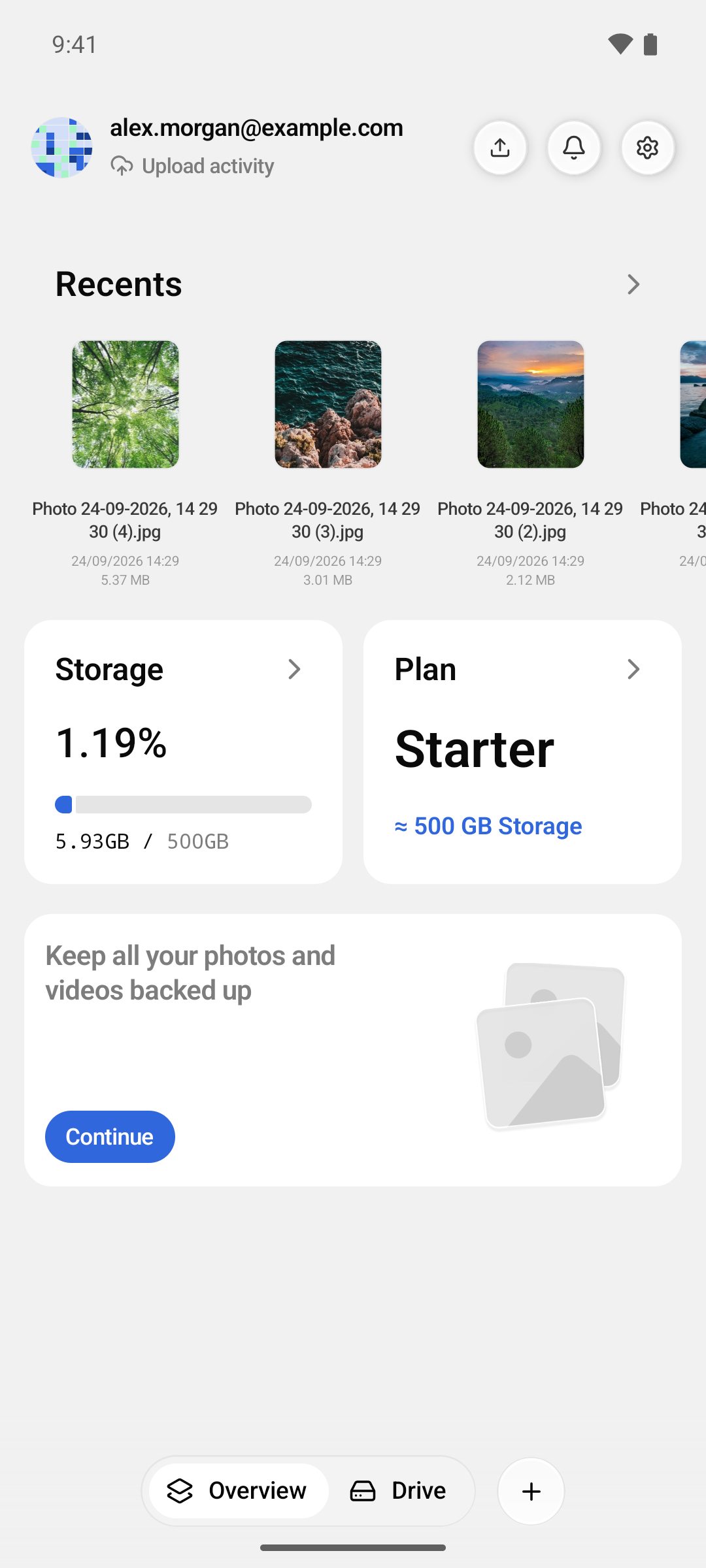
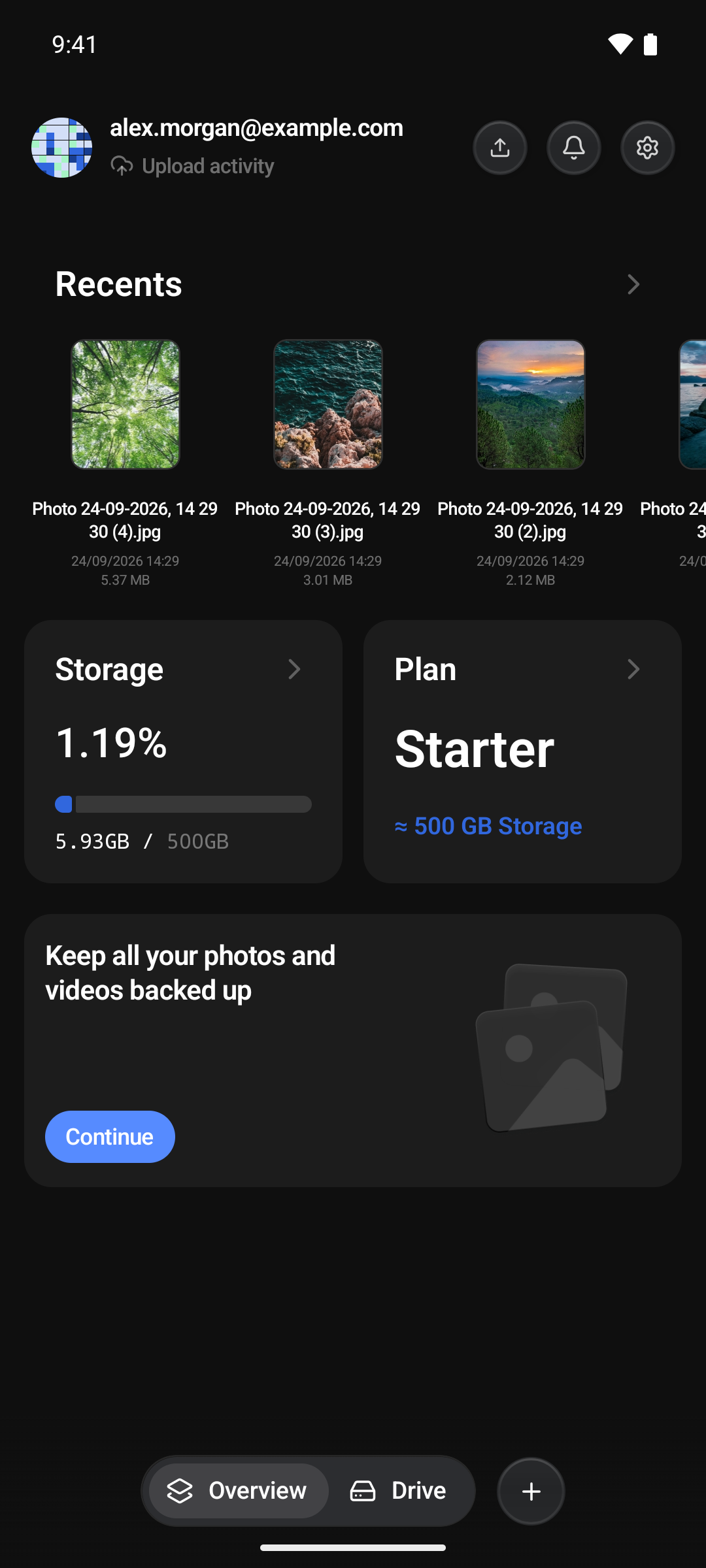
Two cards on Overview sum up your plan and your storage. Tap either one for more detail.
Your plan
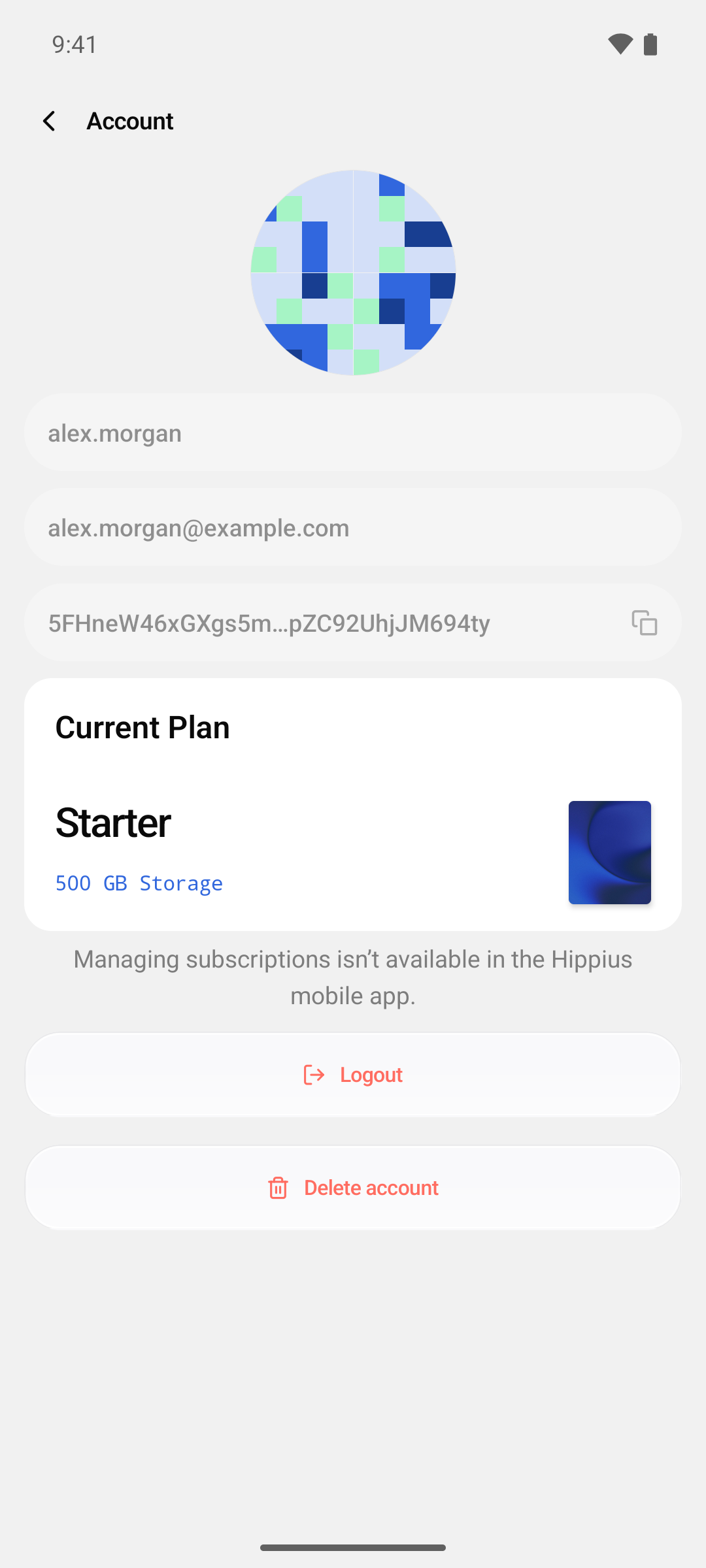
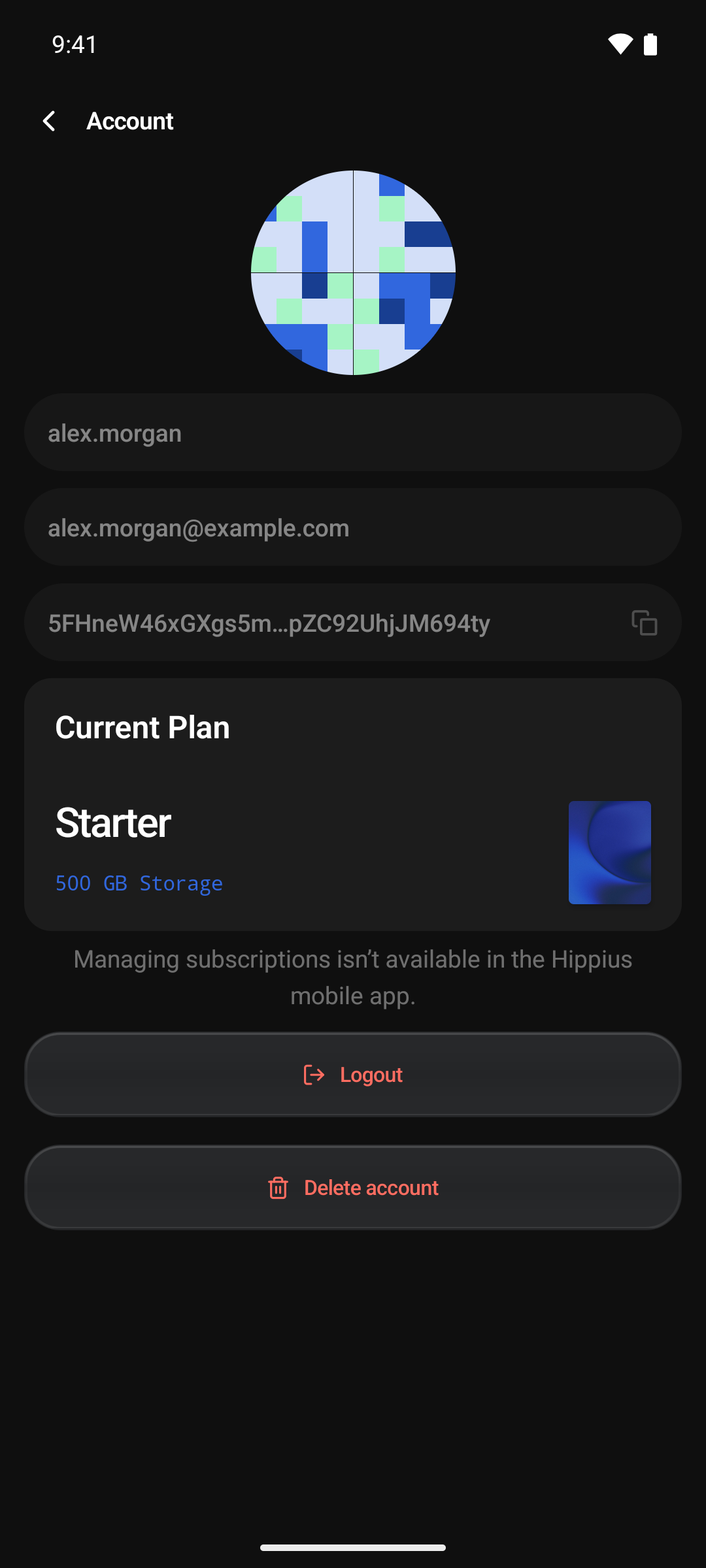
The Plan card shows your plan's name, for example Free or Plus, and how much storage it gives you, such as ≈ 2 TB Storage.
Tap it to open the Account screen. You can also get there from the Account card in Settings. Its Current Plan card shows your plan's full name, for example Free Drive Plan, and its storage. Underneath, the app notes that managing subscriptions isn't available in the Hippius mobile app.
Your storage
The Storage card is on Overview, and again at the top of Settings. It shows:
- How full your Drive is, as a percentage.
- How much you have used out of your plan's total, for example 38.33MB / 2TB.
- A bar that turns amber when you have used 80% of your storage and red at 95%.
While the numbers load, the card reads Calculating storage... If they can't be read, for example while you are offline, it reads Usage unavailable rather than guessing.
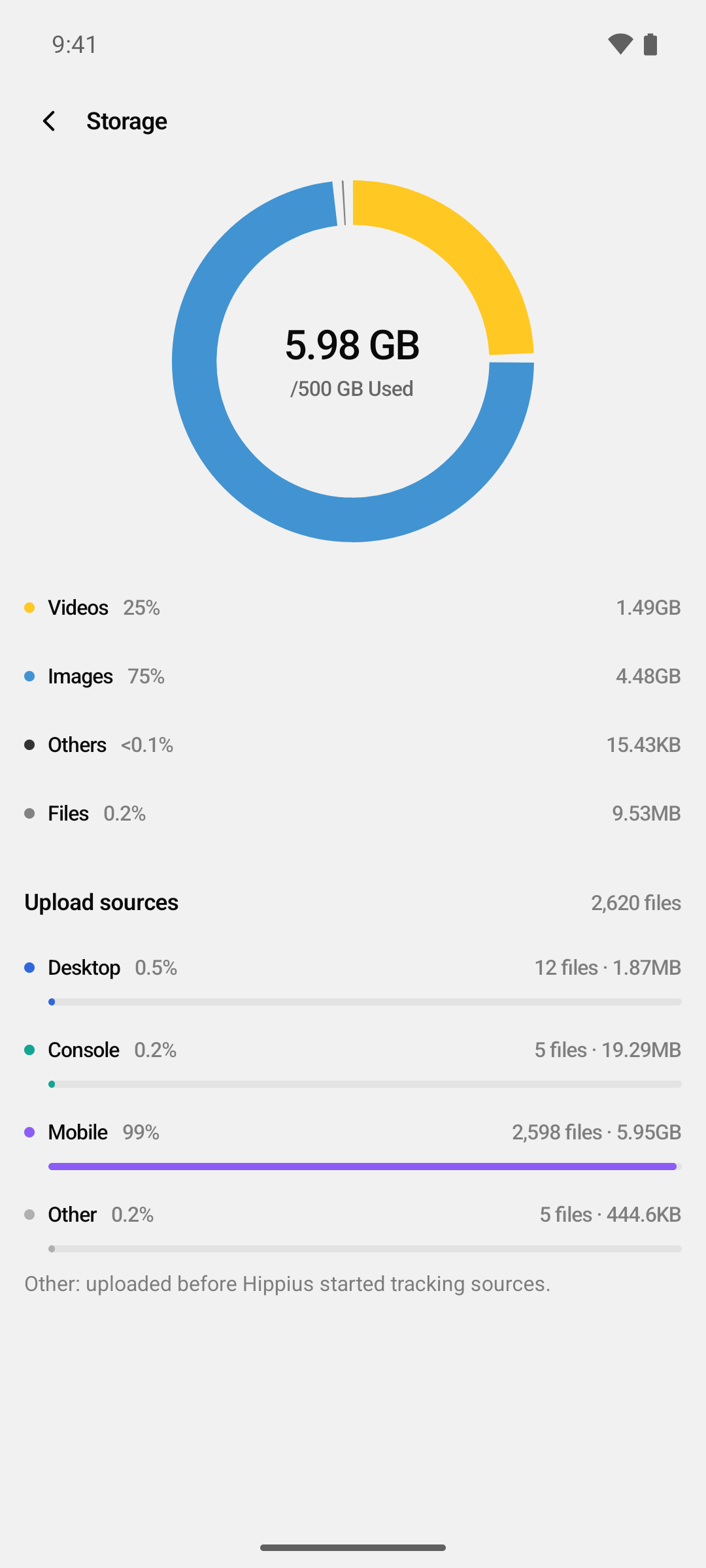
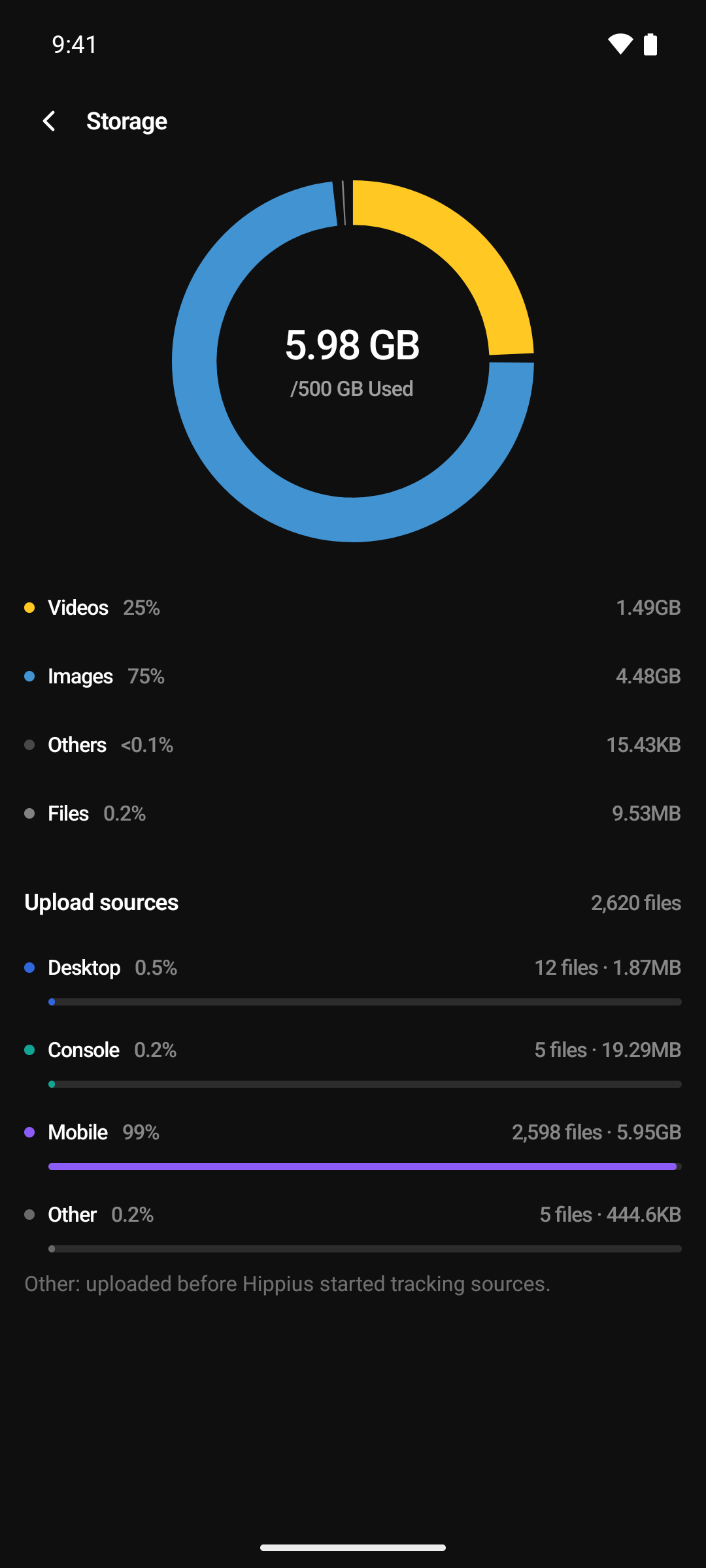
Tap the card to open the Storage screen, which shows what is using your space:
- A ring chart with how much you have used out of your plan's total.
- How much space goes to Videos, Images, Files and Others, as a share and a size. Tap a row to highlight it in the chart.
- Upload sources: how many of your files were added from the Desktop app, the Console and Mobile. Other covers files uploaded before Hippius started tracking where uploads come from.
- A Notice once you pass 80% of your storage, and a stronger one at 95% that says exactly how much space is left.
It is the quickest way to see whether photos or videos are filling your Drive.
Subscribing to a plan
You subscribe in the console, in your phone's browser or on a computer. It is the same account either way.
- Open console.hippius.com in a web browser.
- Sign in the same way you sign in to the app: the same Google, GitHub or Apple account, or the same access key. A different one opens a different Hippius account, and the plan would not reach the app. See Signing In in the console guide.
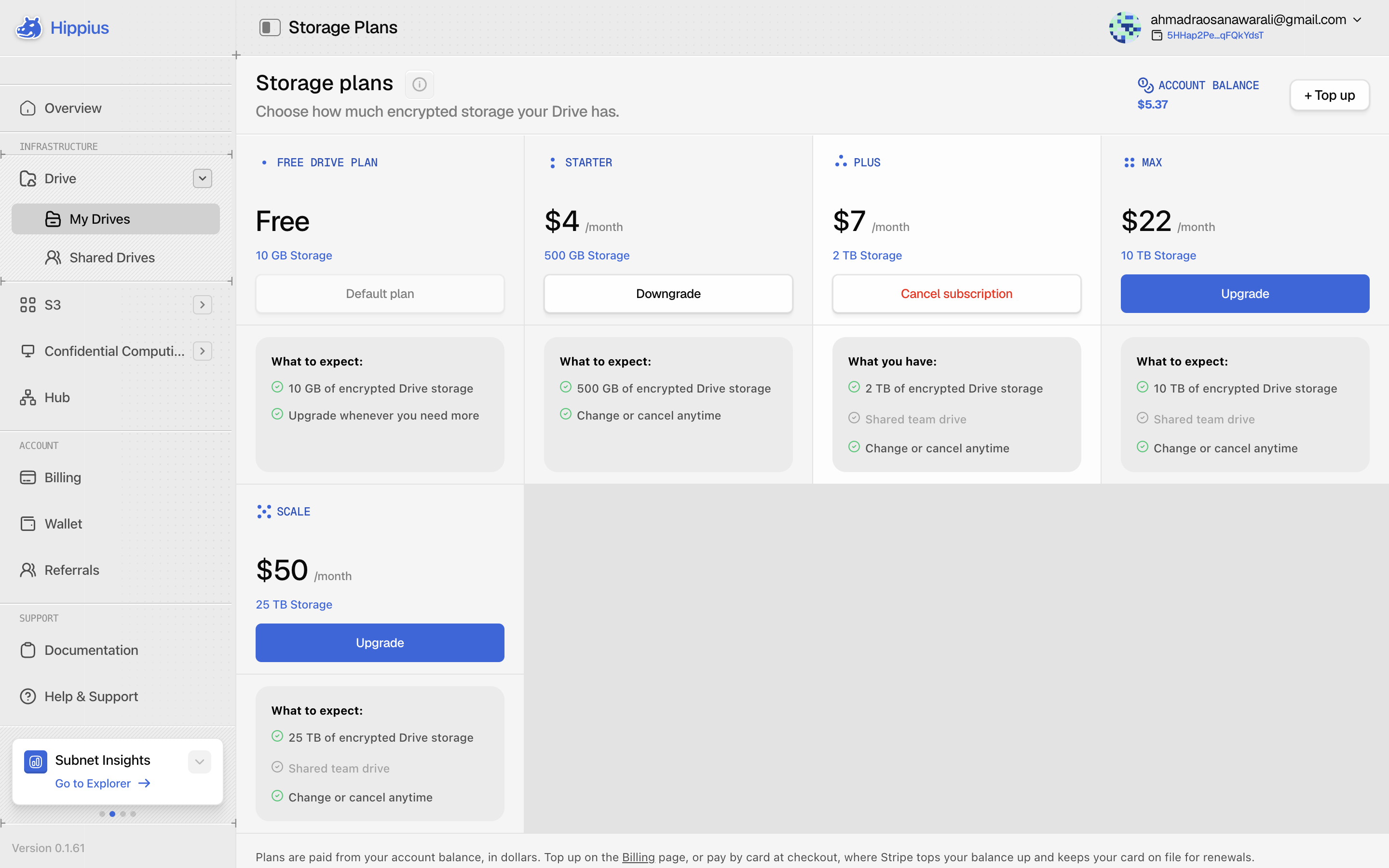
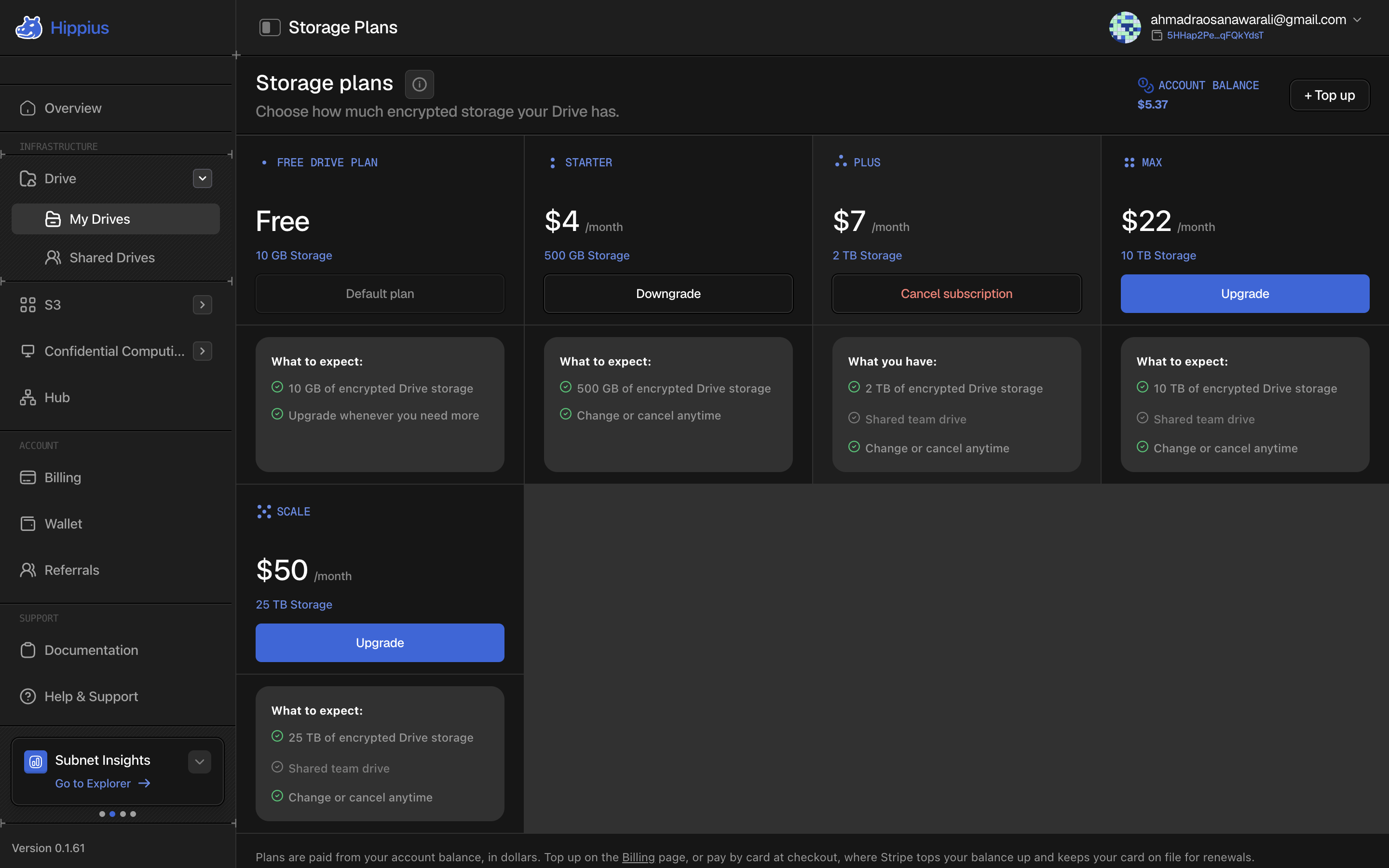
- Open Billing from the sidebar. On the Drive card, click Upgrade. It reads Subscribe if your account has no plan yet. This opens the Storage Plans page.
- Pick the plan you want and click Subscribe on its card.
- Choose how to pay: Card, through Stripe, or Account balance, if you have already topped up your balance.
- Click Make Payment and finish paying. After a card payment the console shows the plan activating, which usually takes under a minute.
- Go back to the Hippius app. It checks your plan again whenever it comes back to the screen, so the Plan and Storage cards update within a few seconds.
Your files stay where they are, and nothing is uploaded again. The new plan only changes how much you can store: the Plan card shows its name, and the Storage card measures your usage against the new total.
Changing or cancelling your plan
Both happen on the console's Storage Plans page. Open Billing. While you are on a paid plan, the button on the Drive card reads Manage plan.
- Moving to a bigger or smaller plan. Click Upgrade or Downgrade on the plan you want and confirm. The change is paid from your account balance and takes effect straight away. You can't move to a plan smaller than what you already store, so free up space first.
- Cancelling. Click Cancel subscription on your current plan, then Cancel plan to confirm. Accounts that sign in with Google, GitHub or Apple go back to the Free Drive Plan. Access key accounts are left with no storage.
The app picks up either change the next time you open it.
Only access key accounts can end up with no plan, because every other account falls back to the Free Drive Plan. Without a plan, the account can't upload anything new. The files already in its Drive stay readable and are not deleted. Subscribe to any plan to upload again.
When your storage is full
The app warns you before you run out. The Storage bar turns amber at 80% and red at 95%, and the Storage screen shows how much space is left.
When your Drive is full, new uploads and Camera Uploads stop. To carry on, either:
- Free up space. Delete files you no longer need. See Deleting.
- Get more space. Move to a bigger plan in the console. See Changing or cancelling your plan.
Then retry anything that failed from Your Uploads. See Following the backup.
Where to next
- Billing (console guide): plans, prices, topping up and transaction history.
- Camera Uploads: back up your photos automatically.
- Settings: your account, storage breakdown and preferences.