Sharing Files
Introduction
A shared link lets you send a file or a folder to someone who does not have a Hippius account. They open the link in a browser and download what you shared. Nothing else in your Drive is reachable from it.
- A file link shares that one file. The app makes a separately encrypted copy of it for the link, so your own copy and your key are never exposed.
- A folder link shows a live listing of that folder. Anyone with it can browse and download everything in the folder, and it always shows what is in there now, including files you add later, until the link expires or you revoke it.
Sharing a file or folder
- Press and hold the item and choose Share via Link. When a file is open full screen, you can also tap the share button at the bottom.
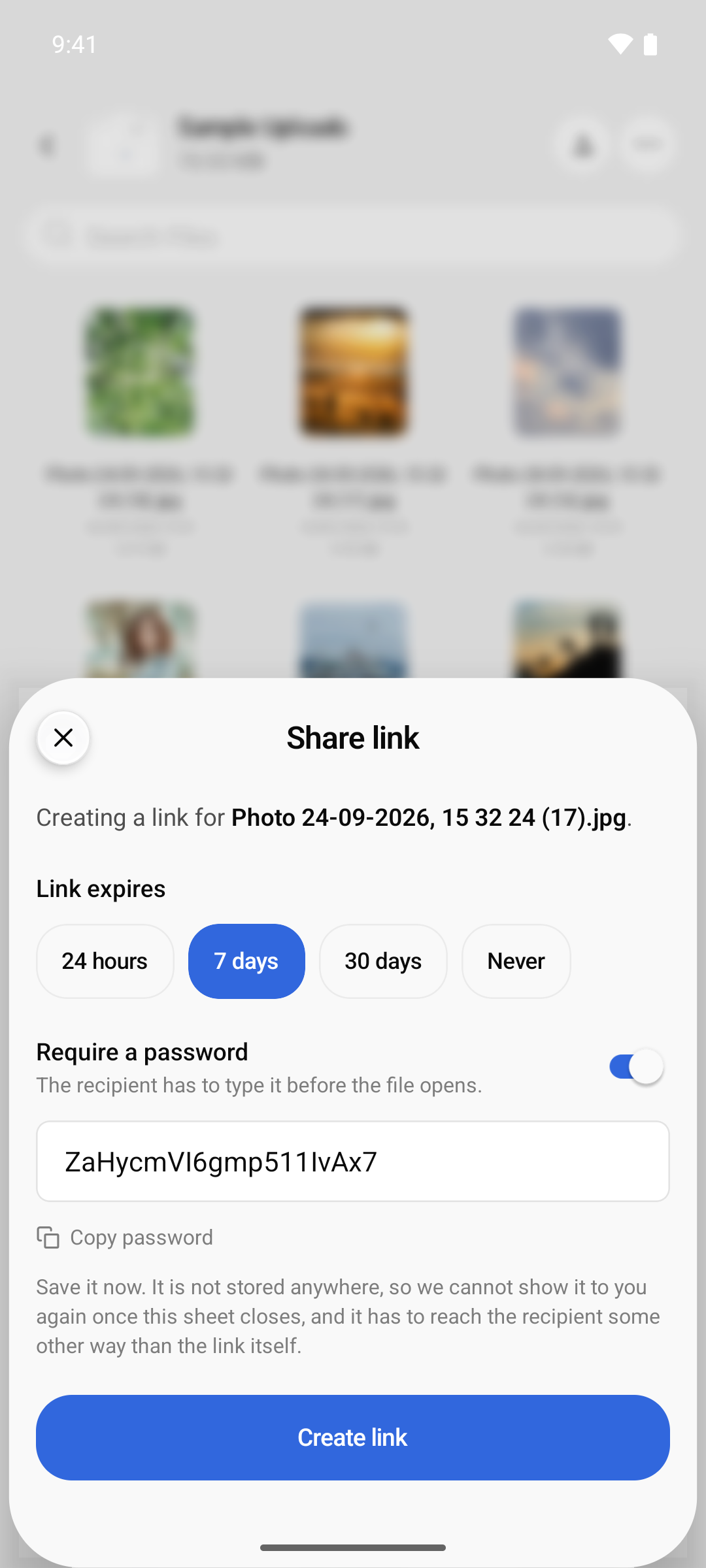
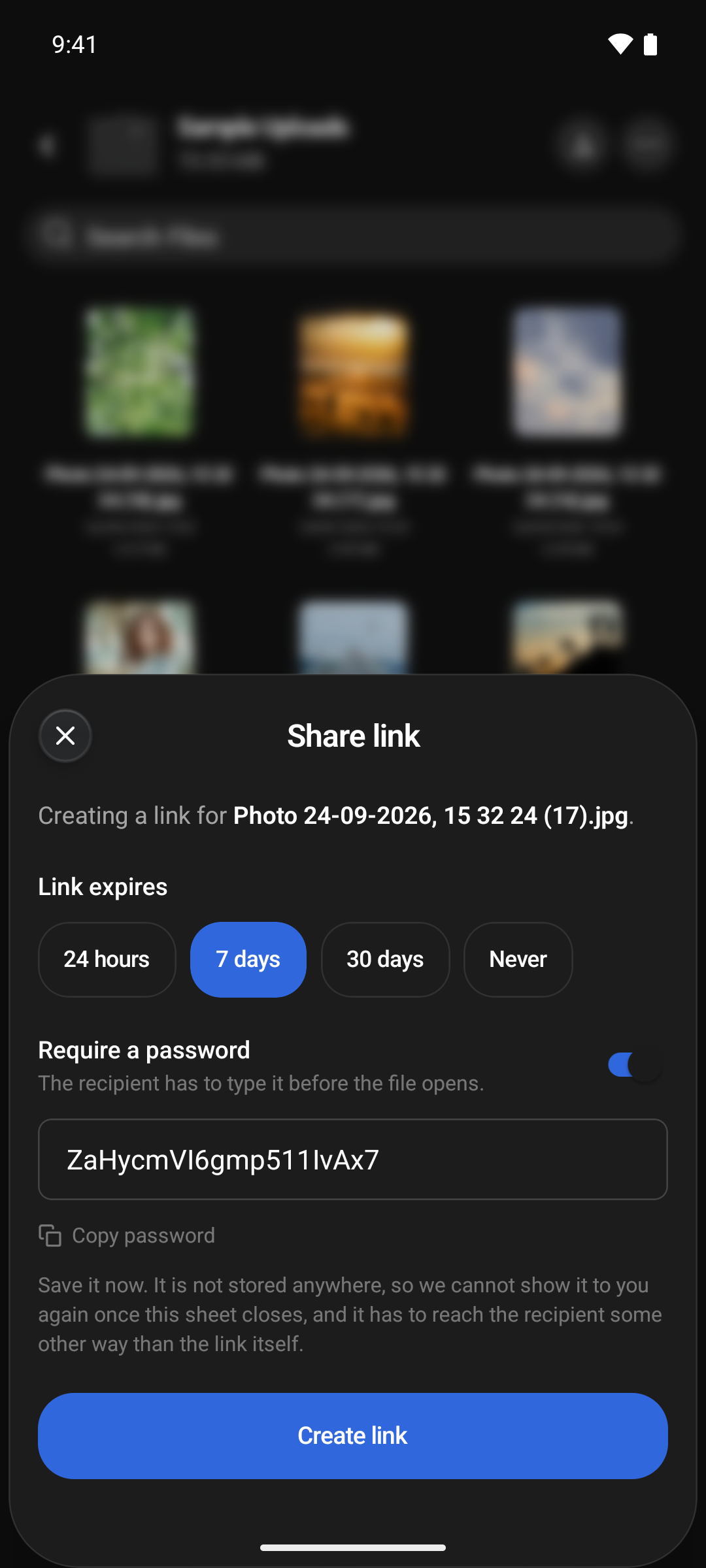
- Under Link expires, choose how long the link should last: 24 hours, 7 days (the default), 30 days, or Never. A link that never expires stays reachable until you revoke it.
- Optionally turn on Require a password. The app fills in a strong password for you, which you can change. It needs at least 8 characters. Tap Copy password and keep it somewhere, because it is not stored anywhere and can't be shown again once the sheet closes.
- Tap Create link. For a file, the app shows its progress while it encrypts and uploads the copy, which can take a moment for a large file. A folder link is ready straight away.
- Tap Copy link, or Share to send it straight from your phone's share sheet.
The finished sheet reminds you who can open the link and when it expires. If you set a password, it is shown once more under Password, shown once. Send it to the recipient separately from the link, for example in a different app.
Anyone with the link (and the password, if you set one) can open what you shared. Treat the link like the file itself and only send it to people you mean to.
Items you have shared from this phone show a small link badge. Tap the badge, or choose Share via Link again, to get back to the same link and copy it again, instead of making a new one.
Seeing and revoking your links
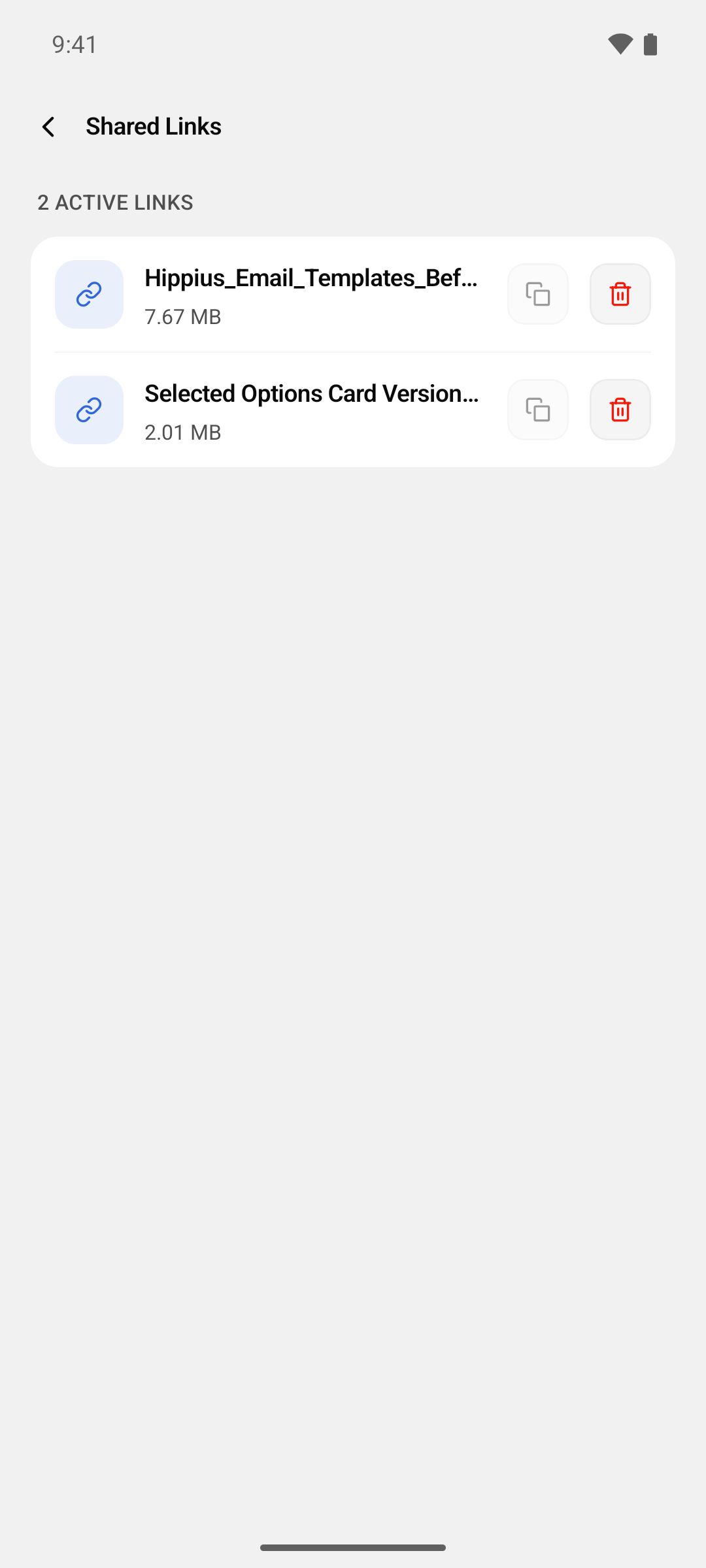
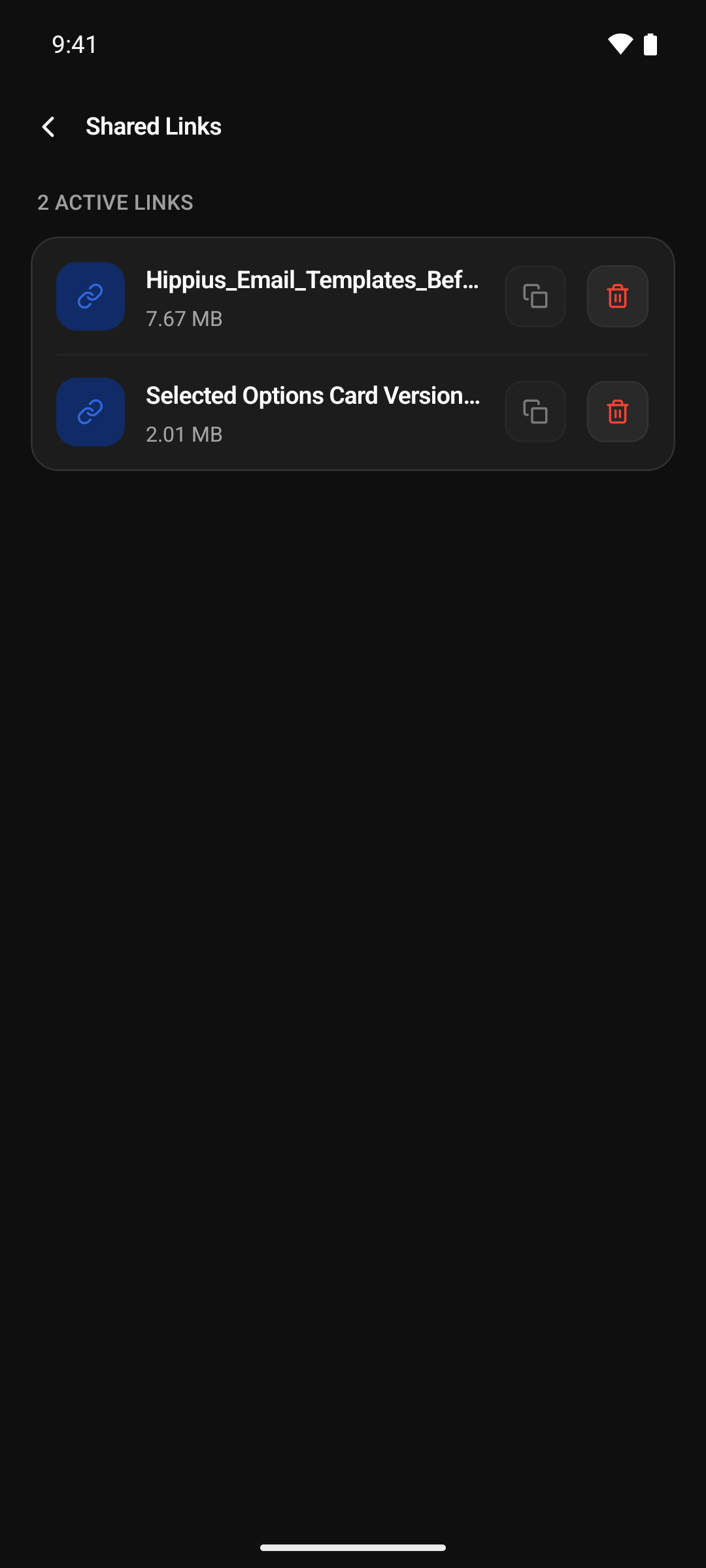
Open Shared Links with the link icon next to All on the Drive screen, or from the … menu inside any folder. It lists every file link that is still active, with the file's size and when the link expires.
- Tap the copy button to copy a link again.
- Tap the trash button, then Revoke, to switch a link off immediately. Anyone holding it stops being able to open it. Your file in Drive is untouched.
Links that have expired or been revoked move to History at the bottom of the screen. Clear all empties it. That only clears the list on this phone.
Folder links
Folder links are not listed on the Shared Links screen. To see, copy or revoke a folder link, press and hold the folder, or tap its link badge, to open its Share link sheet, then tap Revoke link.
A link can only be copied again on the phone that created it, because that is where its key is kept. Logging out removes those keys from the phone as well. A link made somewhere else, or before you logged out, still shows up here, and you can still revoke it, but its copy button is greyed out.
Where to next
- Your Files: browse, upload and organise.
- What recipients see (console guide): what opening a link looks like on the other end.