Your Files
Introduction
Drive is everything you have stored with us. The same files you see in the console and the desktop app, on your phone.
Files are encrypted on your phone before they are uploaded, and decrypted on your phone when you open them. What travels over the network and what sits on it is unreadable to everyone but you.
The Drive screen
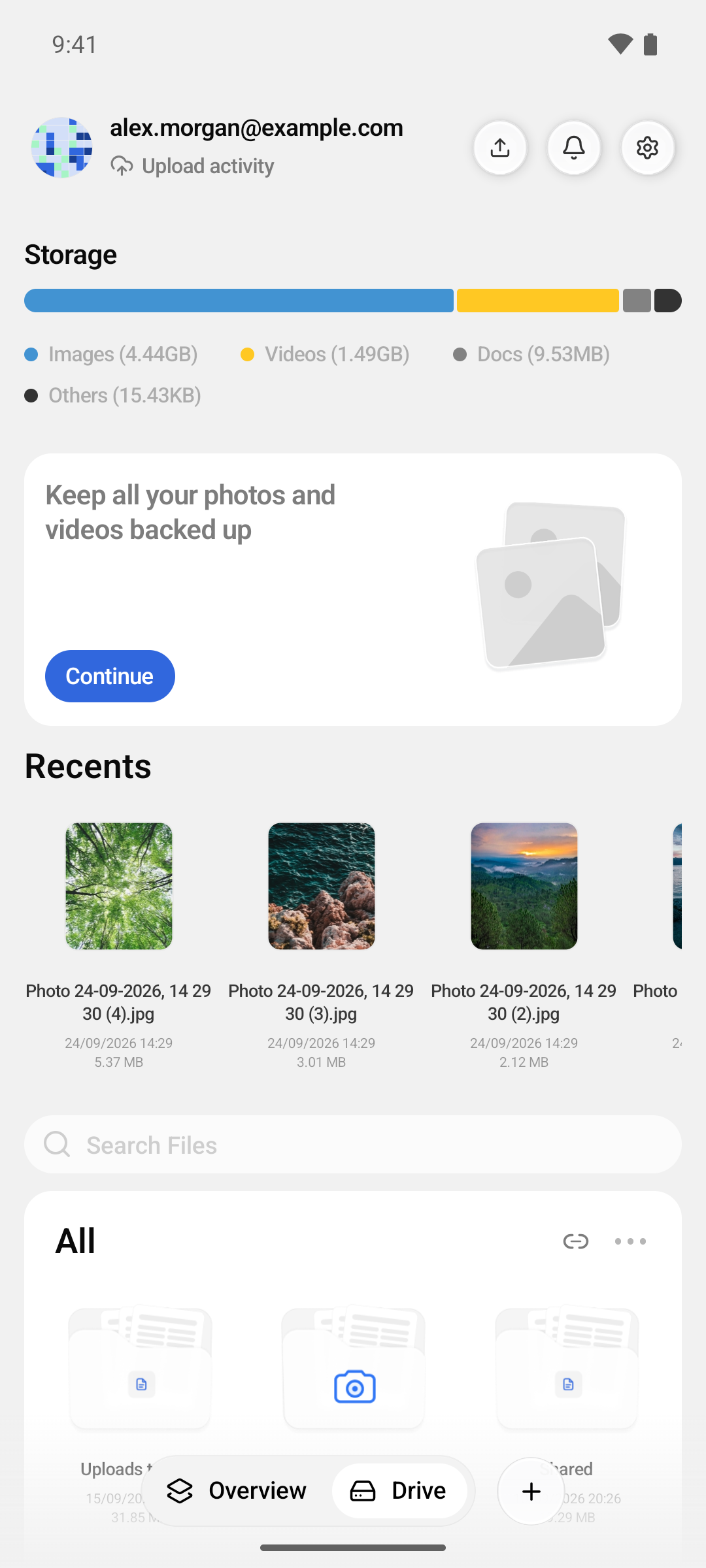
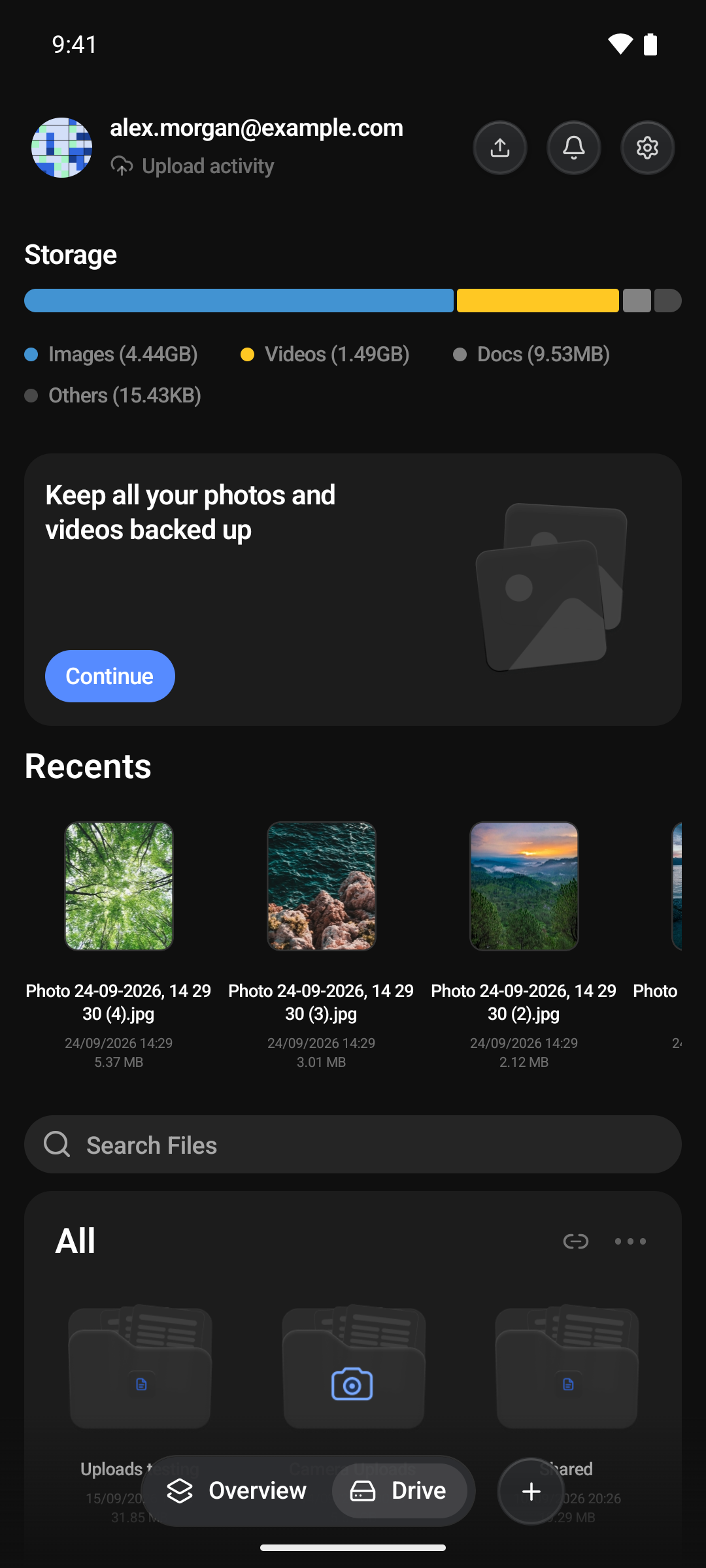
Tap Drive in the bar at the bottom. From top to bottom you'll find:
- Storage: a bar showing how your space is split between Images, Videos, Docs and Others. Tap a colour for its size and number of files.
- A card to set up Camera Uploads, until you turn it on.
- Recents: your most recently added files. Swipe sideways to see more.
- Search Files: search your whole Drive. See Finding a file.
- All: your folders. The link icon opens your Shared Links, and the ··· button has options to select, create a folder, switch view and sort.
If your Drive is empty, it says Your drive is empty. Tap + Add content to upload something.
Inside a folder
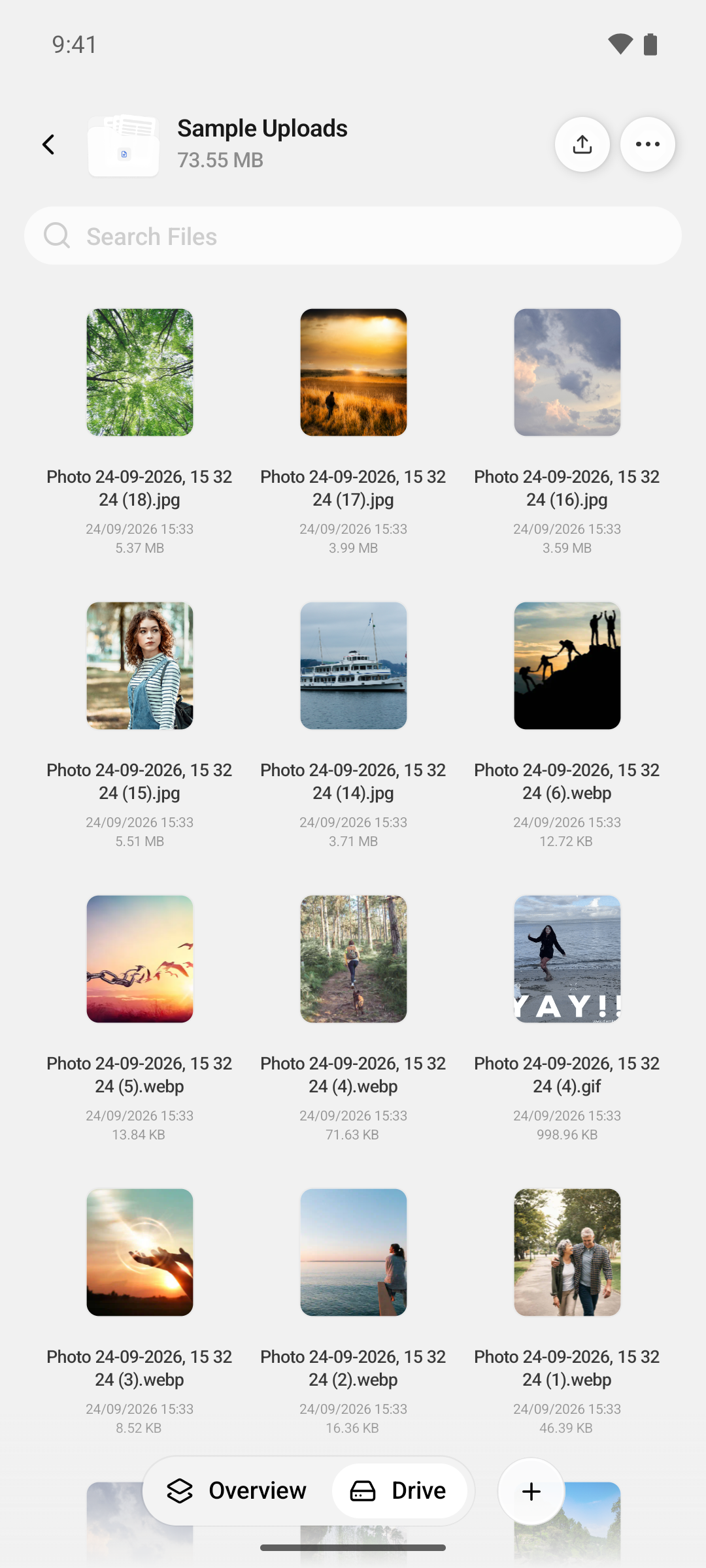
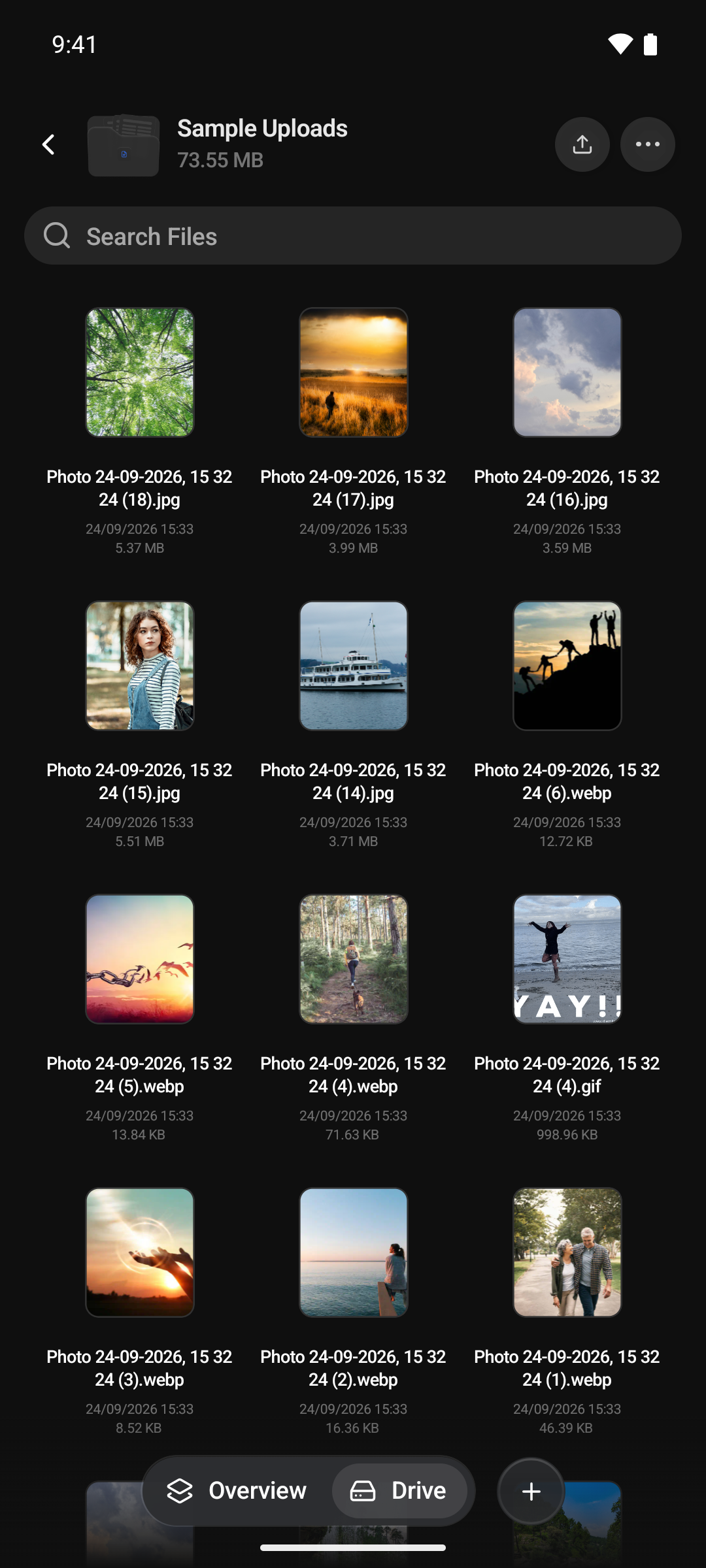
Tap a folder to open it. The header shows the folder's name, when it was created and how big it is. While files are uploading into it, that line shows progress instead, for example Uploading • 3 remaining....
On the right of the header, the upload button opens Your Uploads, and the … button has the folder's options:
- Rename, for folders inside another folder.
- Select, to select several items at once.
- New Folder, to create a folder inside this one.
- Shared Links, to see the links you have shared.
- Grid view or List view.
- Sorting and filtering. See Sorting and views.
An empty folder says This folder is empty. + Add content uploads straight into it.
Finding a file
Tap Search Files and type.
- On the Drive screen, the search covers your whole Drive, not just one folder, so you don't have to remember where you put something.
- Inside a folder, the search box covers the top-level folder you are in, including every folder inside it.
Search finds files by name. If nothing matches, it says We couldn't find anything.
Sorting and views
Open the ··· menu to change how a list looks. The app remembers your choice.
- Grid view shows thumbnails. It is the default. List view shows one item per row, with its date and size.
- Alphabetical, Size or Date sort the list. Tap the one you are using again to reverse it, for example from Newest to Oldest to Oldest to Newest. The default is by date, newest first.
Folders always come before files.
Filtering by kind
Inside a folder, and in search results, the menu also has Kind. Tap it to show only certain types of file, such as JPG and PNG, or PDF. Types are grouped under Video, Image, Document, Spreadsheet, Presentation, Code and Database, and you can tick as many as you like. Choosing Alphabetical, Size or Date again clears the filter.
Adding files
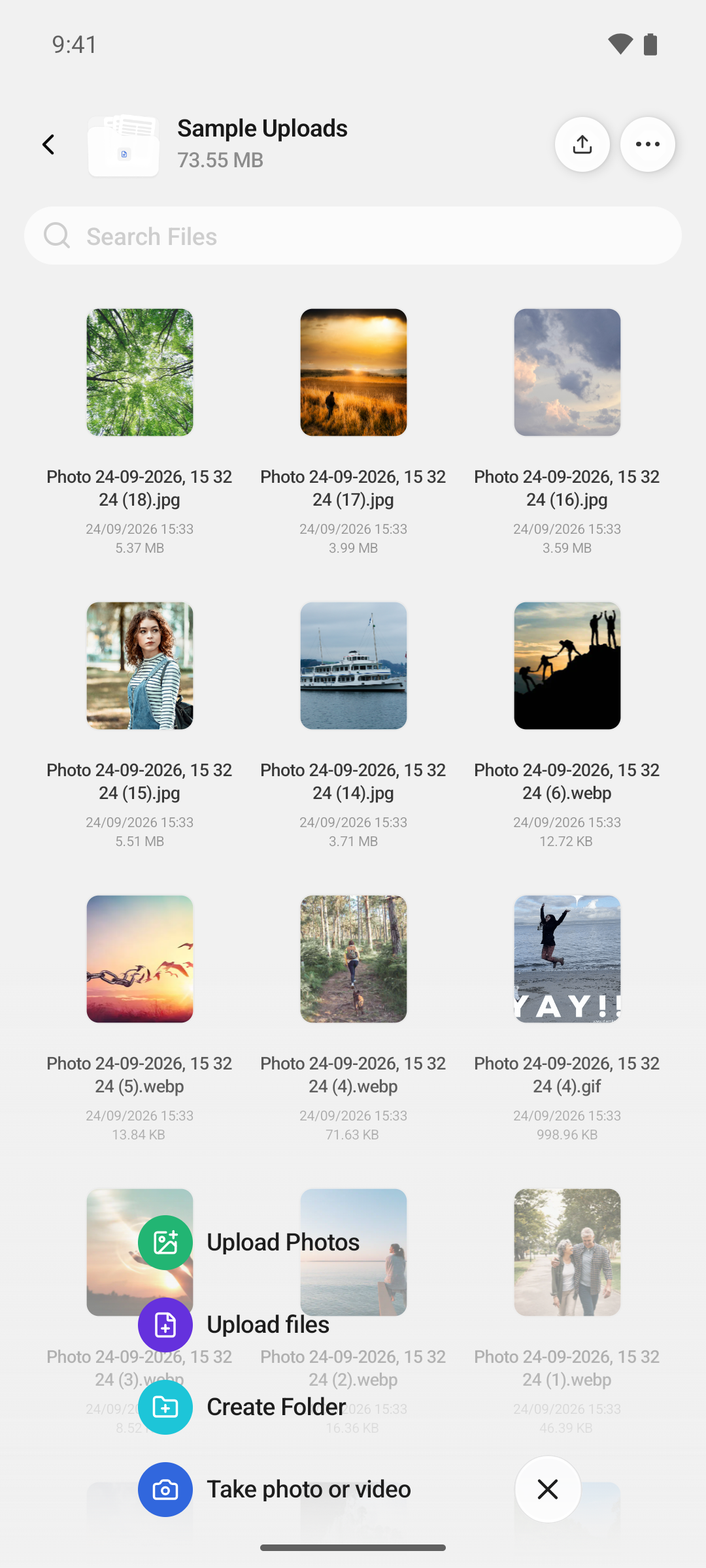
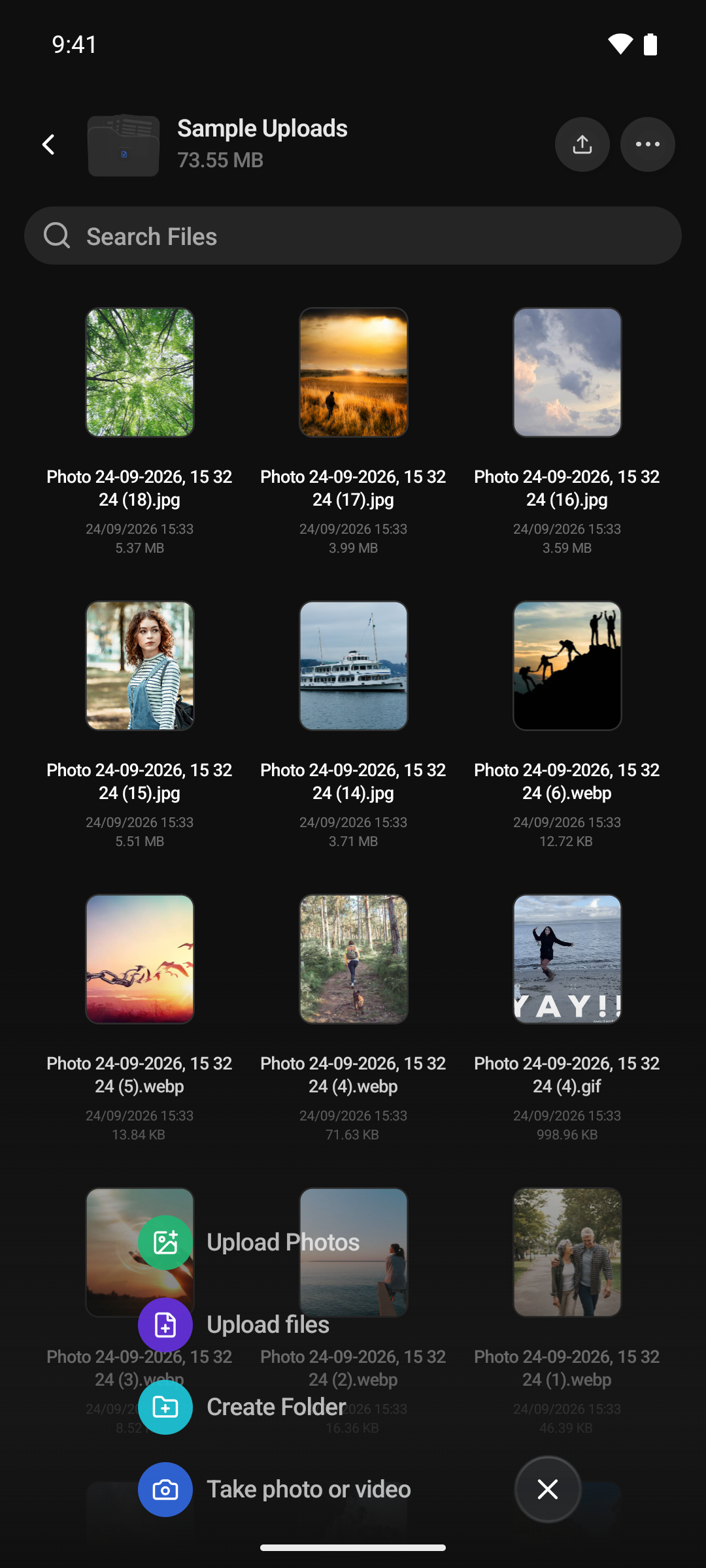
Tap + in the bottom bar and choose what to add:
- Upload Photos opens your phone's photo picker. Pick photos and videos, as many as you like.
- Upload files opens your phone's file browser for anything else, such as documents.
- Create Folder makes a new folder. See Creating a folder.
- Take photo or video opens the camera and uploads what you capture.
On Android, Take photo or video first asks whether you want to Take Photo or Record Video, then opens the camera for that.
Choosing where files go
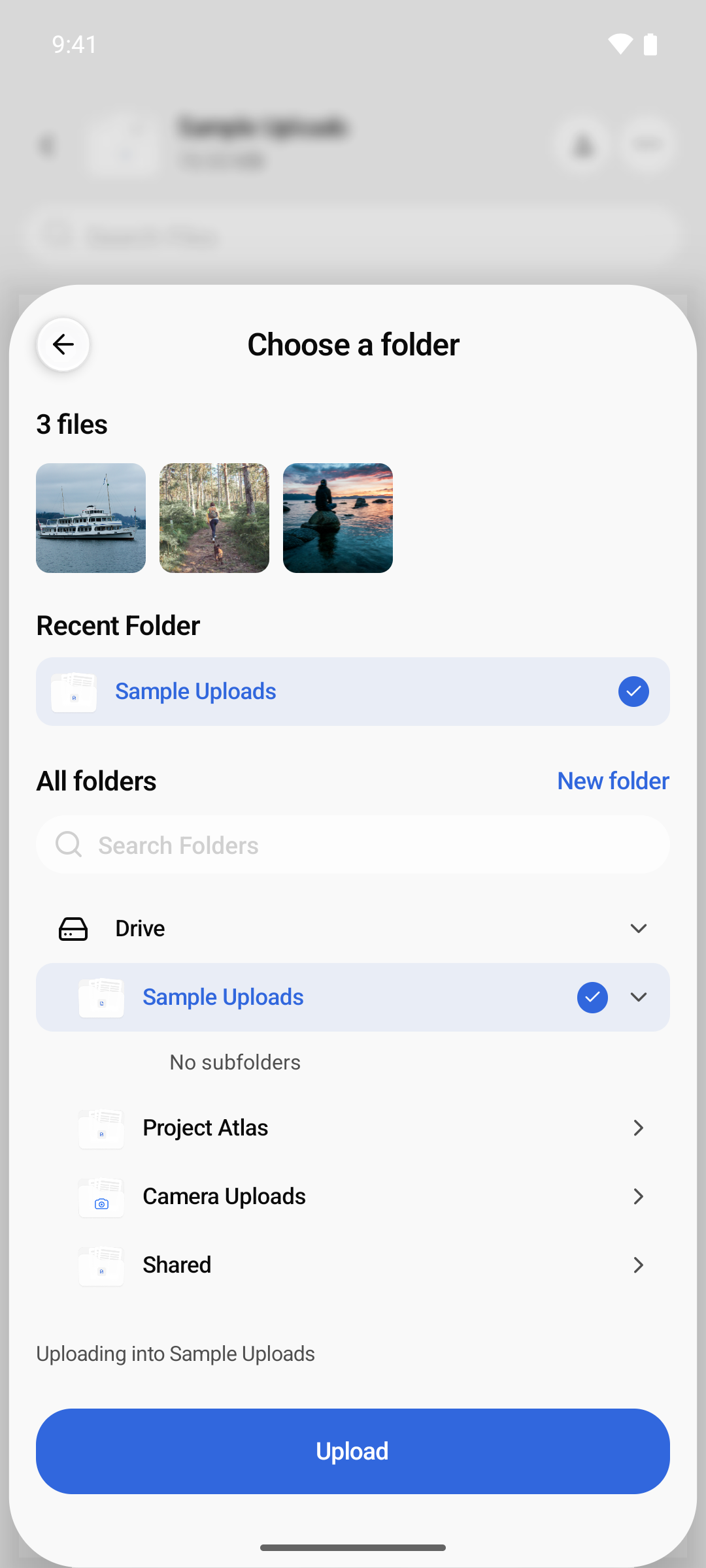
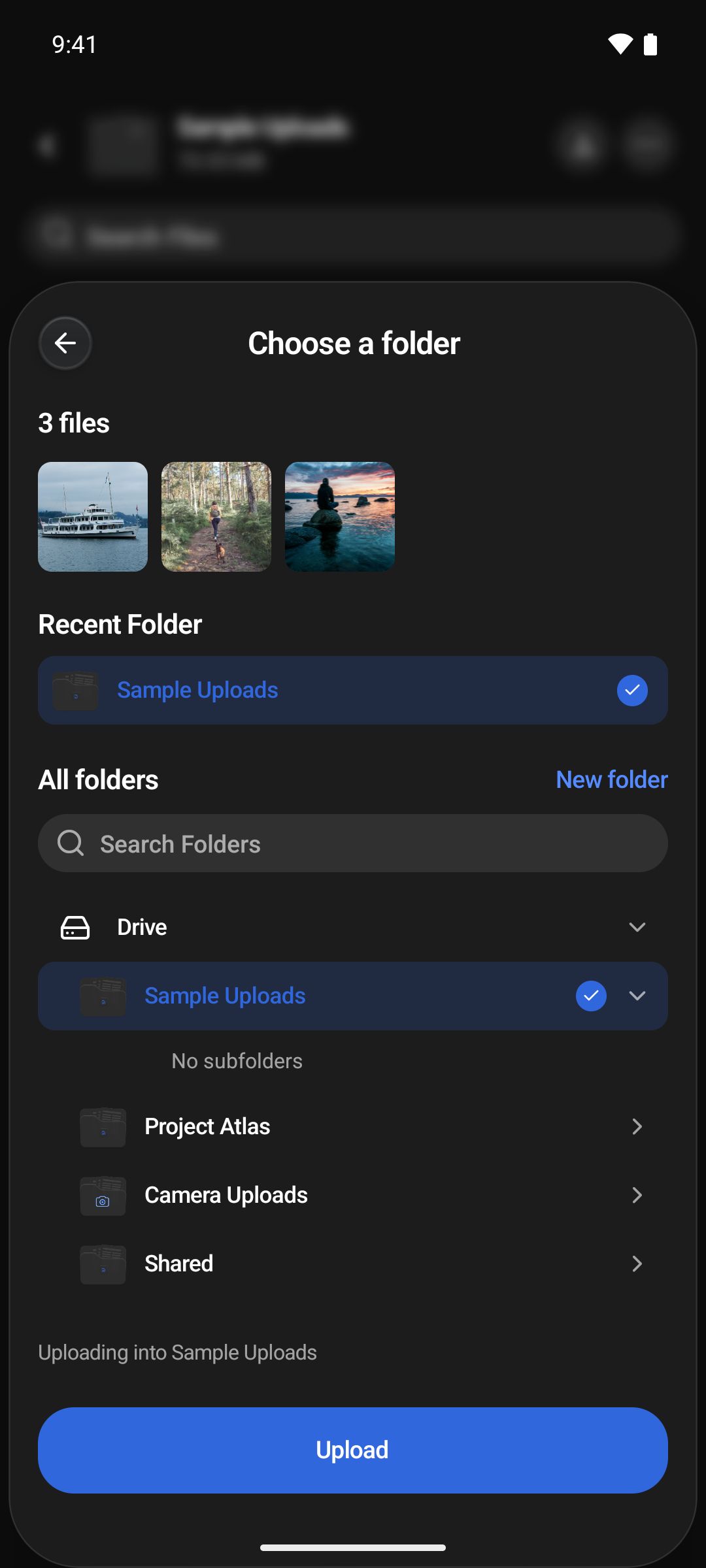
After you pick something, the Choose a folder sheet asks where it should go:
- Check what you are uploading at the top: the file's name, or how many files you picked.
- Pick a folder. Recent Folder is where your latest file went. Under All folders you can search with Search Folders, open a folder to reach the ones inside it, or tap New folder to make one. If you started from inside a folder, that folder is already selected.
- Tap Upload.
Files always go into a folder, so the button stays greyed out while Drive itself is selected. If you don't have any folders yet, the sheet offers Mobile Uploads, which is created for you when you upload.
The app then opens the folder, and the new files appear with their progress.
Renaming before you upload. When you upload a single file, tap Rename at the top of the sheet to change its name first. The extension stays as it is.
File names
- Photos and videos from Upload Photos or the camera are named after when they were taken, such as Photo 14-07-2026, 10 28 38.jpg.
- If the folder already has a file with that name, the new one gets a number, such as Photo (1).jpg. Nothing is overwritten.
HEIC photos
Some phones save photos in a space-saving format called HEIC. If any photo you pick is HEIC, the sheet shows Image preferences. Tap Save as JPG to choose:
- JPG (Recommended), the default. The photo is converted to JPG before it is uploaded, because many apps and services can't display HEIC.
- HEIC keeps the original file.
Your first upload
The first time you upload on a new account, the app asks you to create an unlock password before the file is encrypted. It lets you open your files on other devices and in the console. If you close the sheet instead, the upload is cancelled. See Setting Your Unlock Password.
While files upload
- Follow progress in the folder, where each new file shows its percentage and time left, or in Your Uploads, which you open from the header. There you can pause, resume or cancel. See Following the backup, which works the same way for uploads.
- A file that fails to upload stays in Your Uploads. Tap it to see why, then Retry or Skip.
- Keep the app open until your uploads finish. Uploads you start yourself may pause when you leave the app, and they stop if it is closed. When you come back, check Your Uploads and upload again anything that didn't finish.
With Upload on Wi-Fi only turned on in Settings, the app won't start an upload over mobile data. It says Uploads need Wi-Fi. Uploads that were already running pause on mobile data and continue on Wi-Fi. See Settings.
Files are encrypted on your phone before they are sent, so a large file needs some free space on your phone for its encrypted copy while it uploads. If there isn't enough, the app tells you how much to free up.
Creating a folder
- Tap + → Create Folder, or New Folder in a ··· menu.
- Type a Folder Name.
- Pick where it goes. Select Drive for a new top-level folder, or pick a folder to create it inside. If you started from inside a folder, that one is selected.
- Tap Create folder. The app opens your new folder.
The button stays greyed out while the name breaks one of the naming rules.
Opening a file
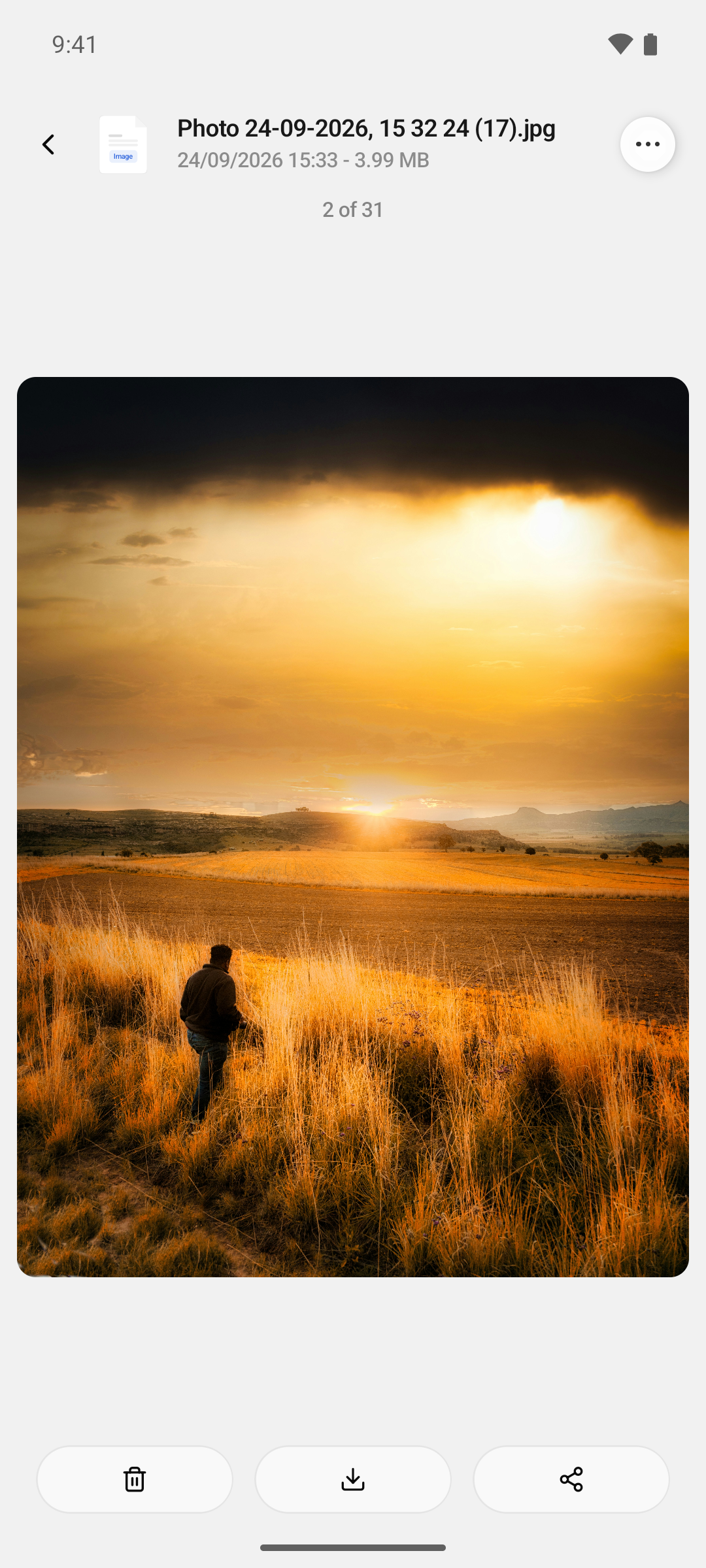
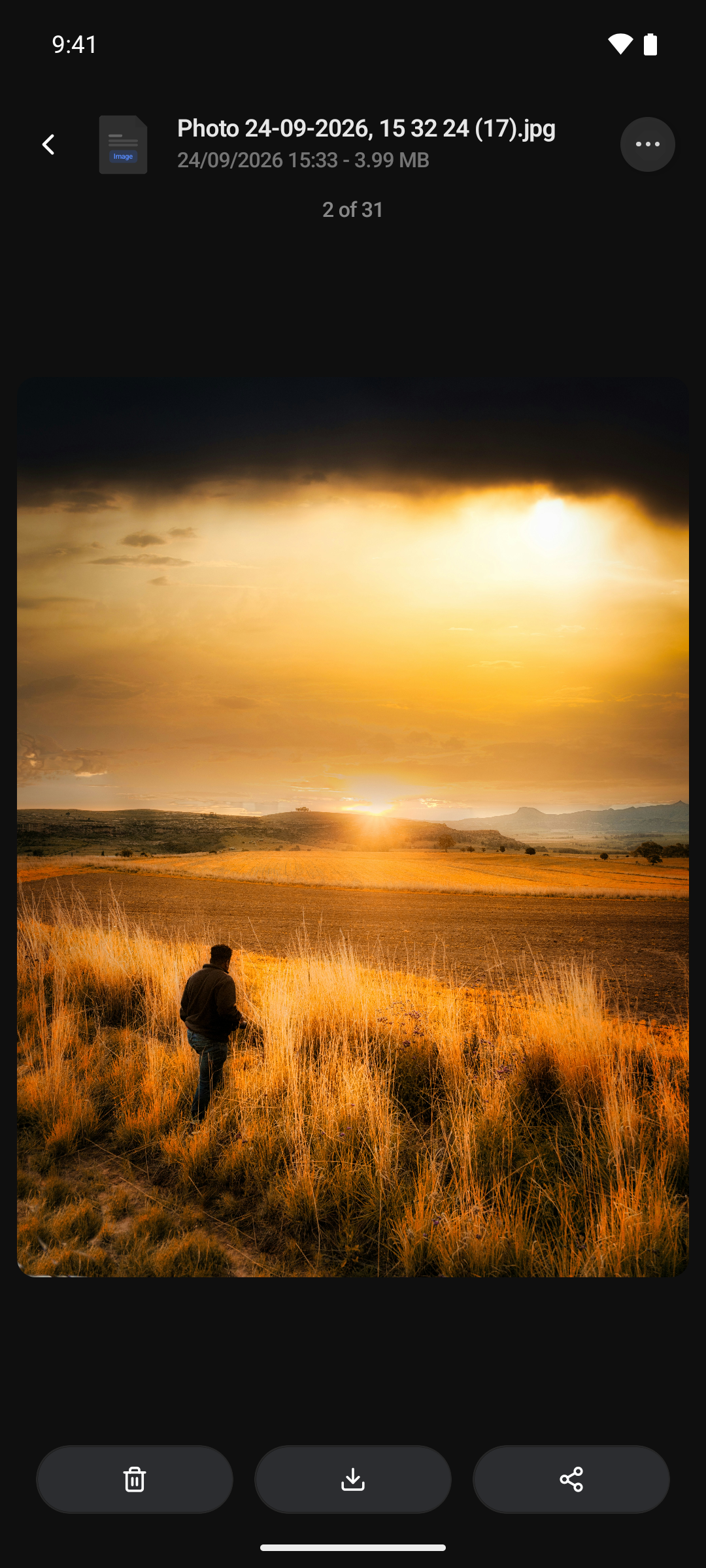
Tap any file to open it full screen. The app downloads and decrypts it on your phone first, which is why a large file can take a moment. You'll see Downloading… with a percentage, then Decrypting….
- Swipe left or right to move between the files in the list you opened it from. A counter shows where you are, such as 3 of 10.
- Pinch to zoom into a photo. Tap once to hide or show the buttons.
- Presentations have buttons for the previous and next slide.
- The … menu at the top has Get info, Rename, Download, Share via Link and Delete File. The three buttons at the bottom delete, download and share the file.
These file types open in the app:
| Kind | File types |
|---|---|
| Photos | JPG, PNG, GIF, WebP, BMP, ICO, AVIF, HEIC and SVG |
| Videos | MP4, MOV, WebM, MKV, AVI, FLV and WMV |
| Documents | PDF and Word (DOCX) |
| Spreadsheets | XLSX, XLSM, CSV and TSV |
| Presentations | PowerPoint (PPTX) |
| Text | Plain text, logs, Markdown, HTML and JSON |
Older Office files (DOC, XLS and PPT), audio and code files don't preview, and neither do very large files. Tapping one of those tells you it can't be previewed. Download it to open it in another app.
Saving a file to your phone
Open a file and tap the download button at the bottom, or press and hold it in a list and choose Download. The app downloads the file, decrypts it on your phone and saves it. A progress window shows Downloading…, Decrypting… and Saving…, and you can cancel at any time. When it is done, the app says Saved.
Files are downloaded one at a time, and folders can't be downloaded in the app. Very large files can't be downloaded on mobile yet. The app tells you if a file is too large, and you can download it from the console or the desktop app instead.
Where the file goes depends on your phone and the kind of file.
On Android
- Photos and videos go straight into your phone's gallery.
- Everything else: Android asks which folder to save it in, for example Documents. Choose a folder, tap Use this folder, then Allow.
File details
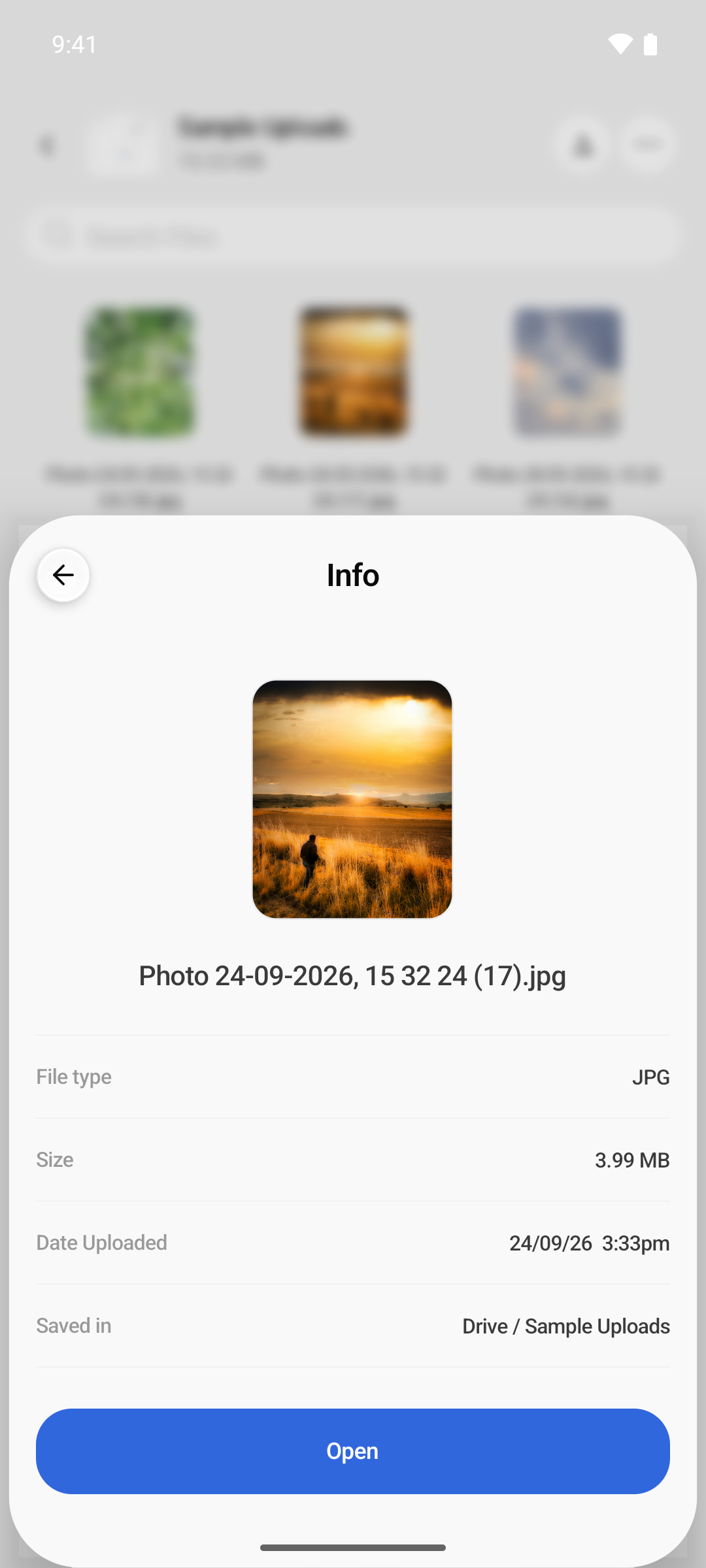
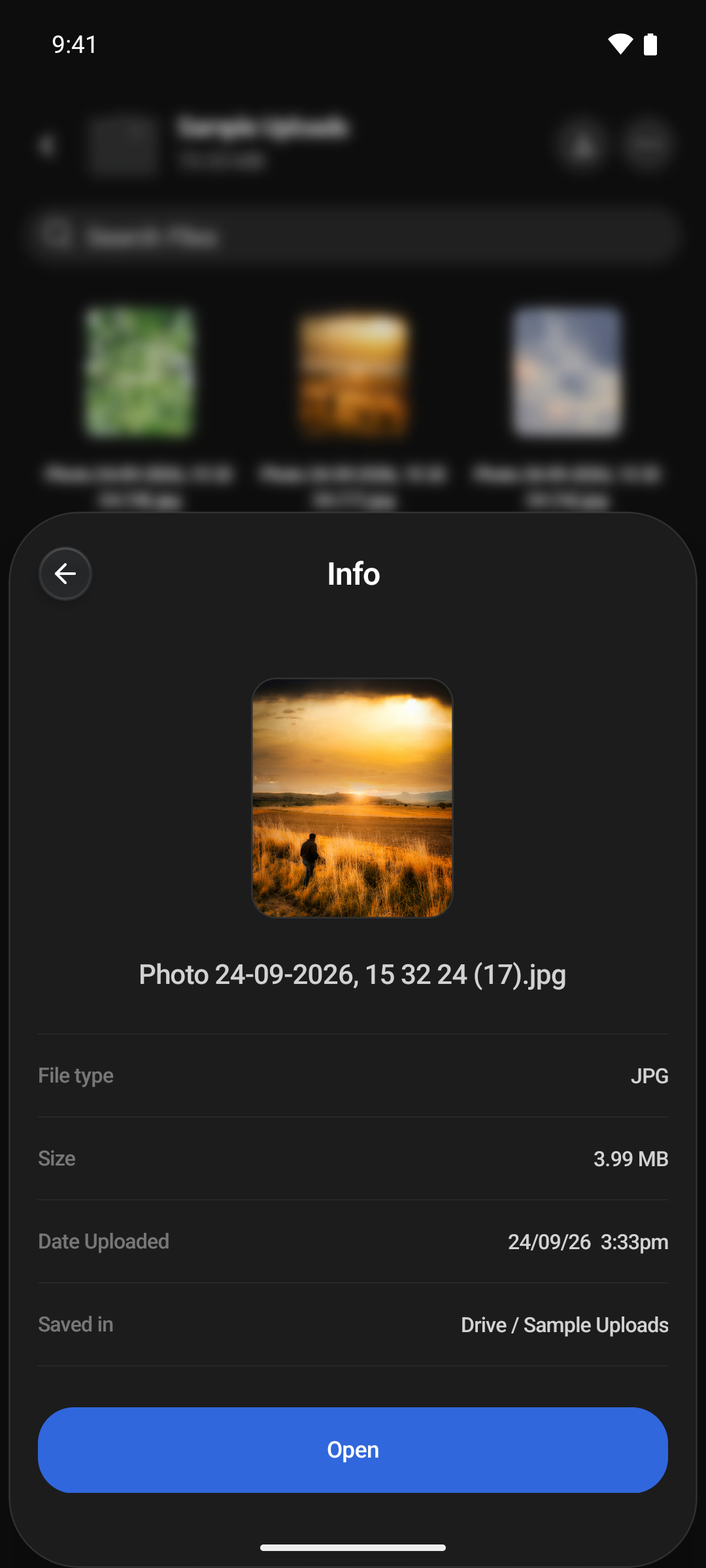
Press and hold a file or folder and choose Get info. The Info sheet shows:
- File type and Size.
- Date Uploaded for a file, or Date Created for a folder.
- Date Taken, for photos and videos you uploaded from this phone, and Modified when the phone recorded a change.
- Saved in: the folder it is in, such as Drive / Camera Uploads.
- On this phone: where the original is on this phone, such as DCIM / Camera / IMG_0001.jpg, for photos and videos uploaded from here that are still in your gallery. Tap it to open the original in your gallery.
Organising
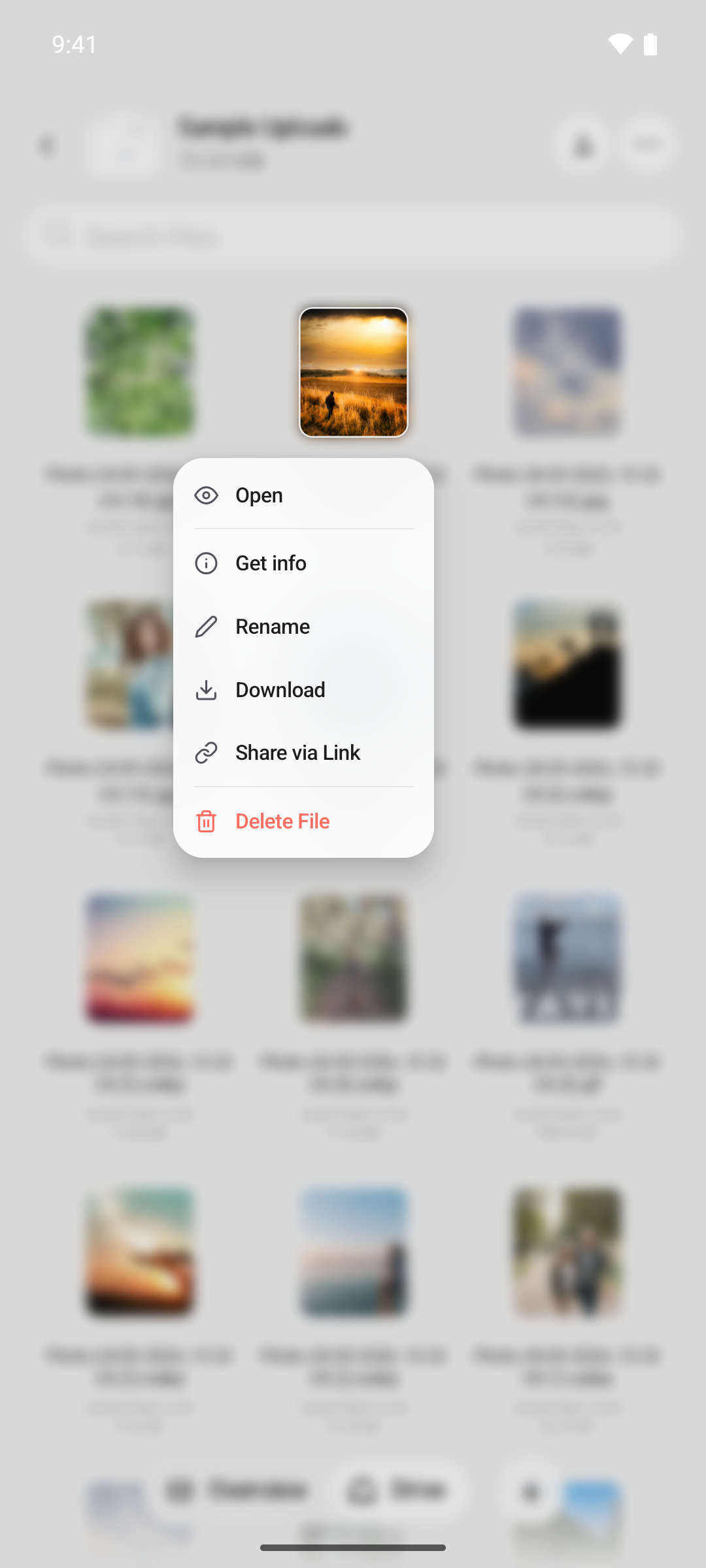
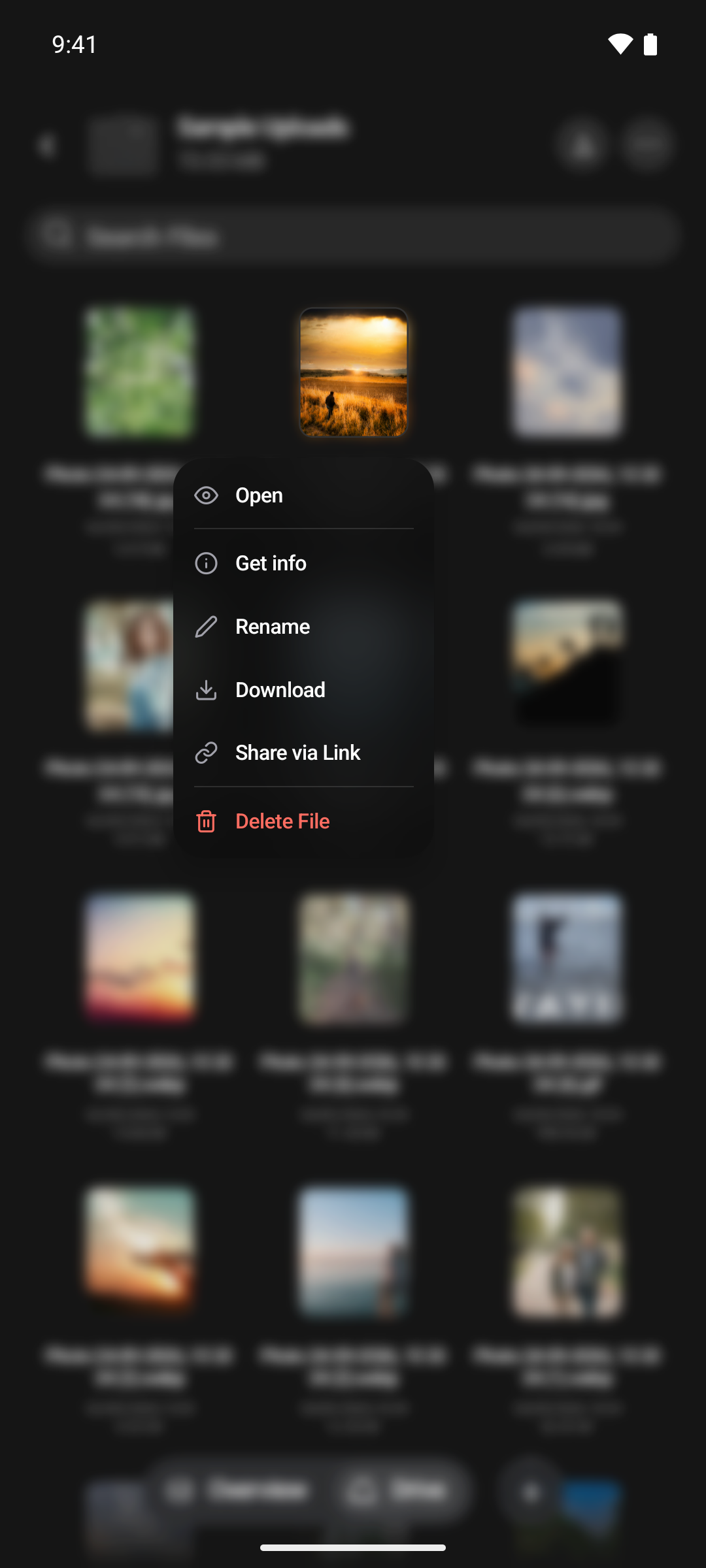
Press and hold any file or folder for its options:
- Open for a file, or Browse Files for a folder.
- Get info. See File details.
- Rename. See Renaming.
- Download, for files. See Saving a file to your phone.
- Share via Link. See Sharing Files.
- Delete File or Delete Folder. See Deleting.
Files that are still uploading have no options until they finish. Items you have shared from this phone show a small link badge. Tap it to see or revoke that link.
There is no Move or Copy on mobile. To put a file somewhere else, download it and upload it again into the folder you want.
Renaming
- Press and hold the item and choose Rename. For the folder you are in, use Rename in the … menu.
- Type the new name. The part before the extension is already selected.
- Tap Rename.
If you change a file's extension, the app warns that it may open in a different app.
A name can't:
- be empty, or be just
.or.. - start with a dot
- contain
/,\or:, or end with a dot - be a name your computer reserves for itself, such as CON, PRN, AUX, NUL, COM1 to COM9 or LPT1 to LPT9
- be longer than 255 bytes
Top-level folders can't be renamed on mobile. Folders inside them, and files, can. If the app says Renaming isn't available for this login, unlock your account with your unlock password first.
Selecting several items
- Open the ··· menu and choose Select.
- Tap the items you want. The bar at the bottom counts them, such as 3 Items.
- Tap the red trash button to delete them, or the X to stop selecting.
Delete is the only thing you can do with several items at once.
Deleting
Press and hold an item and choose Delete File or Delete Folder, or select several and tap the trash button. The app asks you to confirm, for example Are you sure you want to delete "Holiday.jpg"?, then shows its progress, such as Deleting 2/5….
There is no bin. A deleted file can't be recovered, and deleting a folder deletes everything in it. You can turn the confirmation off with Confirm before deleting, but deleting stays permanent either way.
Where to next
- Sharing Files: send a file or folder to someone without a Hippius account.
- Camera Uploads: back up your photos automatically.
- Plans and Storage: how much space you have, and how to get more.