Settings
Introduction
Everything you can change about how the app behaves on this phone. Open it with the gear button at the top right of Overview or Drive.
What's on the Settings screen
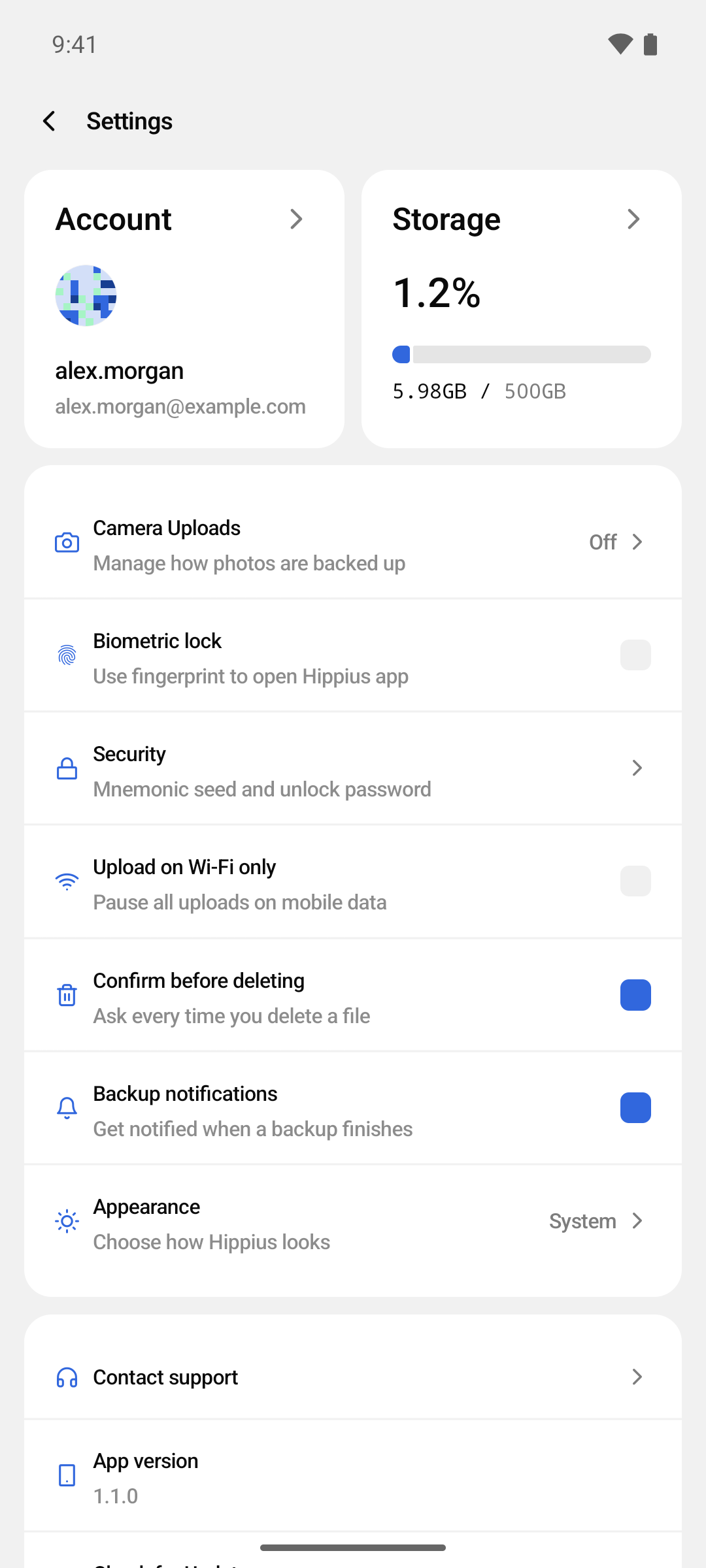
The screen opens with two cards, followed by your preferences, then help and app information, and finally two buttons at the bottom.
| Setting | What it does | Default |
|---|---|---|
| Account card | Opens your Account screen. | |
| Storage card | Opens the Storage breakdown. | |
| Camera Uploads | Opens the Camera Uploads settings. The row shows On or Off. | Off |
| Biometric lock | Asks for your fingerprint or face before the app opens. | Off |
| Security | Back up your mnemonic seed, and set or change your unlock password. | |
| Upload on Wi-Fi only | Pauses all uploads, including Camera Uploads, on mobile data. | Off |
| Confirm before deleting | Asks every time before something is deleted. | On |
| Backup notifications | Tells you when a Camera Uploads backup finishes. | On |
| Appearance | Light, dark, or following your phone. The row shows your choice. | System |
| Contact support | Opens Hippius support in the console. | |
| App version | The version installed on this phone. | |
| Check for Updates | Checks whether a newer version of the app is available. | |
| Terms of Service | Opens our terms in your browser. | |
| Privacy Policy | Opens our privacy policy in your browser. | |
| Clear cache data | Frees the space used by files you have opened. | |
| Logout | Signs you out of this phone. |
Settings apply to this phone only. Your files, your plan and your unlock password belong to your account and are the same everywhere you sign in.
Camera Uploads
The Camera Uploads row opens the screen where you choose which photos are backed up, the Drive folder they go to, whether videos are included, and where you turn backup on or off. The row reads On or Off so you can see at a glance whether backup is running.
Everything on that screen is covered in Camera Uploads.
Biometric lock
Biometric lock asks for your fingerprint or face before the app opens. It protects the app on this phone, which is worth having if other people handle it.
- Turn on Biometric lock.
- Your phone asks you to confirm it is you. The lock only turns on once that check passes, so you can't lock yourself out with a sensor that isn't working.
From then on, the app asks for your fingerprint or face every time it starts. It also locks whenever you leave it: when you come back, it shows Hippius is locked. Tap Unlock and confirm to carry on. Turning the lock off never asks for anything.
Backups and uploads keep going while the app is locked. The lock only covers what is on screen.
The lock is separate from your unlock password. It only decides who can open the app on this phone, and it has nothing to do with how your files are encrypted.
On Android
The line under the switch names what your phone uses, usually Use fingerprint to open Hippius app. The lock works with the fingerprint or face unlock you have set up in your phone's security settings.
If turning it on doesn't work, the app tells you why:
- Nothing is set up yet. Add a fingerprint in your phone's settings first. The message offers Open Settings.
- Too many failed attempts. Your phone has locked the sensor for a while. Choose Use passcode and confirm your phone's PIN, pattern or password to unlock it.
Security
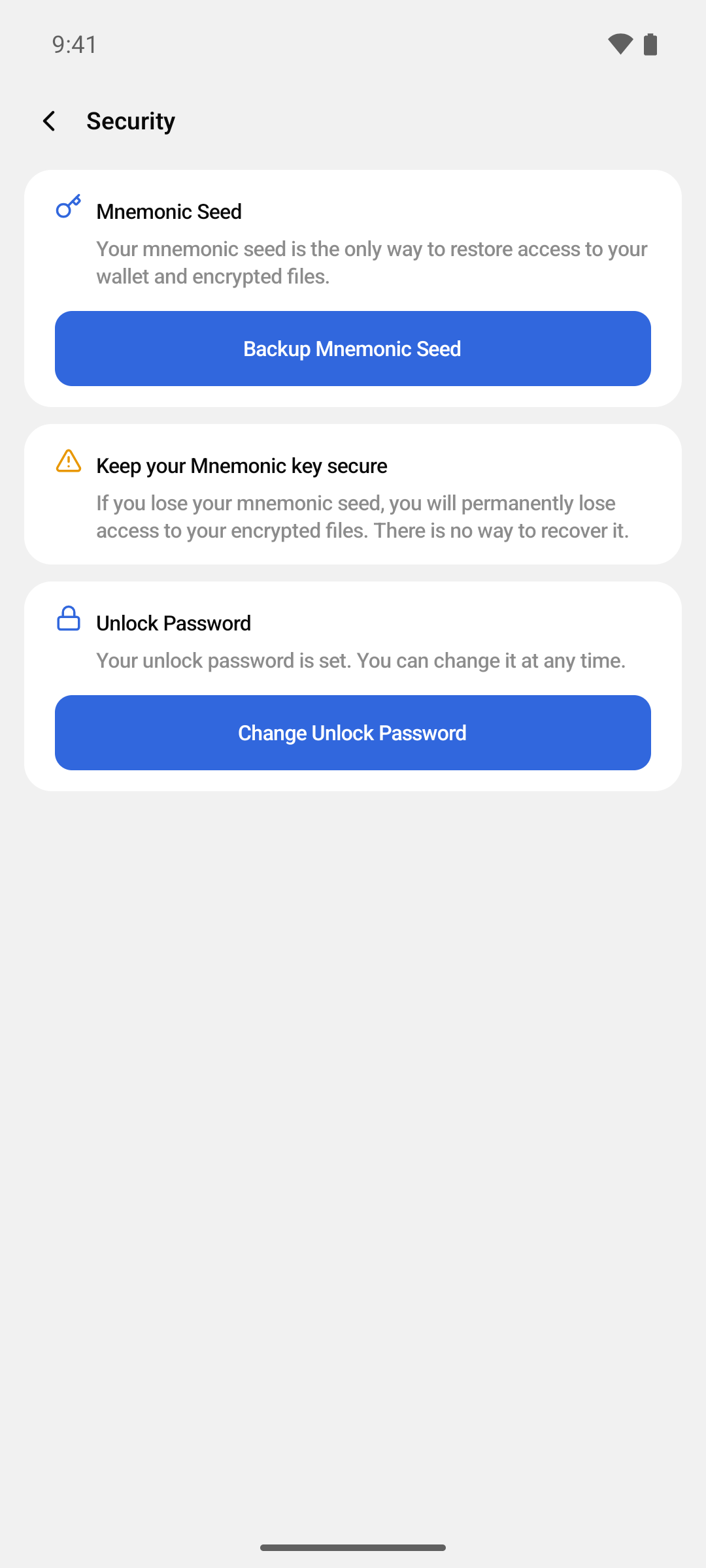
Open Settings → Security to manage the two things that keep your files yours:
- Your mnemonic seed, the 12-word key that encrypts your files.
- Your unlock password, which lets you open your files on a new phone without typing the seed.
Mnemonic Seed
Every file you upload is encrypted on your phone before it leaves it. The key that does the encrypting is a 12-word mnemonic seed that belongs to your account. Hippius never has this seed in a readable form, which is why nobody but you can open your files, and also why nobody at Hippius can get them back for you if the seed is lost.
If you signed in with Google, GitHub, or Apple, the seed was created for you and lives in your phone's secure storage. You should back it up once, so that you can still reach your files if you lose this phone. The Mnemonic Seed row on the Security screen is where you do that.
If you signed in with an access key, that key is your mnemonic seed. You already have it, so the Security screen does not show the backup row. Keep your access key with the same care described below.
Backing up your mnemonic seed
- Tap Backup Mnemonic Seed.
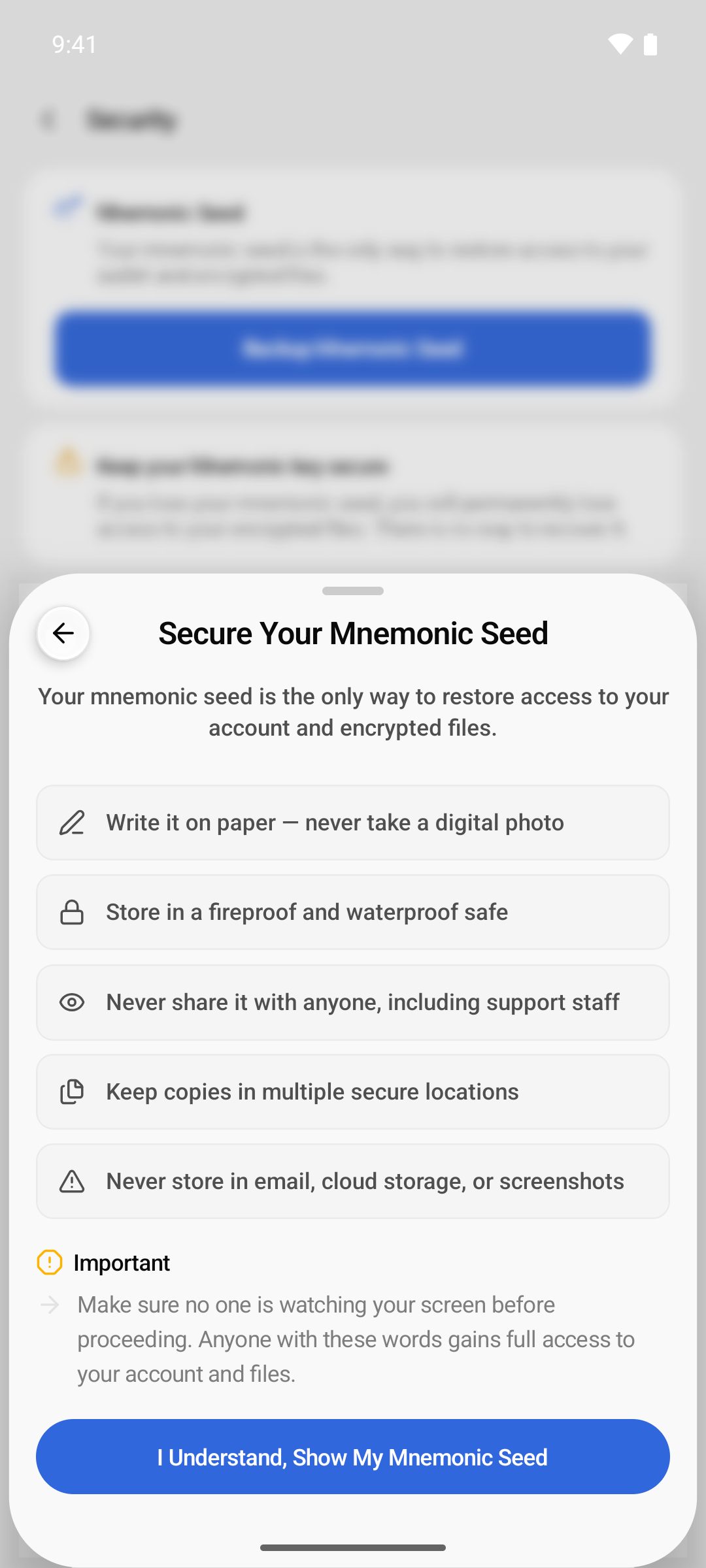
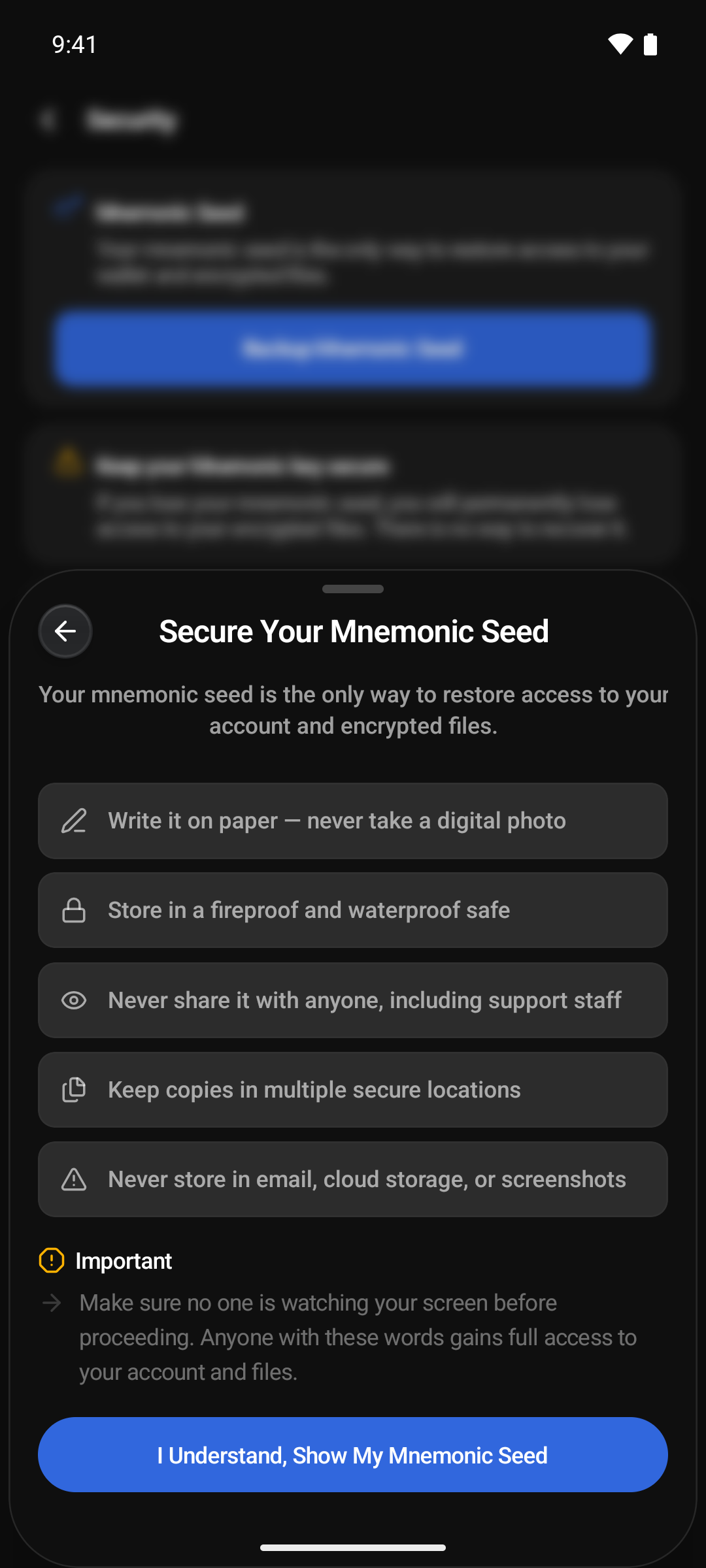
- Read the handling tips. Make sure nobody can see your screen, then tap I Understand, Show My Mnemonic Seed.
- The 12 words are blurred. Tap Show to reveal them and write them down in order, on paper.
- When you are done, tap I Have Written It Down.
Two more options on the same screen:
- Copy puts the words on the clipboard for 30 seconds, then clears it. Paste them only into something you trust, such as a password manager.
- Download Encrypted Backup saves the seed as a password-protected zip file named
hippius-recovery-backup-YYYY-MM-DD.zip. Choose a password of at least 8 characters, confirm it, and tap Encrypt & Save. The phone then asks where to save the file or which app to send it to. The zip uses standard AES-256 encryption and opens in most archive apps with the password you chose. That password is not stored anywhere, so keep it as safely as the seed.
Never share your seed with anyone, including support staff. Never store it in email, chat, cloud notes, or screenshots. If you lose the seed and forget your unlock password, your encrypted files cannot be opened again.
Unlock Password
Your files are encrypted with your mnemonic seed, not with a password. The unlock password does not replace the seed. It protects an encrypted copy of your seed that Hippius stores for your account, so that you can open your files on another phone by typing a password instead of the 12 words.
When you enter your unlock password, the app downloads that encrypted copy, unlocks it on your phone, and keeps the seed in the phone's secure storage. Files are encrypted and decrypted on the phone. The seed and the password are never sent to Hippius.
The same unlock password works everywhere you use Hippius. If you also use the Hippius desktop app or the web console, you are asked for it there too, and a password set or changed in one place applies to all of them.
Hippius never sees your unlock password, so it cannot be reset for you. If you forget it, the only way back in is your mnemonic seed. Keep both somewhere safe. See Forgot Your Password? Restore Access.
When you are asked for it:
| Situation | What happens |
|---|---|
| First upload on a new account | The app asks you to create an unlock password before the file is encrypted. |
| Signing in on a new phone | The app asks for your unlock password once, right after sign-in, and then remembers you until you sign out. |
| Web console | Asked whenever you preview, download, or upload a file. |
| Desktop app | Asked when you sign in on a new computer. |
Camera Uploads backs up your photos without asking for an unlock password. Set one anyway, so you can open those photos in the web console and the desktop app too.
Setting Your Unlock Password
If your account has no unlock password yet, the app asks you to create one the first time you upload a file. You can also do it any time from Security, where the row reads Set Unlock Password.
- Tap Set Unlock Password. The Protect Your Account sheet opens.
- Under Create Unlock Password, enter a password of at least 8 characters. The strength meter must read OK or Strong. A phrase of several unrelated words works well. The console and the desktop app ask for at least 10 characters and Strong when you set it there, so a longer password saves you trouble later.
- Repeat it under Confirm Password.
- Tap Create Password.
Before saving, the app checks whether your account already has an unlock password, for example one you set in the desktop app or the console. If it does, nothing is replaced and the row switches to Change Unlock Password.
Unlocking on a New Phone
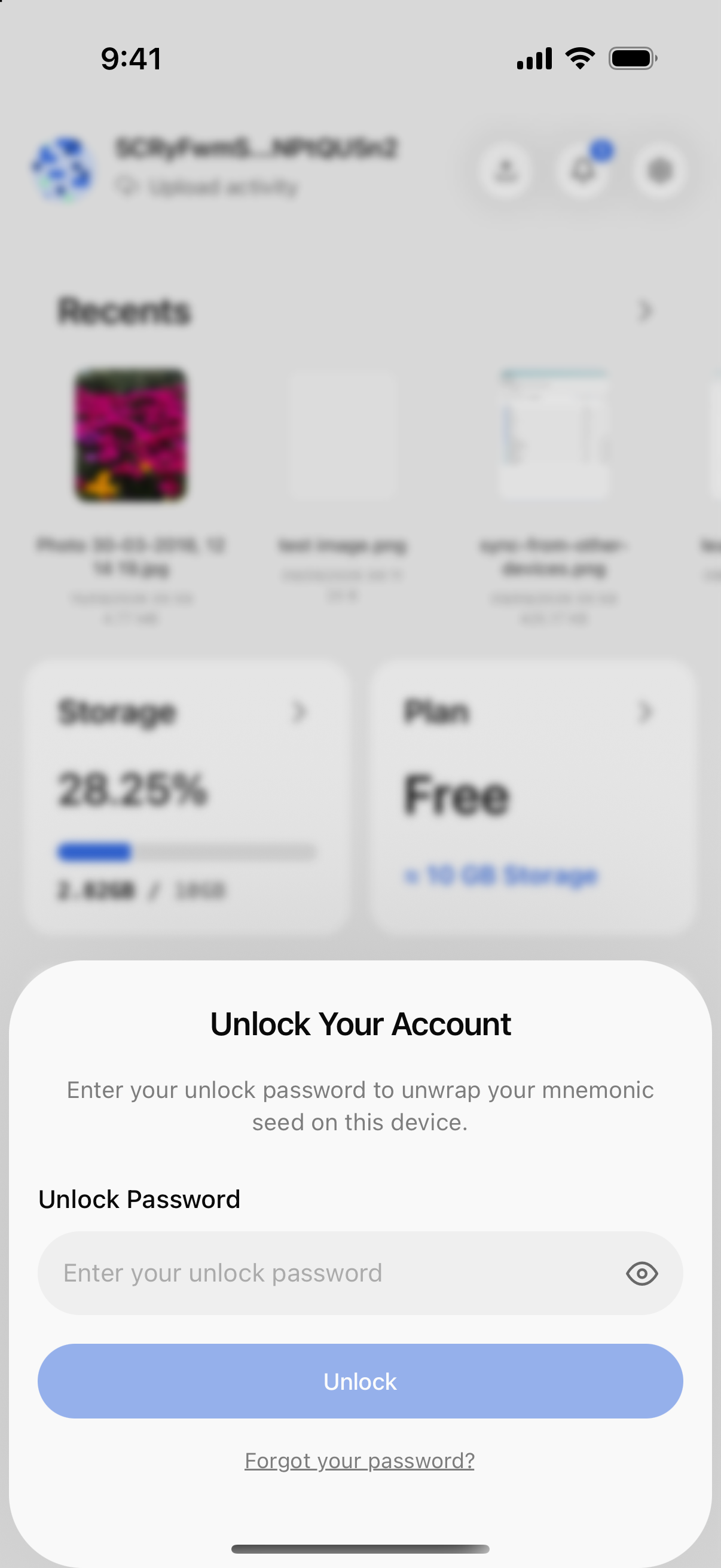
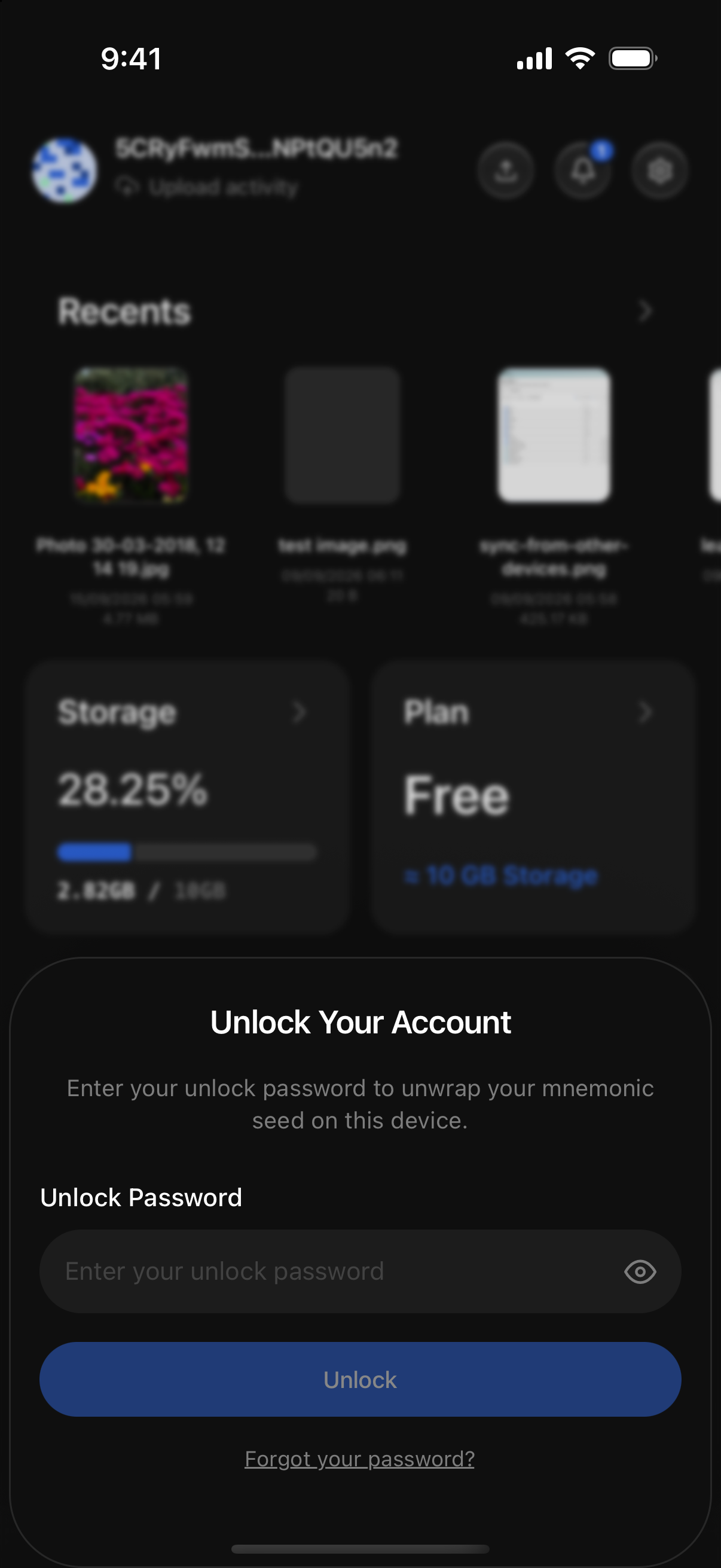
After you sign in on a phone that has not seen your account before, the app shows Unlock Your Account. Enter your unlock password and tap Unlock. The app fetches your encrypted seed copy, opens it, and you land on your files. You are not asked again on this phone until you sign out.
Changing Your Unlock Password
- Open Settings → Security and tap Change Unlock Password.
- Enter your Current Password.
- Enter a New Password that meets the strength requirement and differs from the current one, then repeat it under Confirm New Password.
- Tap Change Password.
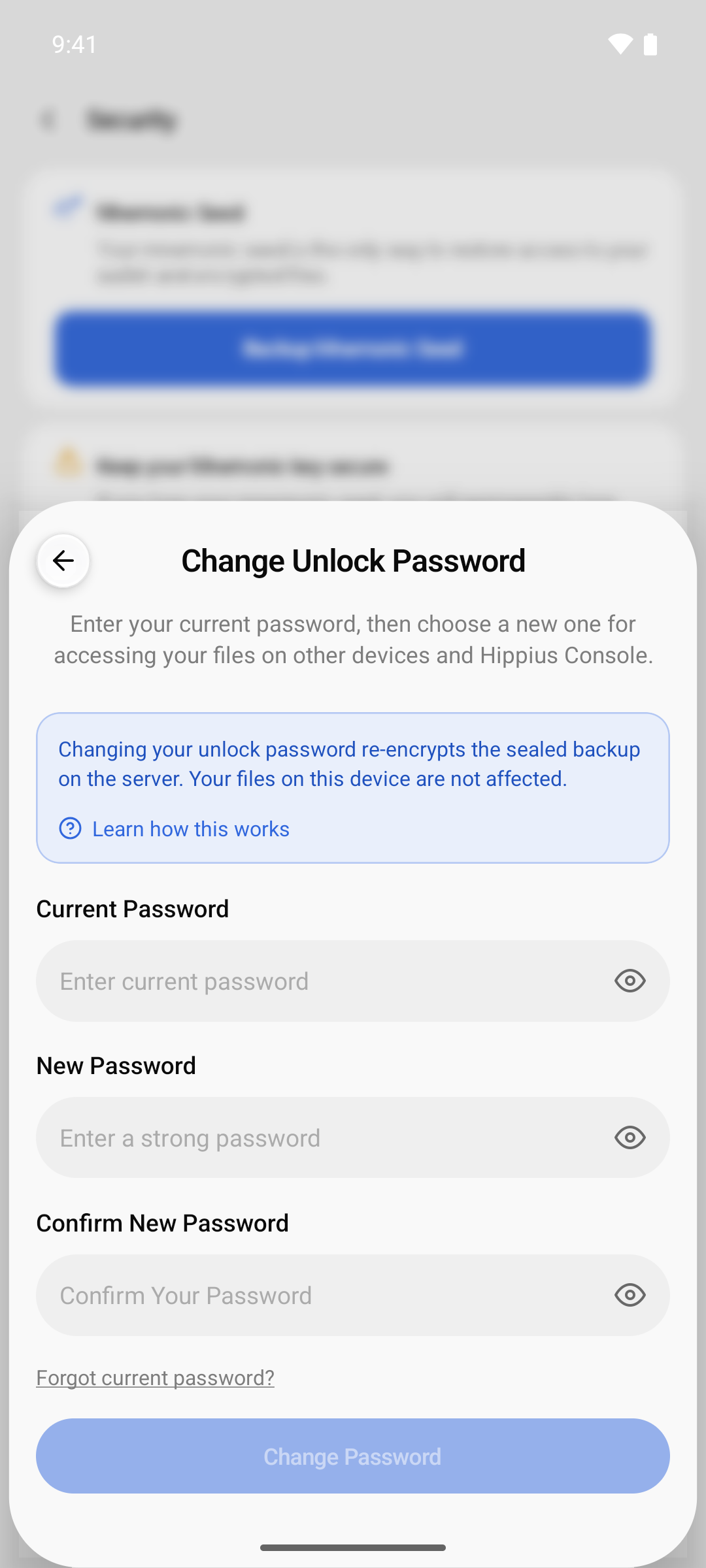
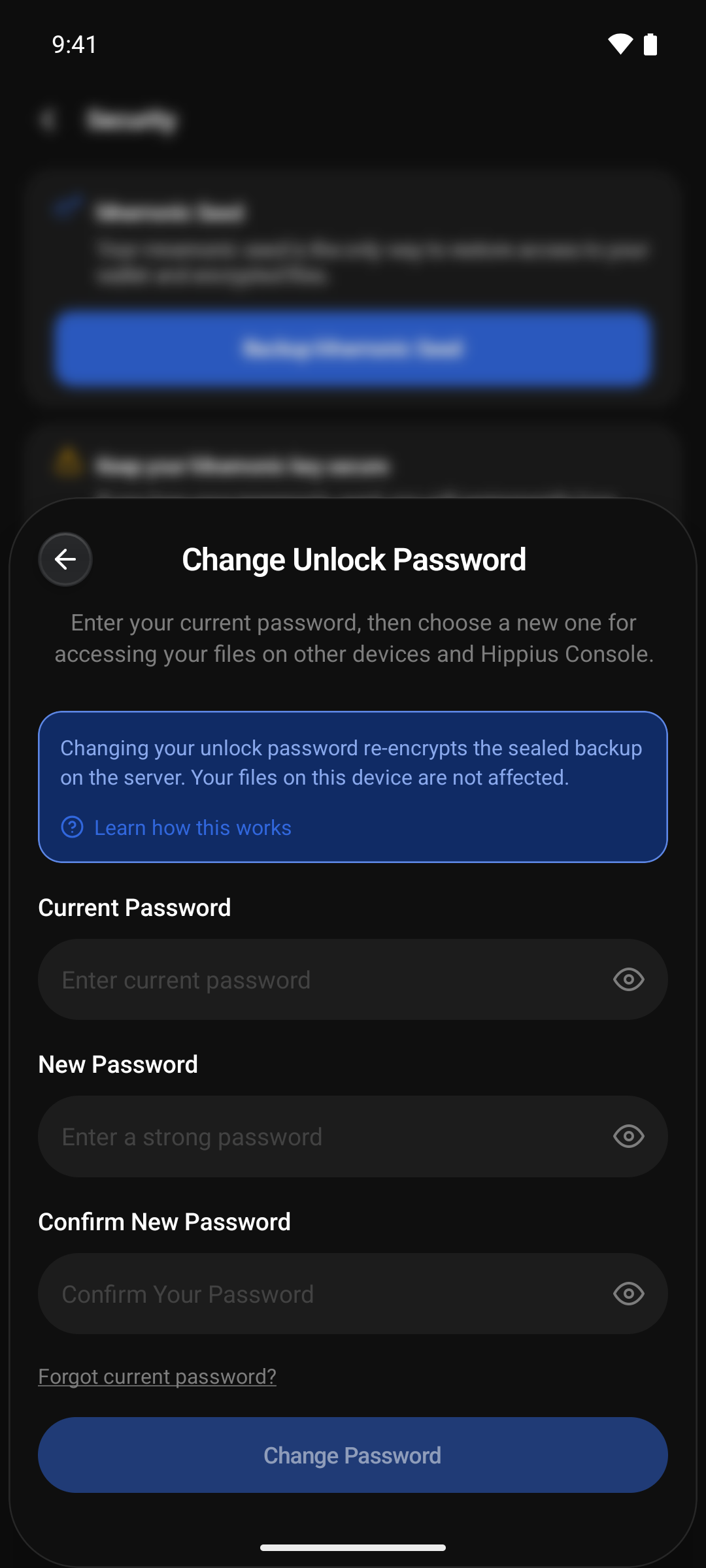
The app opens your encrypted seed copy with the current password, re-encrypts the same seed with the new password, and replaces the copy. Your seed does not change and your files are not re-encrypted, so nothing is re-uploaded. Use the new password from now on, on every device.
If the current password is wrong, the sheet shows Incorrect current password. If you no longer know it, tap Forgot current password? to open Restore Access.
Forgot Your Password? Restore Access
If you forget your unlock password, you can set a new one with your mnemonic seed. Open the flow from either place:
- On the Unlock Your Account sheet, tap Forgot your password?, then Use your mnemonic seed.
- On the Change Unlock Password sheet, tap Forgot current password?.
The Restore Access sheet asks for your seed and a new password:
- Under Mnemonic Seed, enter or paste your 12-word seed phrase.
- Enter a New Unlock Password and repeat it under Confirm Password.
- Tap Restore and Set Password.
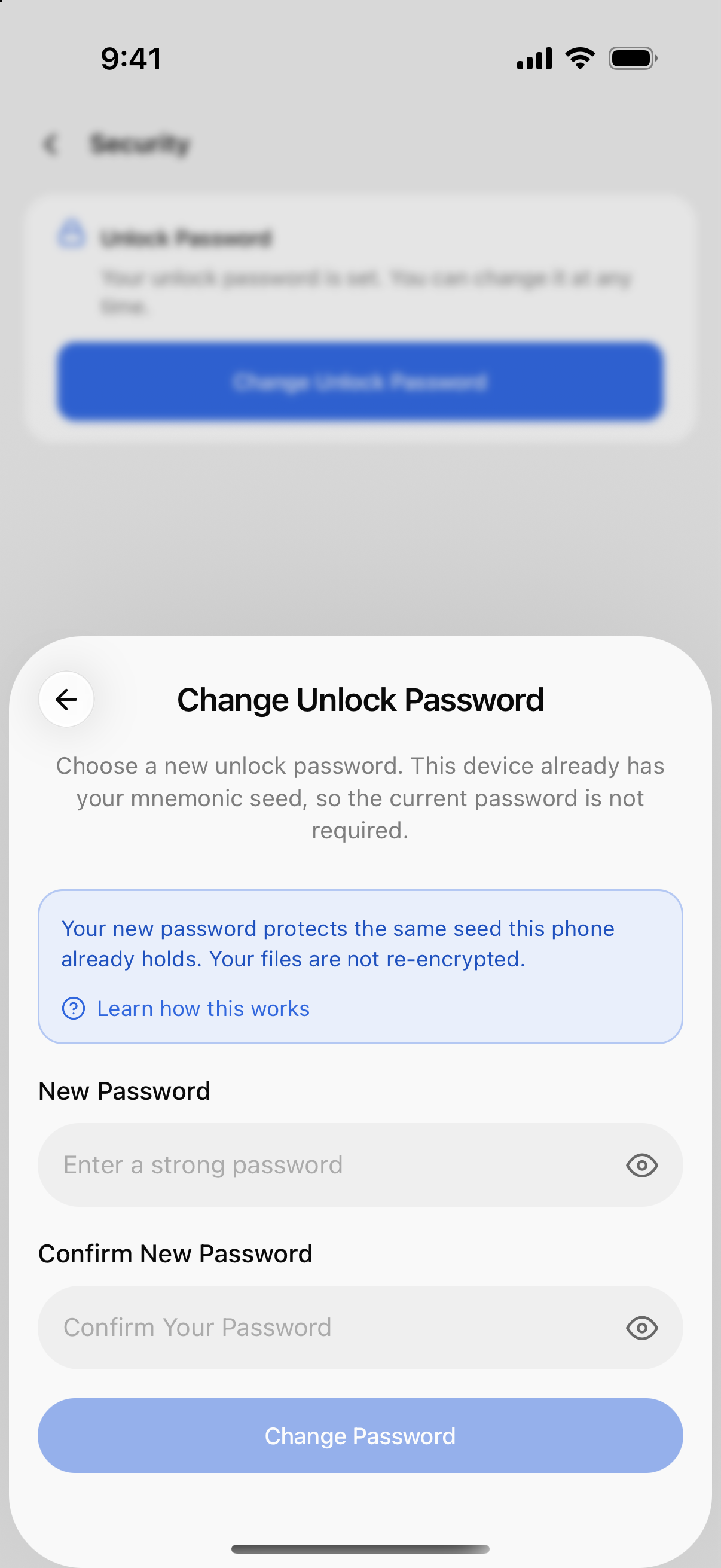
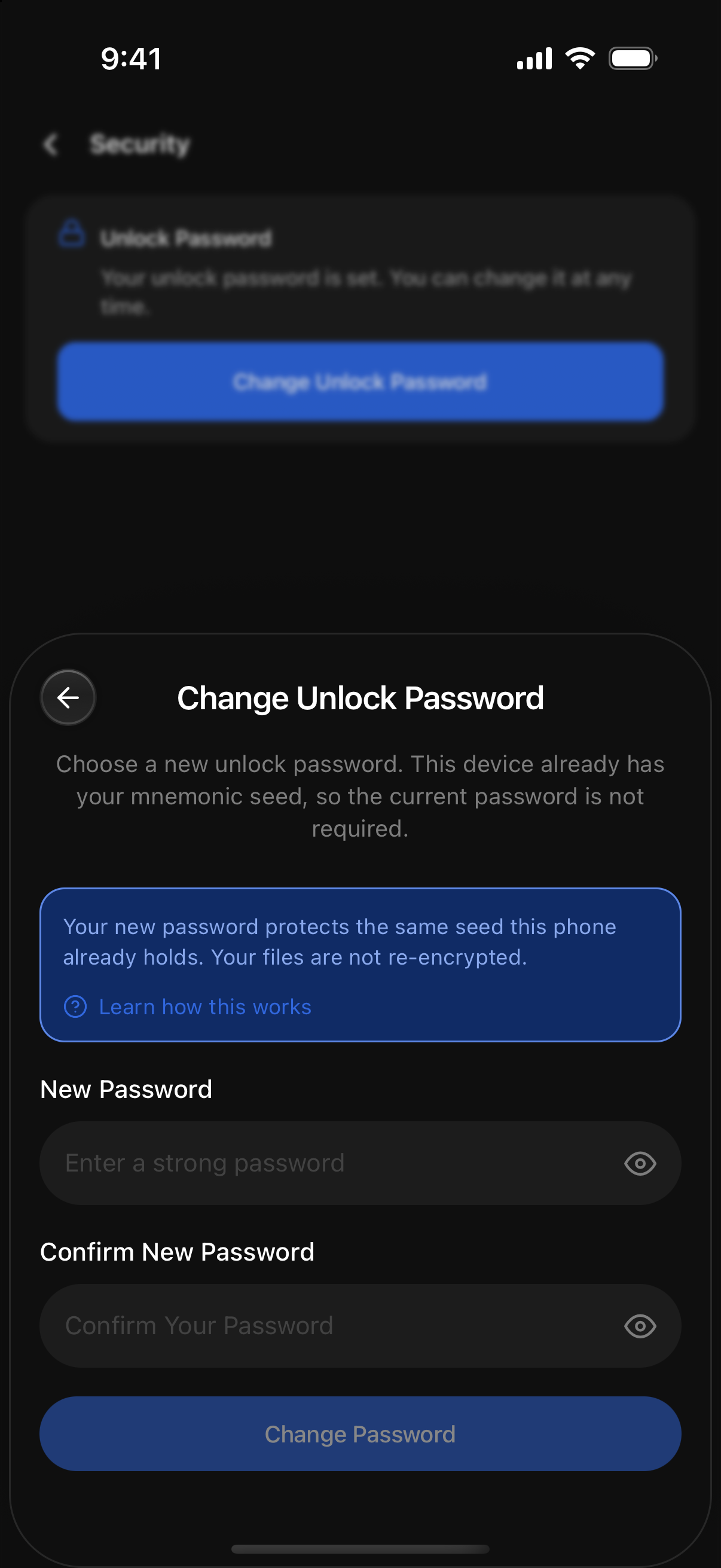
The app checks that the seed belongs to the account you are signed in to before anything is replaced. A seed for a different account is rejected and your existing backup is not touched. If it matches, the app creates a new encrypted copy of the same seed, protected by your new password. Your files are not re-encrypted, and the seed never leaves your phone.
If this phone already holds your seed, for example because you signed in with an access key, the sheet skips the seed field and only asks for the new password. The message reads "Choose a new unlock password. This device already has your mnemonic seed, so the current password is not required."
Hippius never sees the password or the seed, so neither can be recovered for you. If you lose both, your encrypted files cannot be decrypted. Back up your seed while you still have it.
Uploads
Three switches control how uploads and deletes behave on this phone.
Upload on Wi-Fi only
Off by default, so uploads use Wi-Fi or mobile data, whichever you are on.
Turn it on and everything that uploads waits for Wi-Fi: files you upload yourself and Camera Uploads. On mobile data they pause, and they carry on by themselves once you are back on Wi-Fi.
If you try to upload, turn on Camera Uploads, resume or retry while you are on mobile data, the app stops and tells you why, for example Uploads need Wi-Fi or Camera Backup needs Wi-Fi. Connect to Wi-Fi, or tap Open Settings and turn the switch off.
Confirm before deleting
On by default. Before anything is deleted, the app asks, for example, Are you sure you want to delete "Holiday.jpg"?, and reminds you that it can't be undone. Tap Delete to go ahead or Cancel to keep it.
Turn it off if you would rather delete without the extra step. Deleting is permanent either way. There is no bin to restore from.
Backup notifications
On by default. When a Camera Uploads backup finishes, the app tells you, both in the app's notifications and on your phone. Turn it off if you would rather check on backups yourself.
This switch doesn't affect the quiet notification Android shows while a backup is running in the background. That one is required by Android and goes away when the backup is done.
Your phone also has to allow Hippius to send notifications. The app asks after you first sign in, and on Android asks again when you turn on Camera Uploads if you haven't allowed it yet. See Permissions.
Appearance
Open Settings → Appearance and choose a Theme:
- System follows your phone's light or dark setting. This is the default.
- Light keeps the app light.
- Dark keeps the app dark.
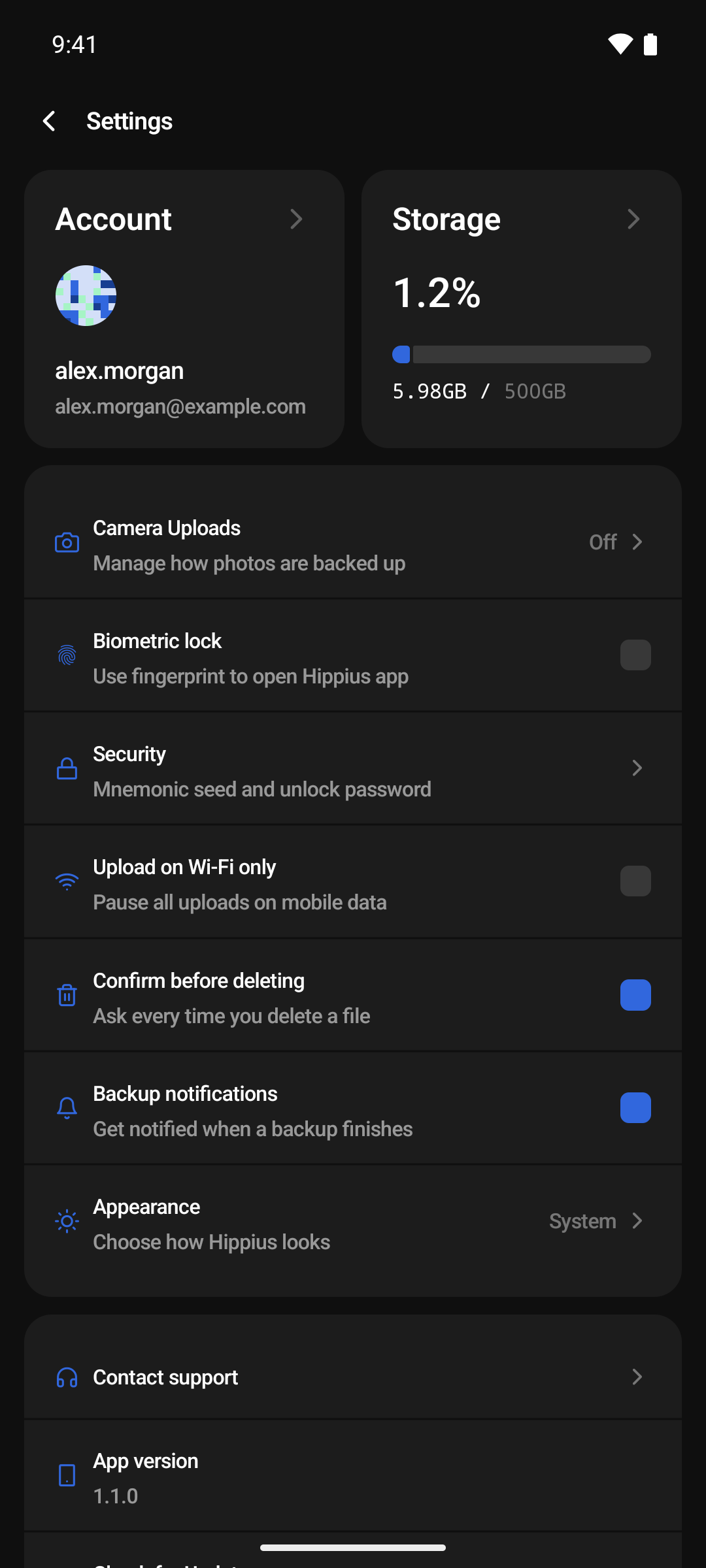
The change applies straight away, and the Appearance row shows which one you picked.
Help and app information
- Contact support opens Hippius support in the console, in your browser. Sign in there with the same account to open a ticket. See Help & Support.
- App version shows the version installed on this phone. Support may ask you for it.
- Check for Updates checks for a newer version straight away. If there is one, you can install it from there. Otherwise it says You're up to date. The app also checks by itself when it opens, but only this button tells you when you are already on the latest version. See Keeping the app up to date.
- Terms of Service and Privacy Policy open in your browser.
Clearing the cache
When you open a photo, video or PDF, the app keeps a decrypted copy on your phone so it opens instantly next time. The Clear cache data button at the bottom of Settings shows how much space those copies use.
Tap it, then Clear to confirm. This frees the space on your phone. Your files in Drive are not touched, and anything you open again is simply downloaded again. Uploads in progress are not affected.
Storage
From Overview, tap the Storage card, or the same card at the top of Settings, to see what is using your space. The Storage screen shows:
- How much you have used out of your plan's total.
- How much of it goes to Videos, Images, Files and Others. Tap a row to highlight it in the chart.
- Upload sources: how many of your files were added from the Desktop app, the Console and Mobile.
- A Notice once you pass 80% of your storage, with how much space is left.
Your account
Open Account from the Account card at the top of Settings, or from the Plan card on Overview. It shows:
- Who you are signed in as. If you signed in with Google, GitHub or Apple, you see your name and email. Your wallet address is shown too, with a button to copy it.
- Your current plan and how much storage it gives you. This is read only.
Your mnemonic seed is not shown here. It lives in your phone's secure storage, and the only place the app reveals it is the deliberate backup flow under Security.
Managing subscriptions isn't available in the Hippius mobile app. The Account screen only shows which plan you are on.
Logging out
Tap Logout on the Account screen or at the bottom of Settings, then confirm. Logging out removes your session and your seed from this phone. Your files are untouched, and signing back in brings everything back.
Before you log out, make sure you can sign back in: with the same Google, GitHub or Apple account, or with your access key. If this phone was the only place your seed lived, back it up first.
Delete account
At the bottom of the Account screen, below Logout, is Delete my account. It deletes your whole Hippius account — not just the app on this phone — and everything in it.
Deleting is not instant. Your account is locked the moment you confirm, and permanently deleted 7 days later. Those 7 days are a grace period: until the deletion runs you can still stop it and get everything back.
Your files, buckets, container images, subscriptions and remaining balance all go, on every device and on the console too. After the 7 days there is nothing left to restore, and no copy on our side to restore it from.
What gets deleted
The first step is not a warning, it is an inventory. The app reads your account live and lists what is actually there, in six groups: Storage, Compute, Registry and network, Subscriptions, Credits, and Access and account.
Only groups that hold something get a checkbox to tick. A group that is empty collapses to a single grey line, so you are only asked to confirm what you actually have. The app has no virtual machines or databases of its own, so unless you run them from the console, Compute will simply read "No VMs or databases".
If you do have a running VM or managed database, that blocks the request until it is decommissioned from the console.
The steps
Tap Delete my account to open the sheet. Everyone finishes by typing the confirmation phrase; the only thing that differs is whether there is an email step before it:
| How you sign in | Steps |
|---|---|
| Social login (Google, GitHub, Apple) | 3 — inventory, emailed code, phrase |
| Recovery seed or access key | 2 — inventory, phrase |
A wallet-only account is deleted in exactly the same way, on exactly the same 7 day schedule. It simply has no mailbox to send a code to, so that one step does not exist and the counter reads "OF 2" instead of "OF 3".
- What will be deleted. Read the inventory and tick each group's checkbox. Continue stays disabled until every group that holds something is ticked.
- Prove it's you. Social logins only. A 6-digit code is sent the moment this step opens, so you never have to ask for it. It expires in 15 minutes, and Resend becomes available again 60 seconds after each send.
- Type to confirm. Type delete my account exactly, then tap the red Delete my account button.
After you confirm
The app does not throw you out. The sheet turns into a final step headed Your account is locked, which gives the exact date your account will be deleted and says how to keep it before then.
That step has no close button. The only way out is Sign out, and that is deliberate: confirming revokes every session token, including this phone's, so the session behind the screen is already dead. Read the date, then sign out.
Changing your mind
You have the whole grace period to stop the deletion. How you do it depends on how you sign in.
If your account has an email address, use the cancel link in the email sent when the deletion is scheduled. It works without signing in, which matters, because your sessions were revoked when you confirmed.
If you sign in with a recovery seed or an access key there is no email, so the cancel link doesn't apply. Instead:
- Sign in again on this phone. A locked account can still sign in.
- Open the Account screen.
- Where Delete my account used to be, it now reads Scheduled for deletion on …. Tap Cancel deletion.
Either way the result is the same: your account is active again, the lock is lifted, and nothing was deleted.
While a deletion is scheduled the app still opens, but the account stays locked and most screens will be empty or show an error. That is expected. Until you actually tap Cancel deletion, the countdown is still running.
Some deletions are final from the moment they are confirmed. When that is the case the sheet says so in amber before you commit, and the Account screen afterwards reads This deletion cannot be cancelled with no button beside it.
The app and the console act on the same account. A deletion started on your phone can be cancelled from the console, and one started on the console shows up here.
Where to next
- Camera Uploads: back up your photos automatically.
- Permissions and Background Backups: what the app asks your phone for, and why.
- Troubleshooting: fixes for the most common problems.