Billing
How paying for Hippius works
There are two things to know about: your balance and your plans.
Your balance is money you keep on your account, in dollars. A plan is what gives a product its storage. Drive, S3 and Hub each have their own plan, so you can be on a free Drive plan, pay for a large S3 plan and never touch Hub at all.
Your balance pays for your plans when they renew each month, and for anything you use by the hour, such as S3 on pay as you go. Topping up on its own does not give you more space. It keeps your plans paid.
You'll find all of this under
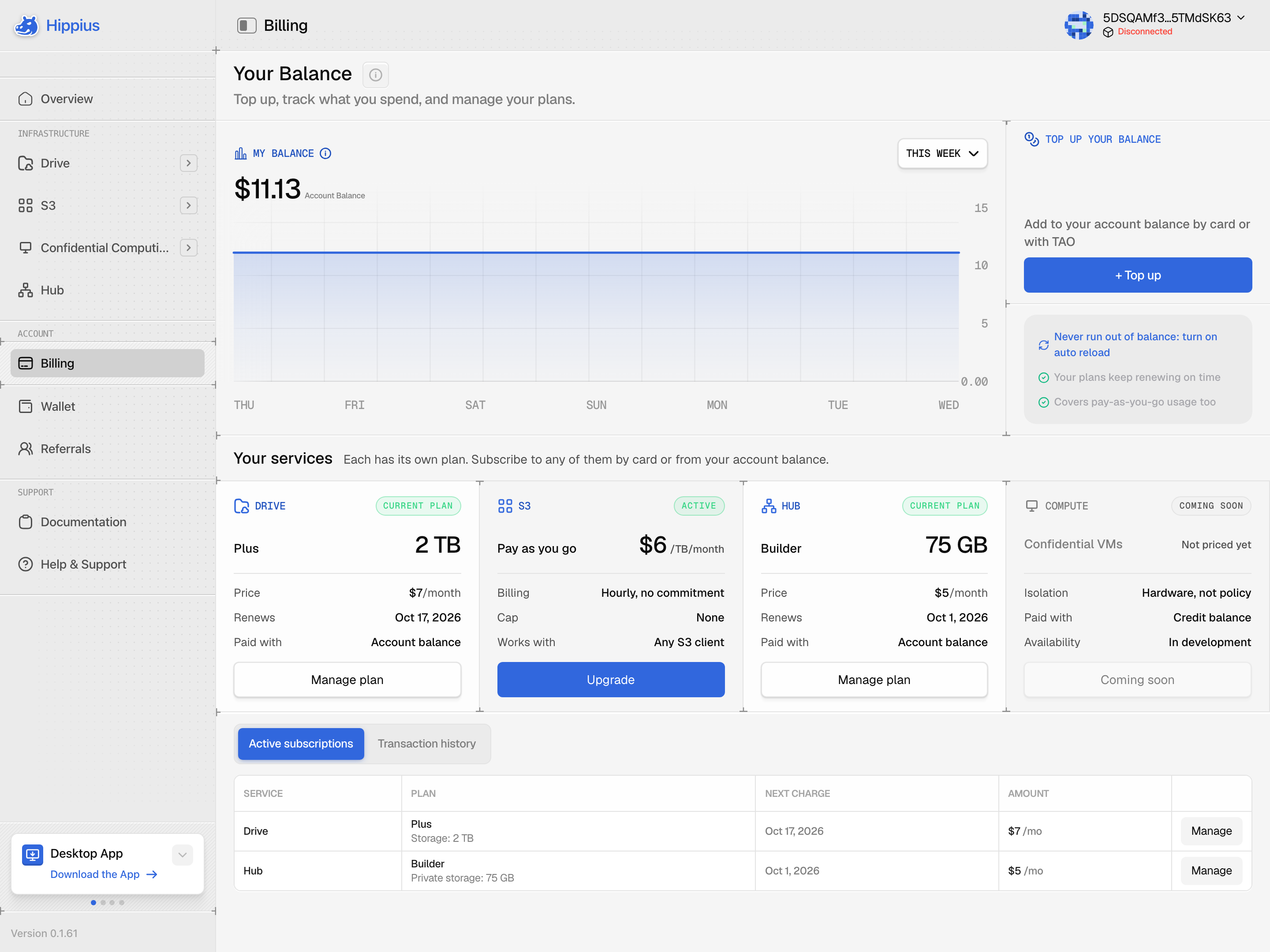
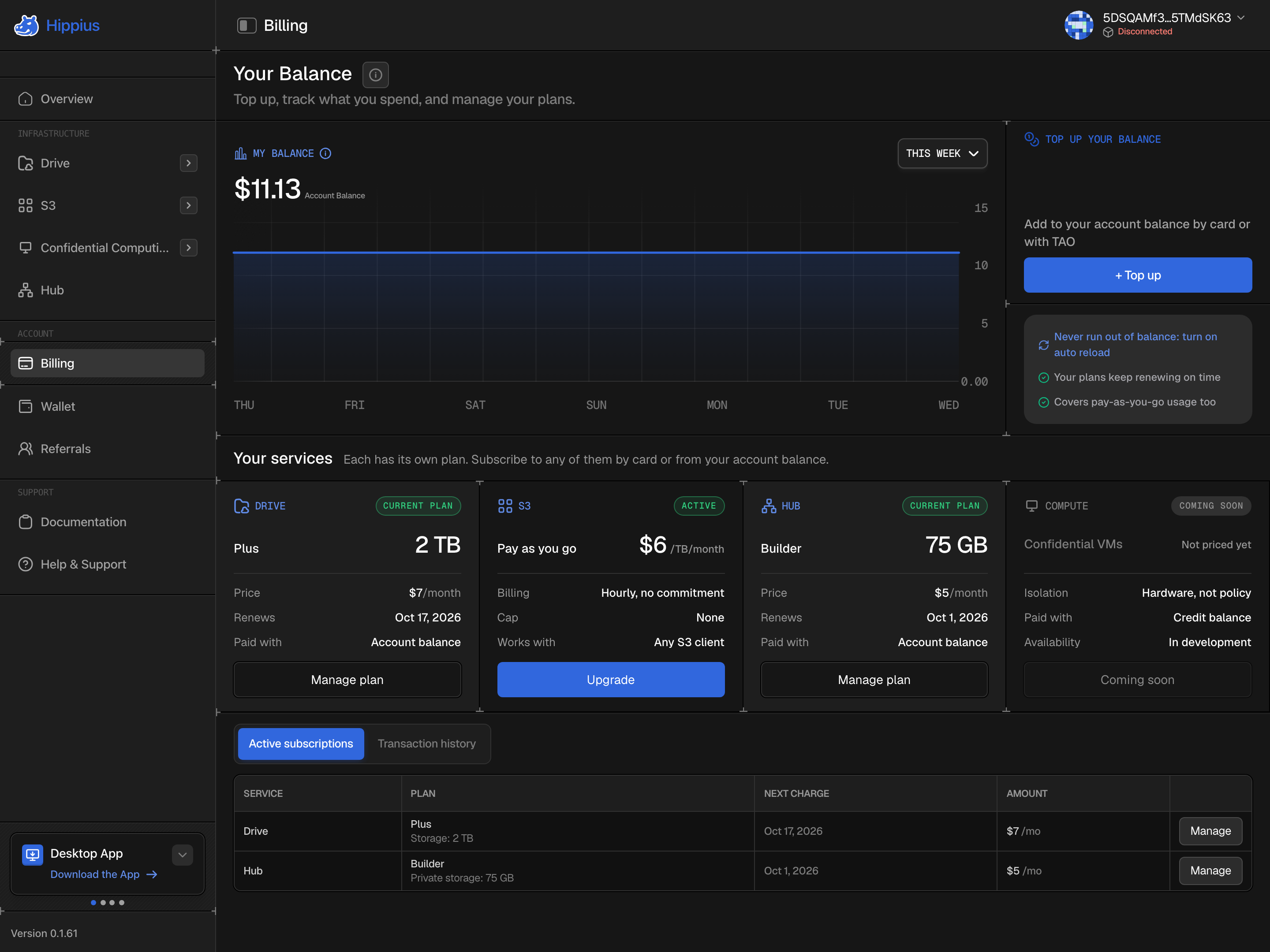
Add money to your balance
You can top up by card, with Bitcoin, with USDC, or with TAO. Whichever you pick, the money lands on your balance and stays there until a plan or S3 usage draws on it.
By card
Open Billing and click + Top up. You can add money once, anywhere from $10 to $10,000, or choose Auto reload to add a fixed amount every month. Payment goes through Stripe, so we never see your card details. If you close the Stripe page without paying, nothing is charged.
Auto reload is the easiest way to make sure your plans never lapse. You can change or stop it at any time from the same dialog, through Stripe. Anything it has already added stays on your balance.
With Bitcoin
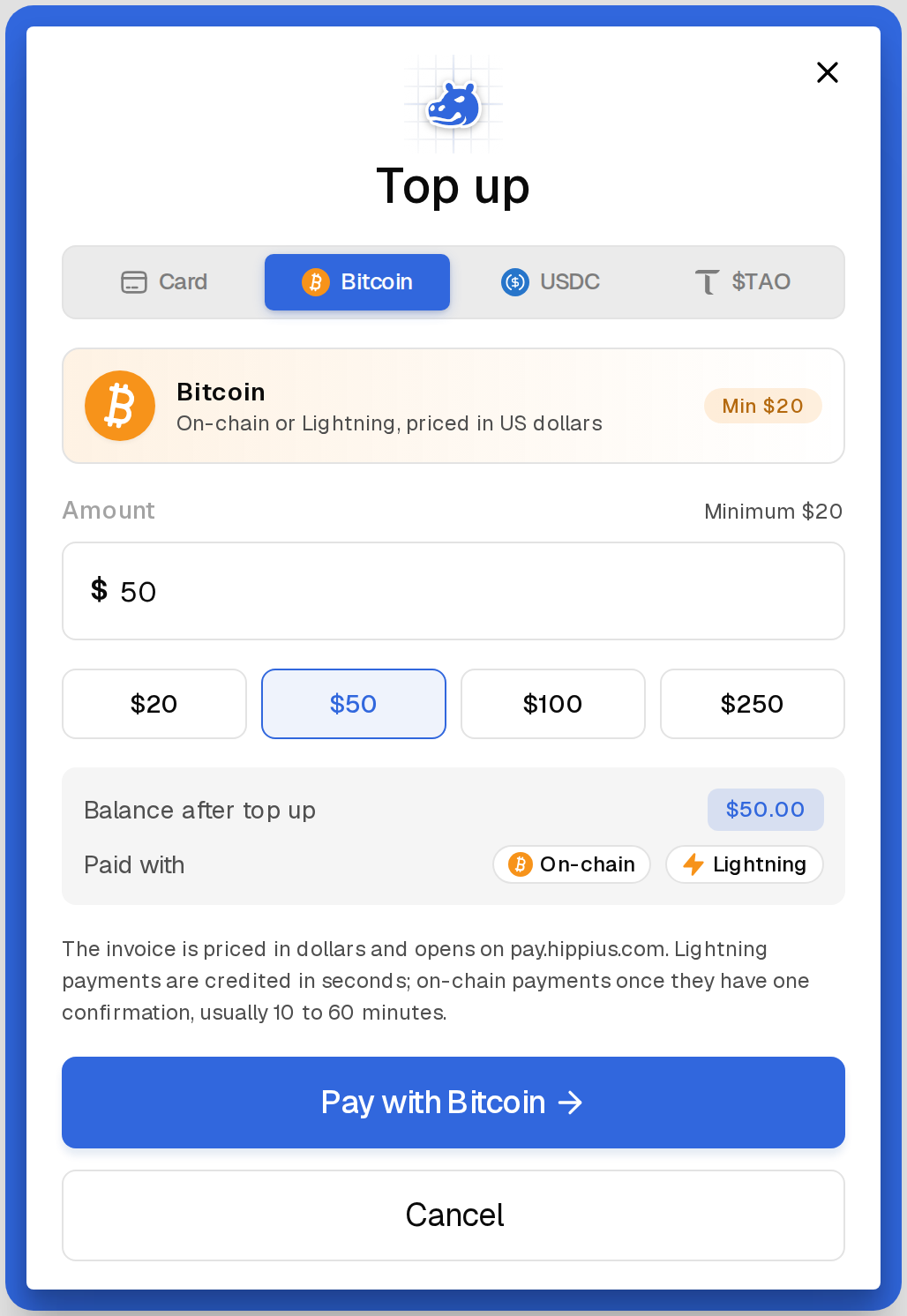
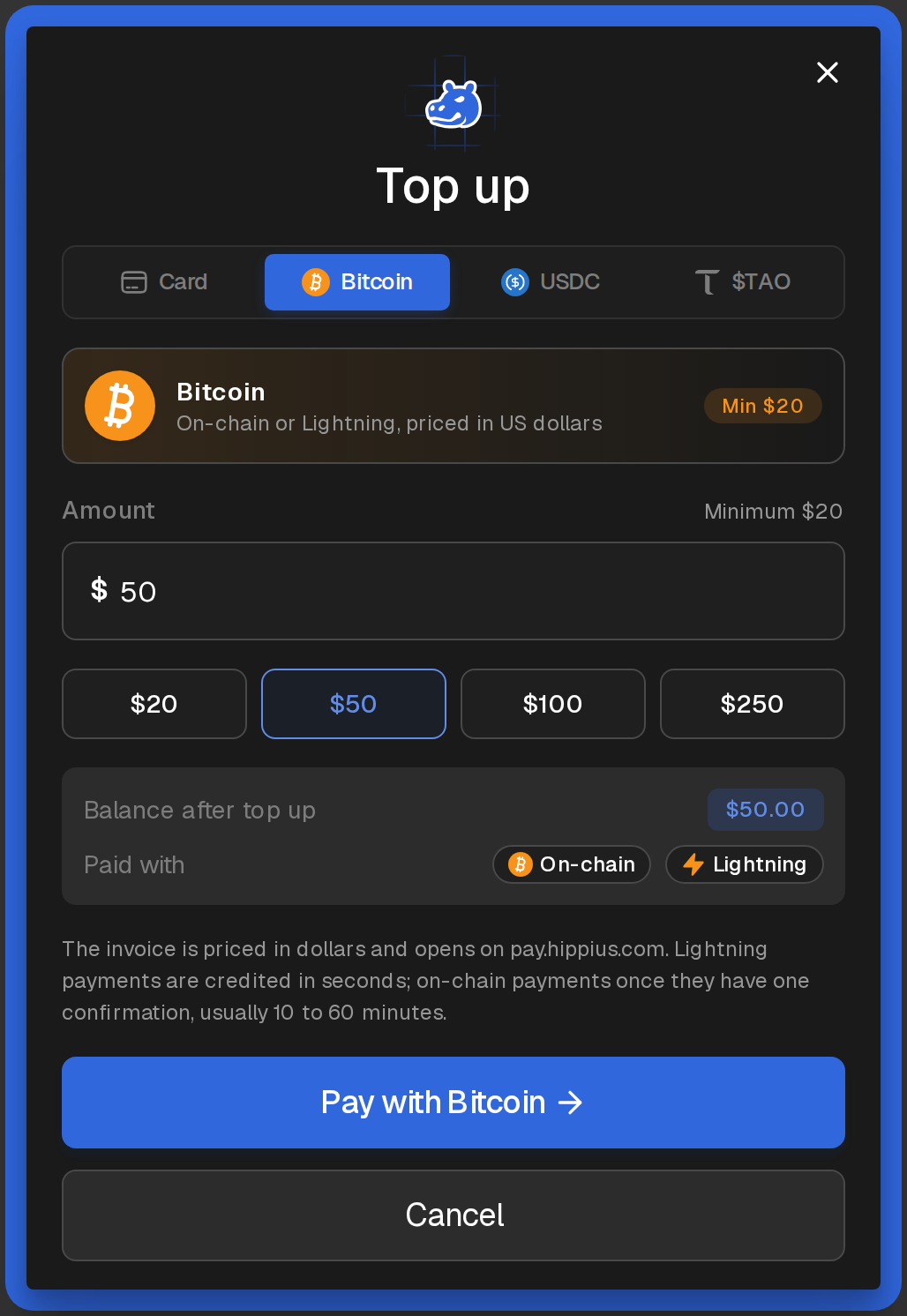
In the same Top up dialog, choose Bitcoin. You can pay on-chain or over Lightning, from $20 to $10,000. The invoice is priced in dollars and opens on pay.hippius.com. Lightning is credited in seconds. An on-chain payment is credited after one confirmation, usually 10 to 60 minutes.
With USDC
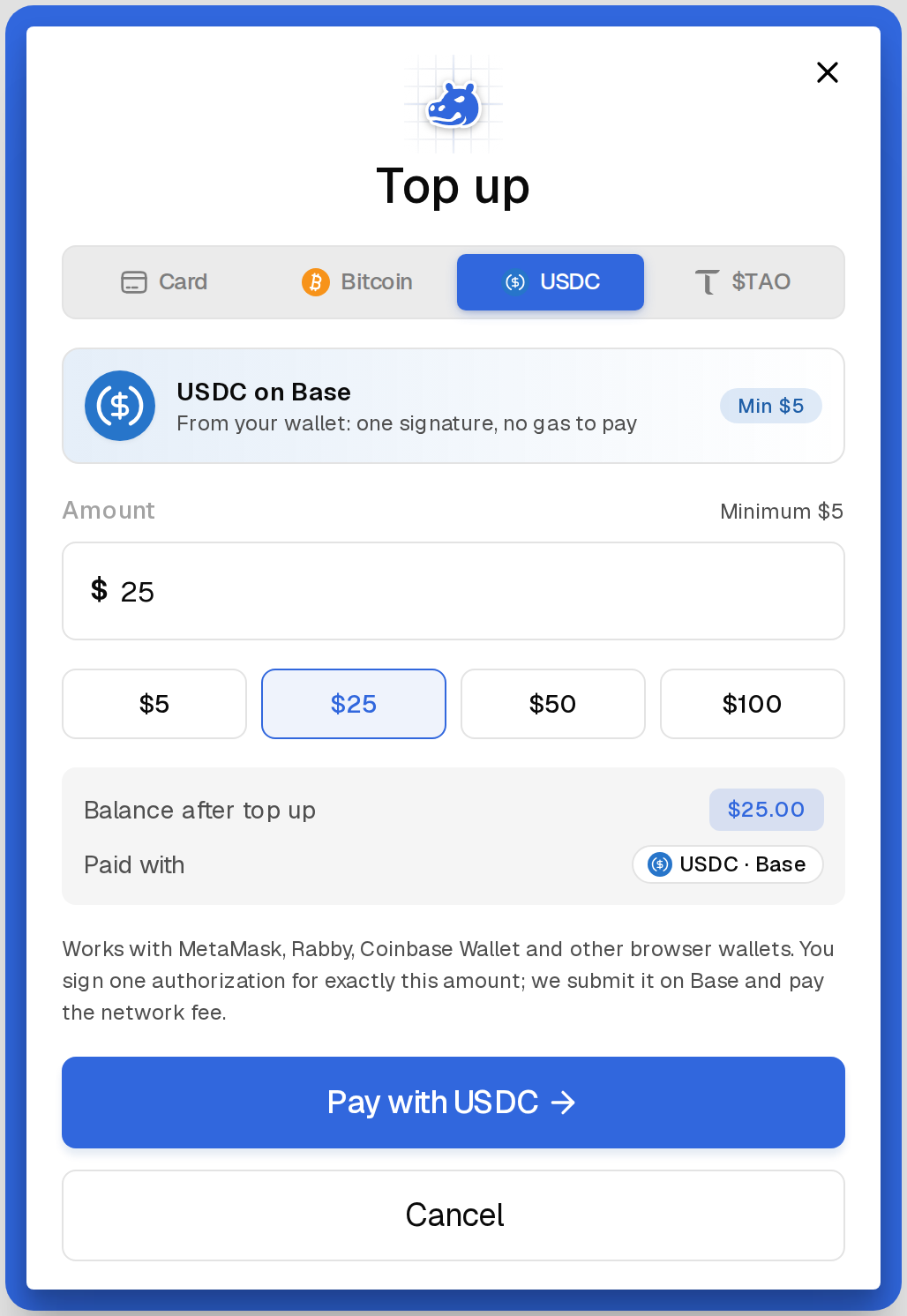
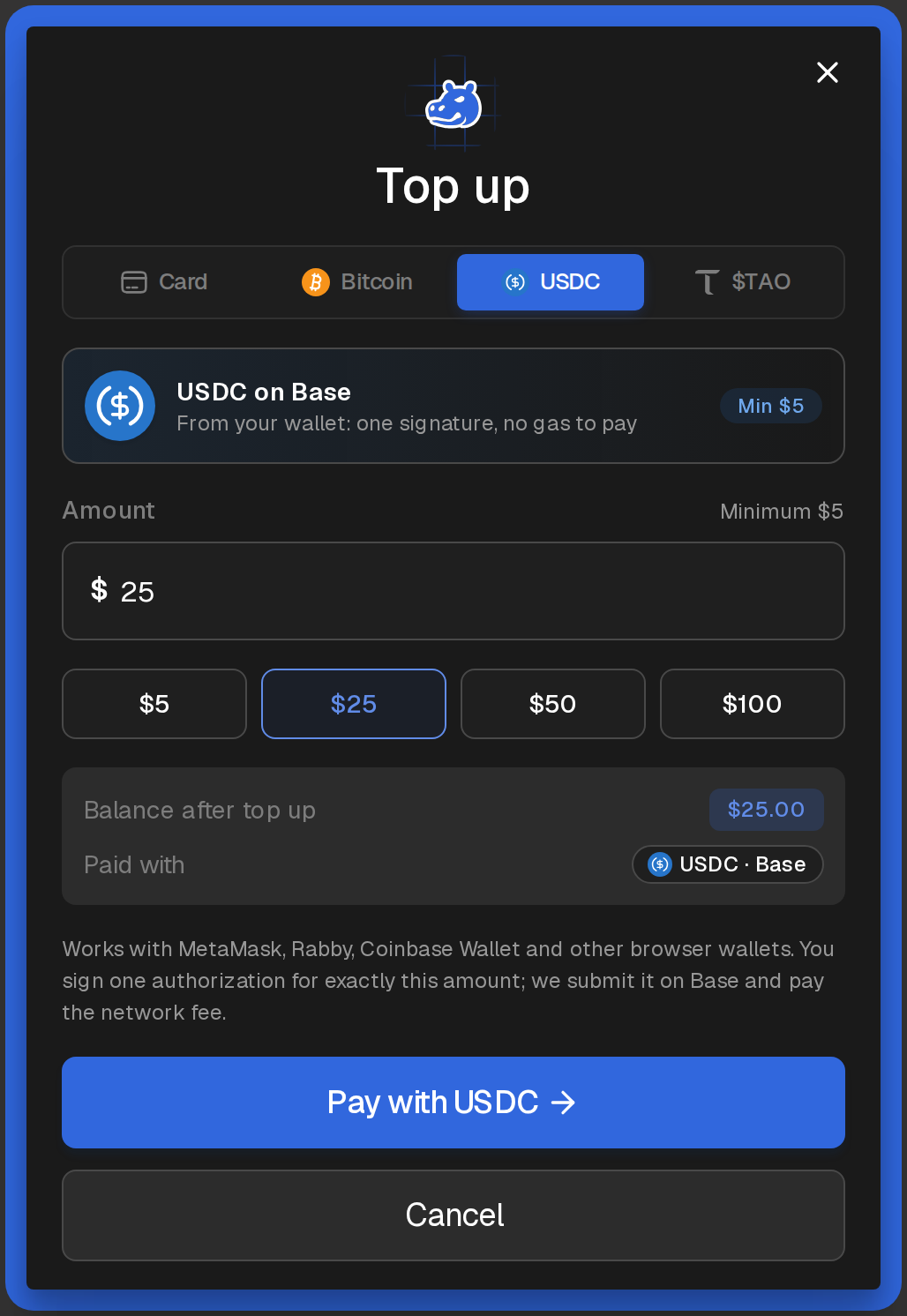
Choose USDC to pay with USDC on Base from a browser wallet, from $5 to $10,000. One USDC adds one dollar to your balance. You sign one authorization for that amount, and the network fee is paid for you. MetaMask, Rabby, Coinbase Wallet, and other browser wallets work. The balance updates once the payment is on Base, usually within a minute or two.
With TAO
If you hold TAO, you can pay with it in two ways:
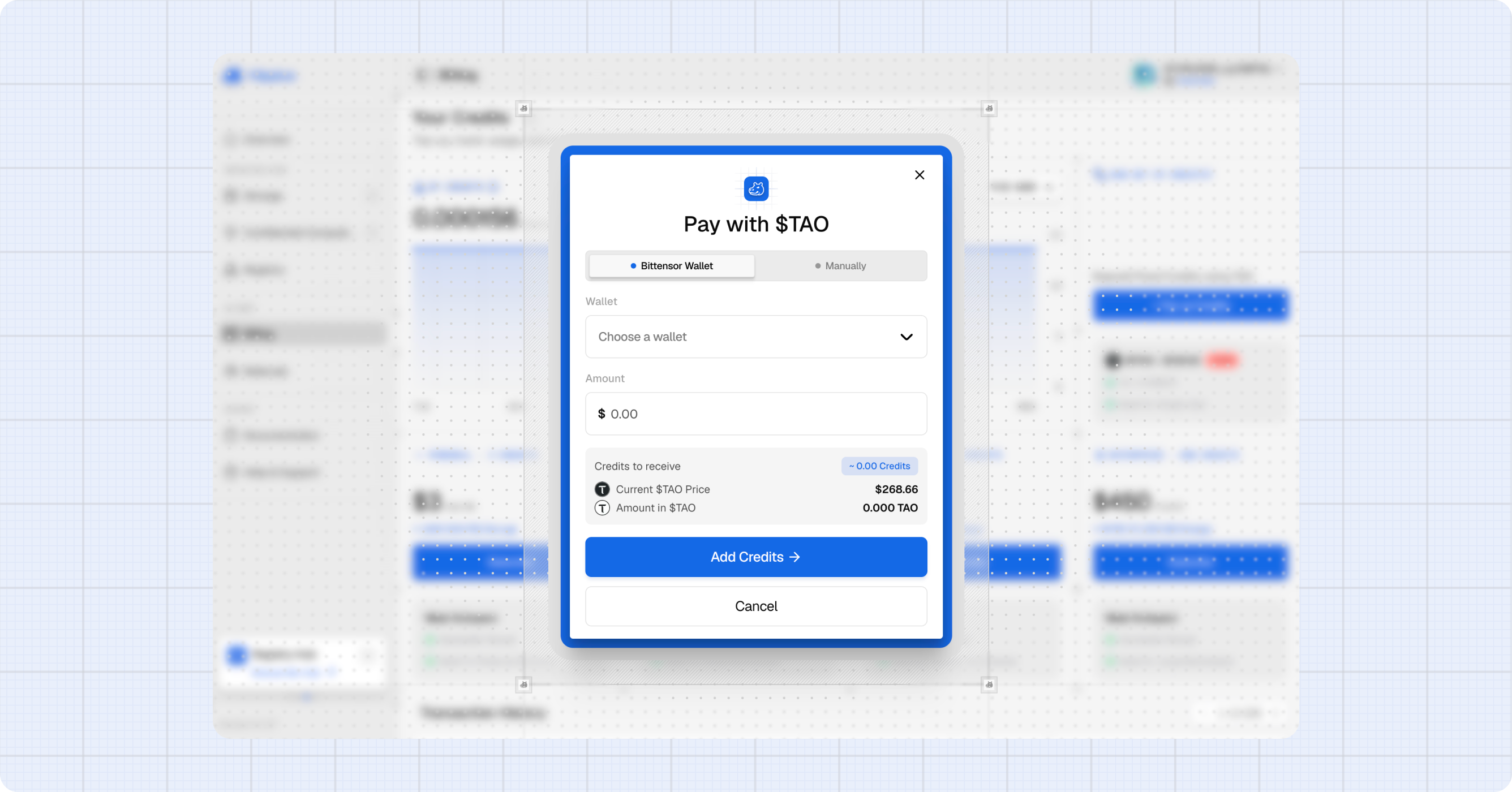
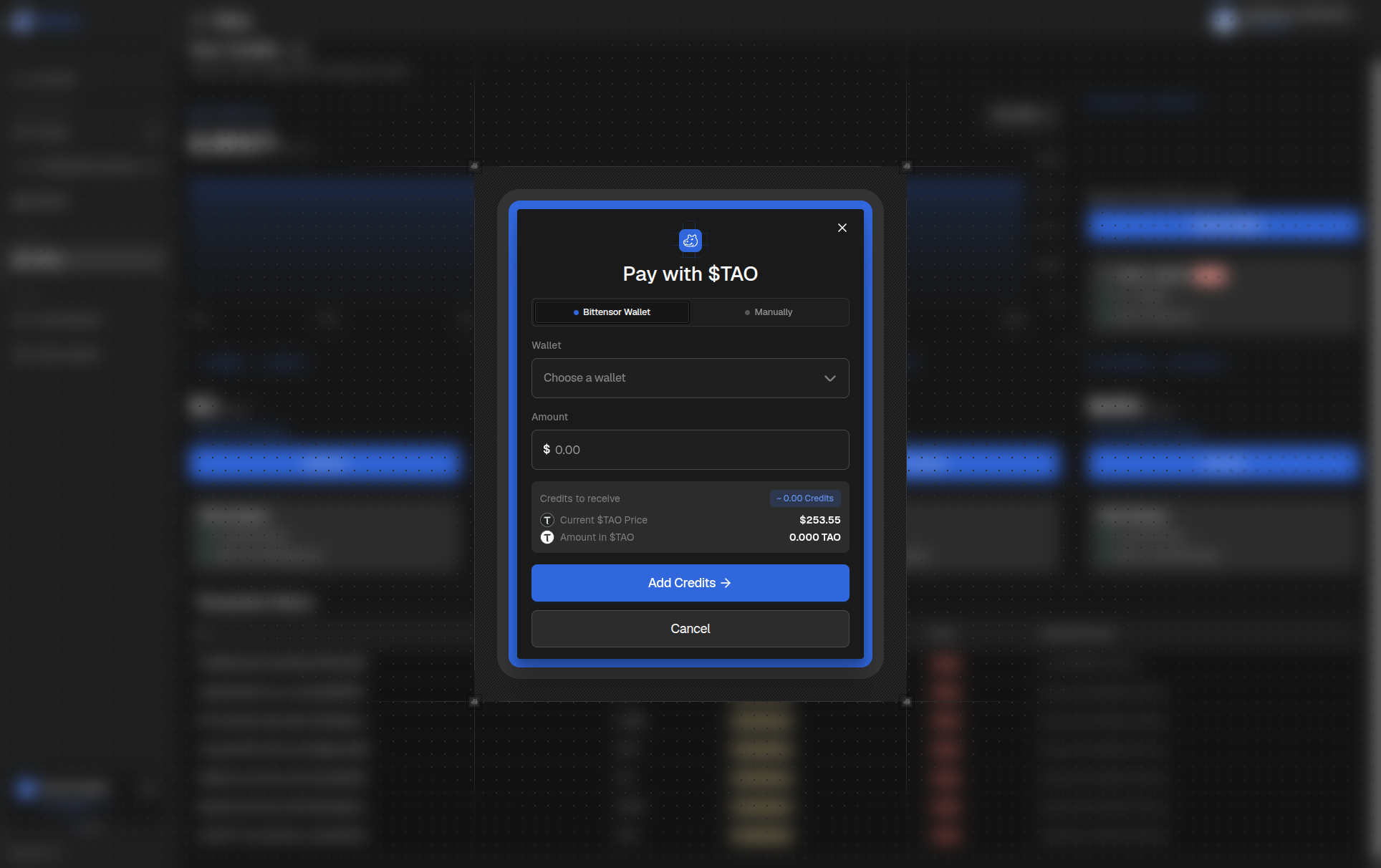
- From a browser wallet. If your TAO is in Talisman or Polkadot.js, pick the wallet in the Top up dialog, enter an amount in dollars and approve the transfer. The dialog shows how much TAO that is at today's price.
- By sending it yourself. If your TAO is on an exchange or in another wallet, copy your deposit address from the Manually tab and send TAO to it. We add it to your balance in dollars at the market rate once the transfer confirms.
Either way, your balance usually updates within a few minutes.
Anything under $20 is not added to your balance and cannot be refunded. Double check the address before you send: TAO transfers are final, and we have no way to recover funds sent to the wrong place.
Choose a plan
Each product has its own plans page. You can get there from the product's card on Billing, or from the Upgrade and Subscribe buttons around the console.
When you subscribe, you choose how to pay:
- Card. You pay through Stripe. The payment goes onto your balance and the plan is paid from there. Stripe keeps your card on file so it can top you up before each renewal.
- Account balance. The plan is paid straight from what you already have. If it is not enough, the console tells you and offers a top up.
All plans are monthly. Hub plans are paid from your balance; paying them by card is marked coming soon.
Drive plans
A Drive plan sets how much encrypted storage your Drive has. These are the plans at the time of writing. The console always shows the current ones.
| Plan | Storage | Price |
|---|---|---|
| Free Drive Plan | 10 GB | Free |
| Starter | 500 GB | $4 / month |
| Plus | 2 TB | $7 / month |
| Max | 10 TB | $22 / month |
| Scale | 25 TB | $50 / month |
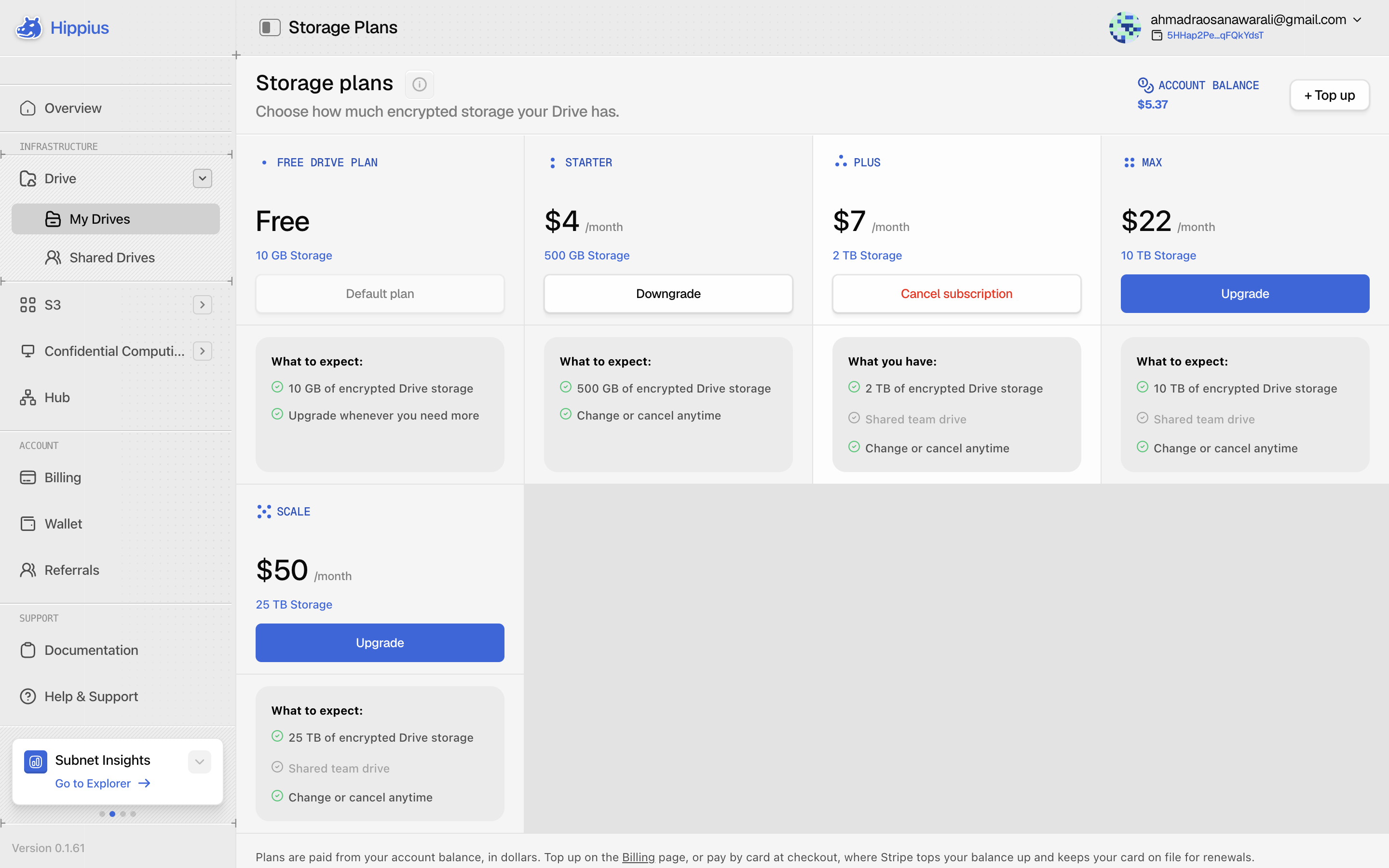
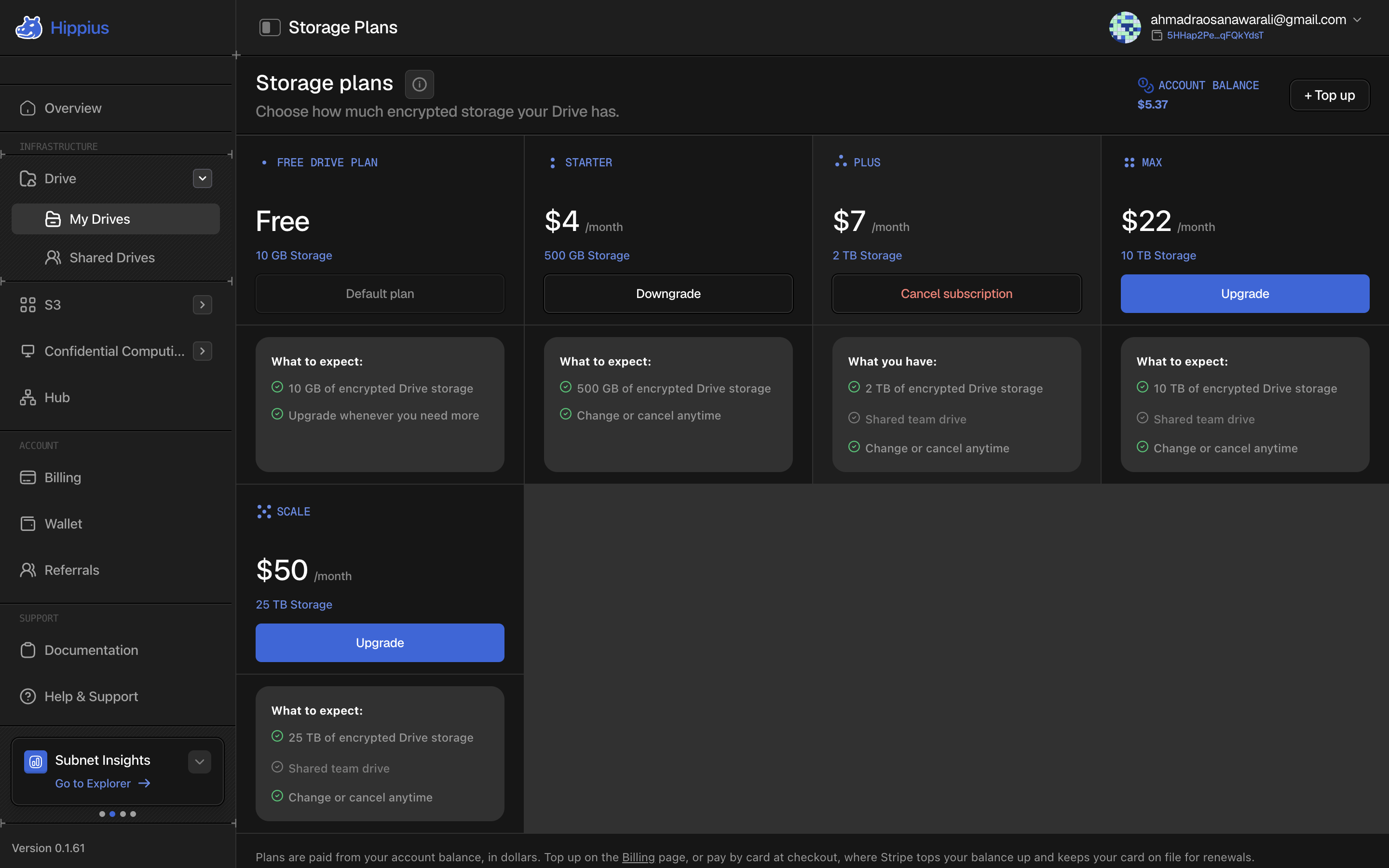
Who gets the free plan. If you sign in with Google, GitHub, or Apple, your account comes with the Free Drive Plan, and you fall back to it if you ever cancel a paid plan. An access key creates a wallet-only account. It has no real email address, so it gets no lifecycle mail, and it does not include free storage, so you'll need to pick a Drive plan before your first upload. S3 and Hub work the same as on any other account.
Subscribing takes a minute. Pick a plan, choose how to pay and confirm. After a card payment the console shows the plan activating. That usually finishes in under a minute, and you can leave the page while it does. In the rare case a card payment goes through but the plan does not activate, the money stays on your balance and you can subscribe from there.
Moving to a bigger or smaller plan is paid from your balance and takes effect straight away. You can't move to a plan smaller than what you already store, so free up some space first.
Shared drives. Plus, Max and Scale can share a drive with other people. Anyone on any plan, including Free, can be invited.
Cancelling puts you back on the Free Drive Plan, or, for access key accounts, leaves you with no storage at all.
If your Drive has no plan, or holds more than its plan allows, you get a notice, a reminder after 7 days, and after 14 days Drive becomes read only: you can still open, download and delete, but nothing new can be uploaded. Nothing is deleted. Subscribing to a plan, or getting back under your cap, lifts it at the next daily check.
When your Drive is full, uploads stop and the console offers a bigger plan. You can also delete something and try again.
S3 plans
S3 can be paid for in two ways.
Pay as you go is where everyone starts. You pay $6 per TB per month for what you actually store, charged by the hour from your balance, with no cap and no commitment. There is nothing to sign up for.
A plan gives you a block of storage for a flat monthly price, and works out cheaper once you store a few terabytes:
| Plan | Storage | Price | Per TB | Saving vs pay as you go |
|---|---|---|---|---|
| S3 Pro | 10 TB | $53 / month | $5.30 | 12% |
| S3 Business | 50 TB | $245 / month | $4.90 | 18% |
| S3 Enterprise | 100 TB | $465 / month | $4.65 | 22% |
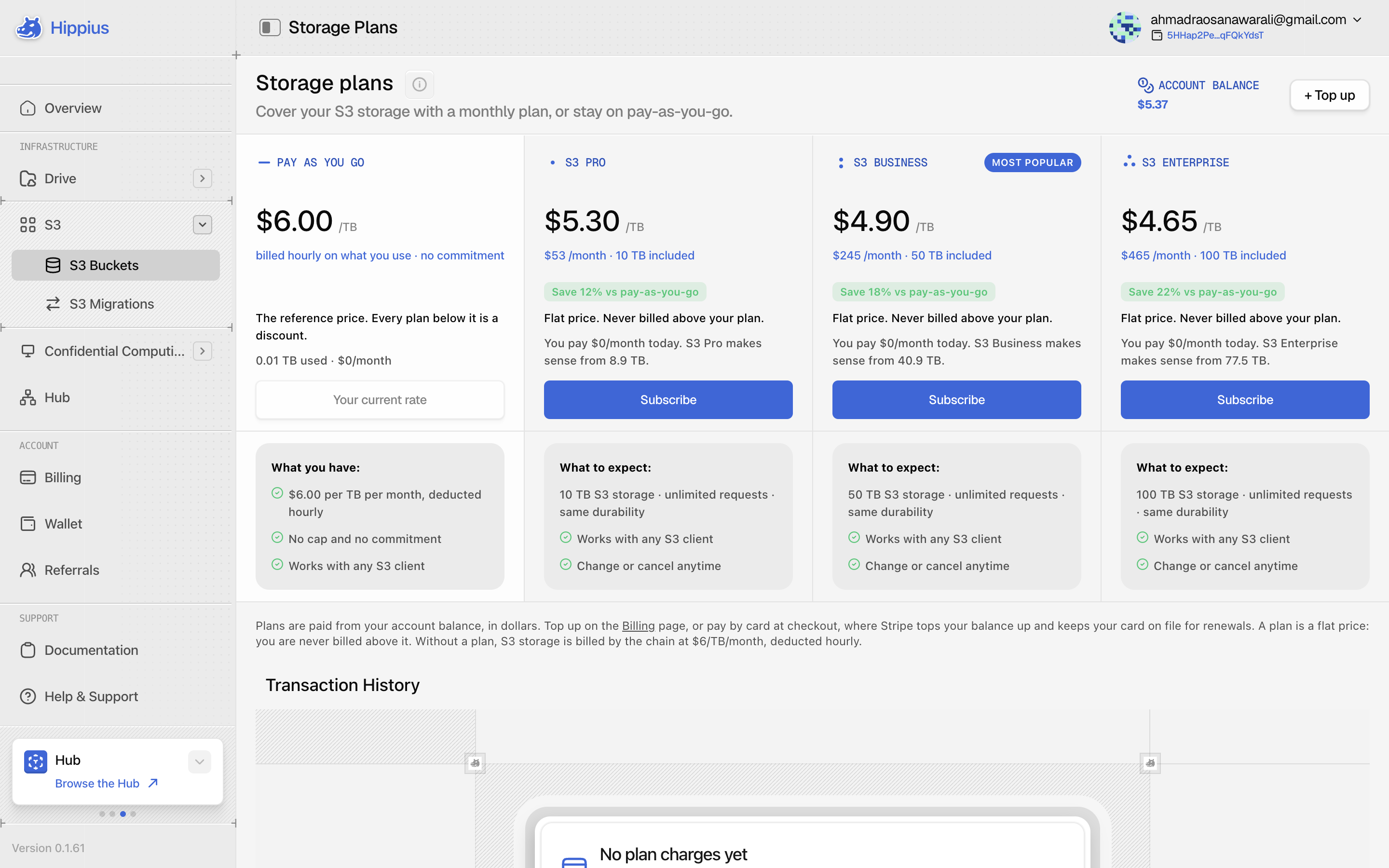
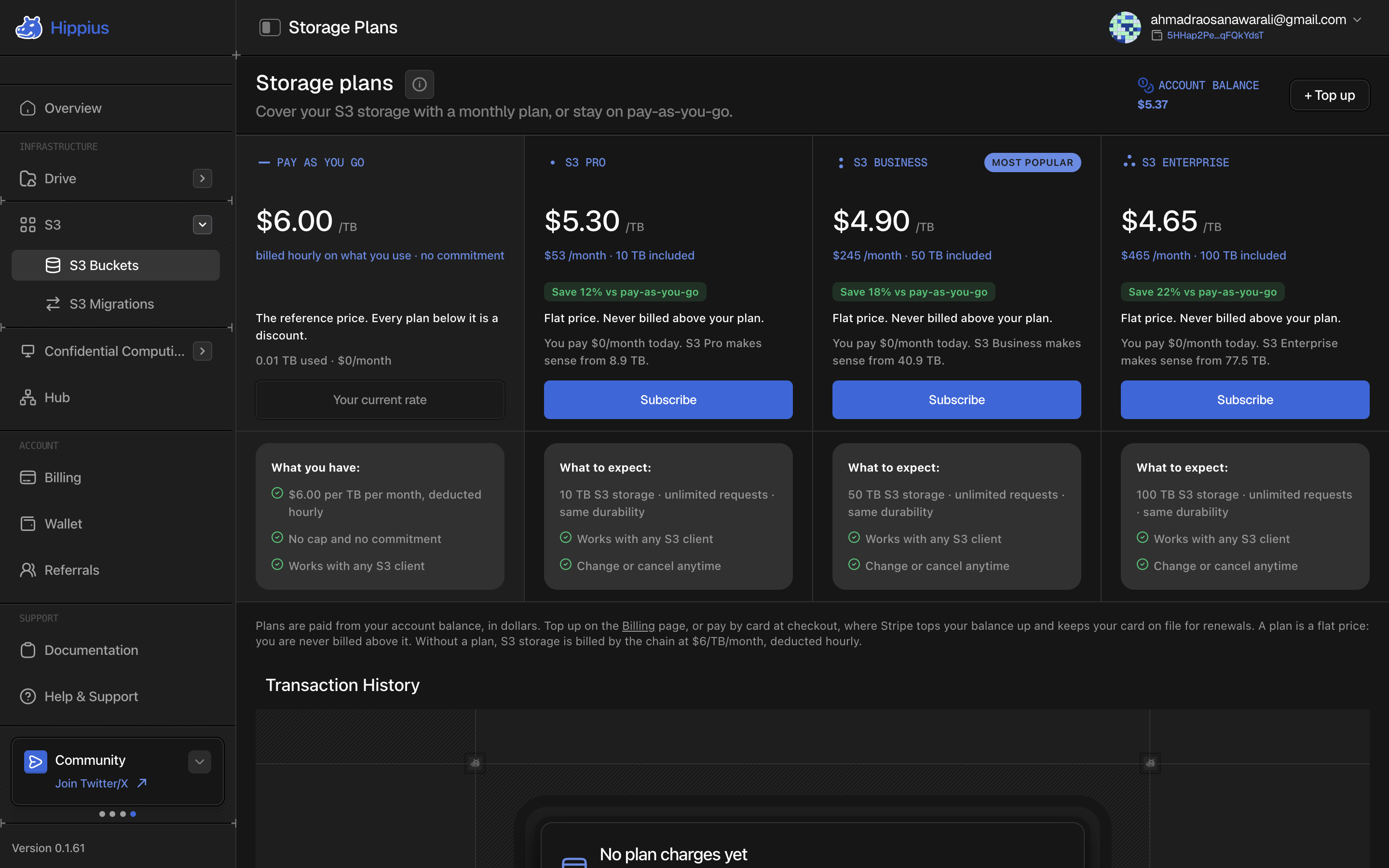
The plans page works out what you'd save based on what you store today.
Switching to a plan doesn't touch your buckets or access keys, so there's nothing to reconfigure. When you change plans, the difference is prorated. You can cancel at any time, and you go back to pay as you go automatically. The same happens if a plan ends or can't renew.
A plan is a ceiling, not a meter. You are never charged more than the plan price. As you get close to the limit, the console warns you. Once you reach it, new uploads pause until you upgrade or free up space.
Hub plans
Hub plans set how much you can store in your Hub namespace. Everyone starts on the free plan (25 GB private, 100 GB public), and paid plans start at $5 a month. Hub works a little differently from Drive and S3 when you switch or cancel, so the full details are on the Hub page.
Keep track of what you pay
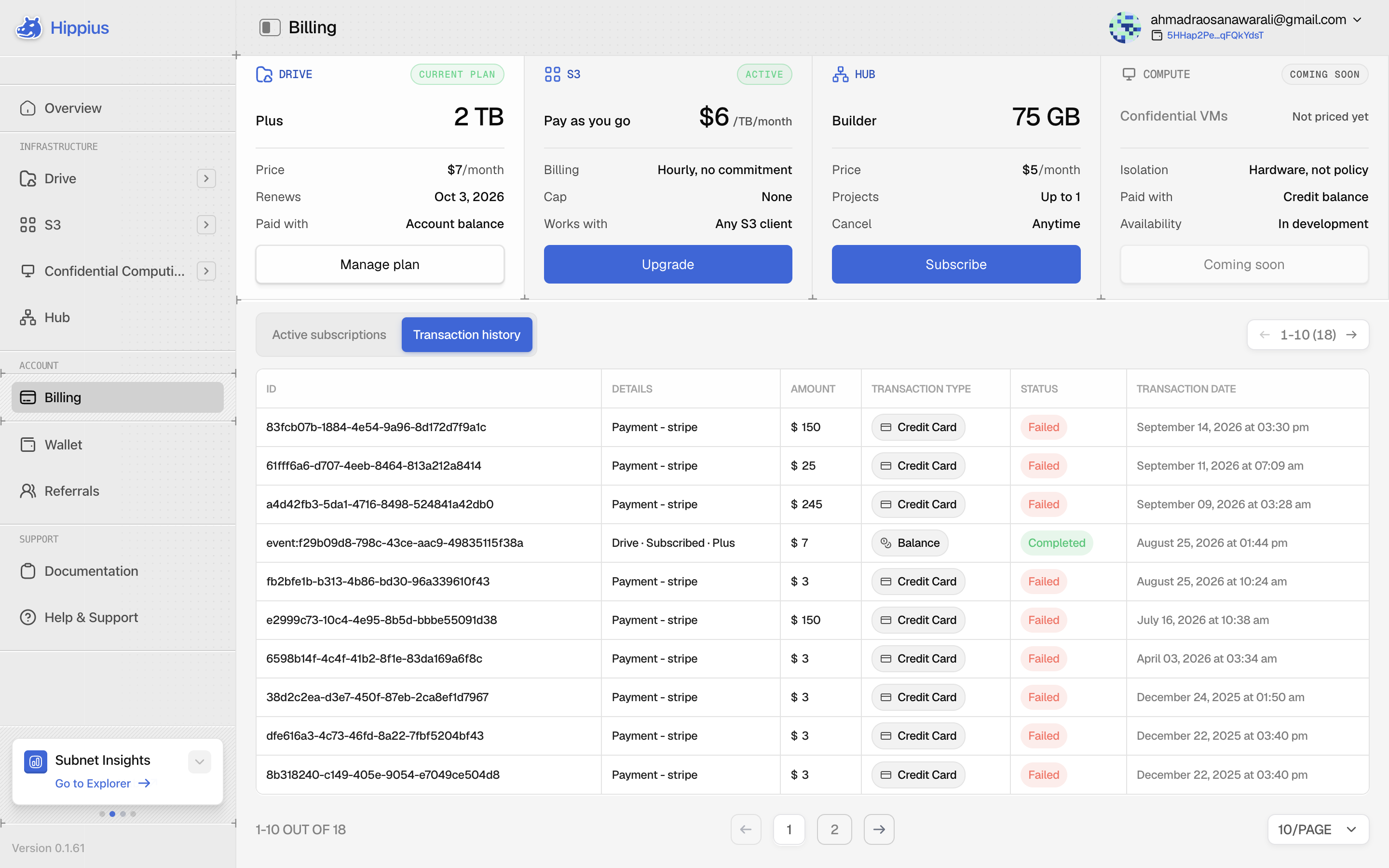
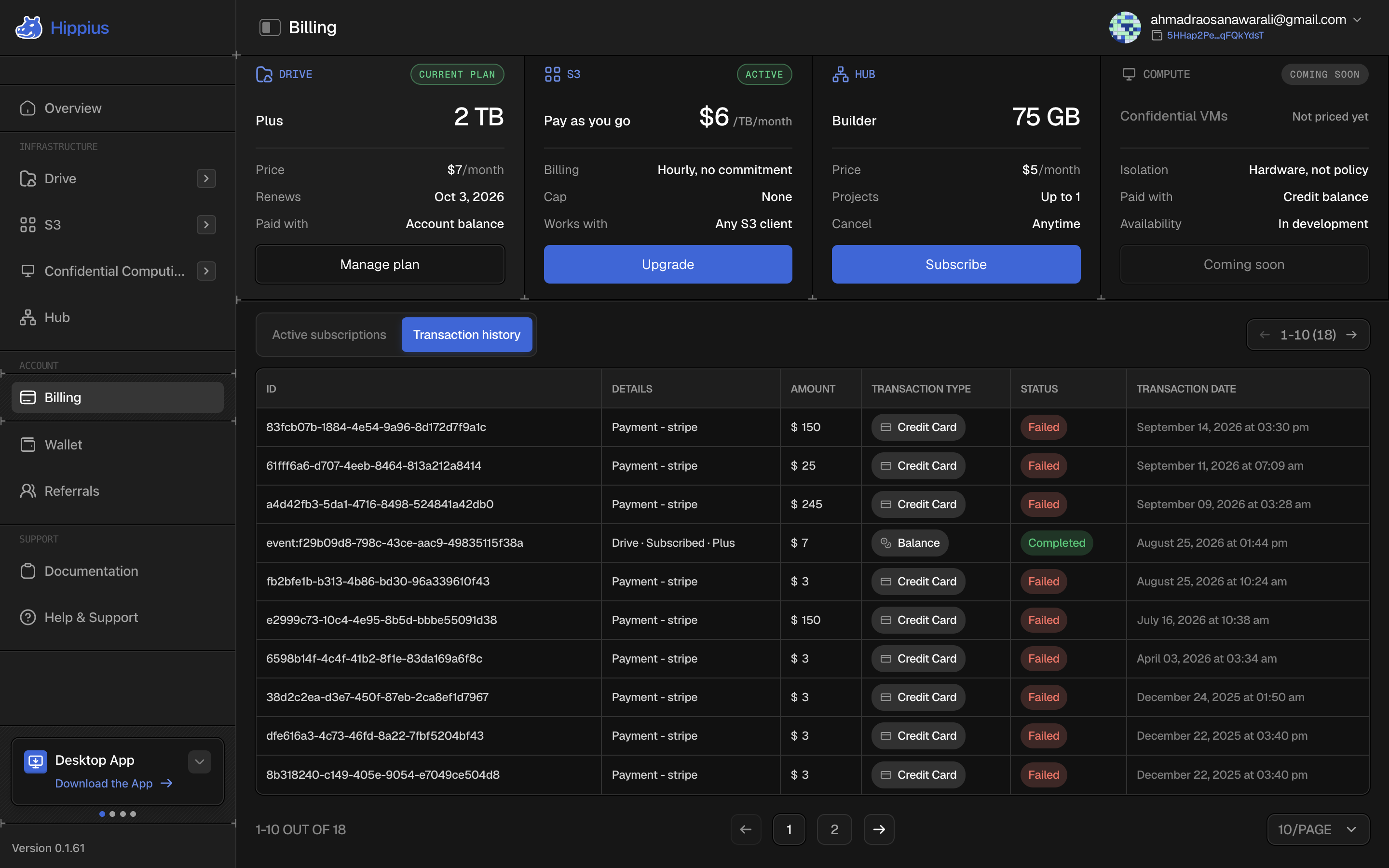
Billing shows every product side by side, with the plan you're on, what it costs and when it renews. Two tabs underneath give you the detail:
- Active subscriptions lists every paid plan with its next charge. Anything past due or about to end is flagged.
- Transaction history lists every top up, plan charge and renewal, and how each one was paid.
If your balance runs out
Your balance pays for renewals and for S3 pay as you go, so running dry affects both:
- A plan that can't renew is marked past due, and the console asks you to top up.
- S3 on pay as you go becomes read only after 7 days. You can still download, but nothing new can be written. 7 days later S3 is suspended and your buckets can't be reached. 23 days after that, 37 days from the start, the data is deleted, with a final notice a week before. Any top up that covers your usage puts everything back.
Topping up puts everything back. To avoid it altogether, turn on Low balance alerts in Settings, or set up auto reload.
Older credit subscriptions
Before plans existed, we sold monthly credit subscriptions called Personal, Professional, Business and Enterprise. They are no longer on sale. If you still have one, it keeps adding to your balance every month and shows on Billing as Your top-up subscription. You can cancel it through Stripe, and doing so doesn't affect any of your plans.
Where to next
- Drive: start uploading once you have a plan.
- S3 Buckets: create buckets and access keys.
- Hub: your container images and AI models.
- Settings: low balance alerts.