Overview
Introduction
The Overview is your console home page. Every time you sign in, this is where you land. It shows the plan behind each product, how full each one is, your balance, and your latest files, so you can see at a glance whether anything needs attention.
You can switch between Normal and Pro view at any time from Settings.
Normal View
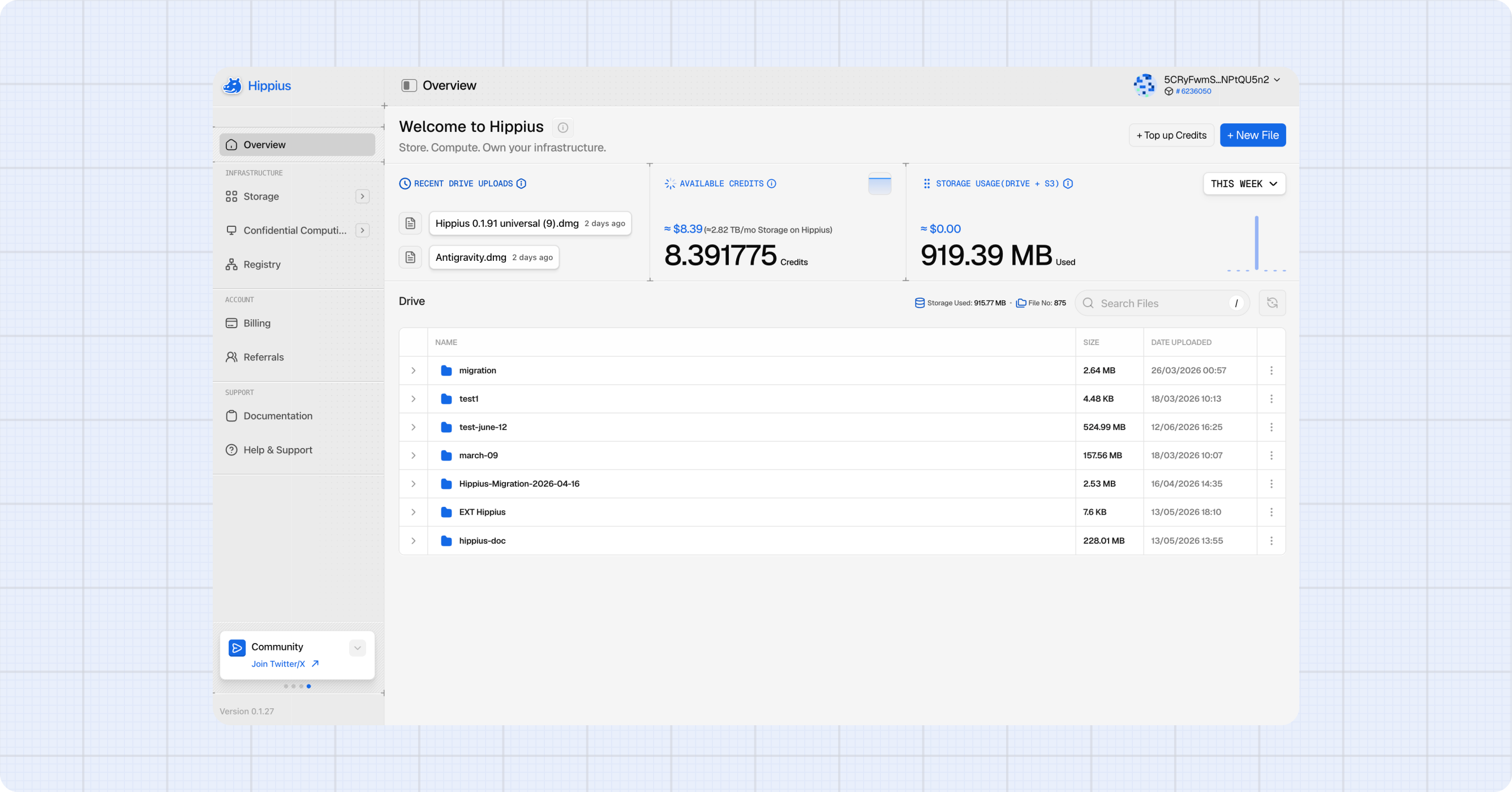
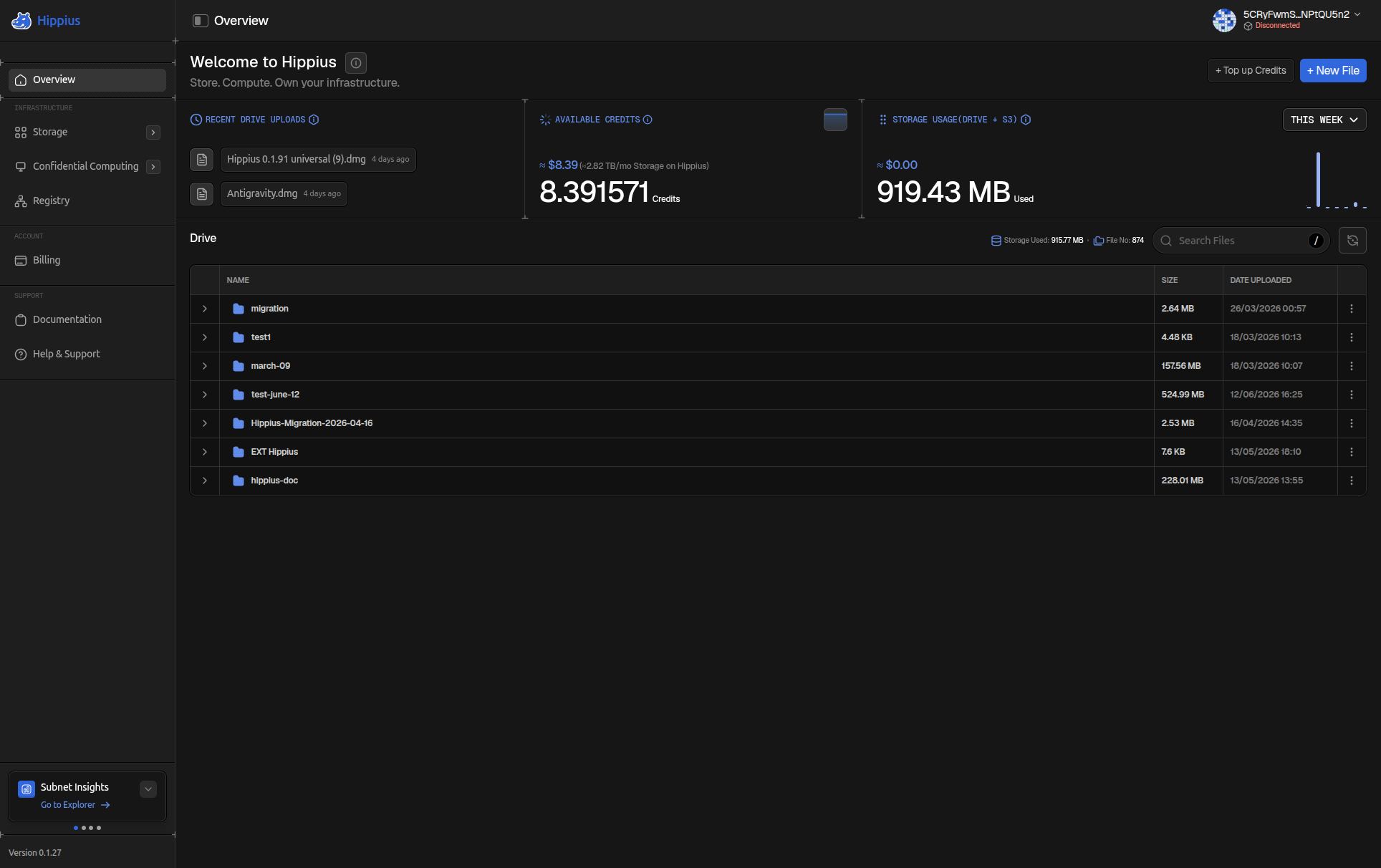
Normal is the simpler view, built around your Drive: your latest uploads, your balance and how much storage you use.
Two shortcut buttons sit in the top right: + Top up, which opens Billing, and + New File, which starts an upload.
Three panels sit across the top of the page:
- Last Uploads: your most recently uploaded files with their file type and upload time.
- Account Balance: your current balance. Click the graph icon to expand the spending chart and see how your spending has changed over time.
- Storage Usage: how much Drive storage you're using. Click the graph icon to expand your usage chart over time.
Below the panels, the Files section shows all your Drive folders in a searchable table. Your total storage size and file count are shown at the top of the section.
Pro View
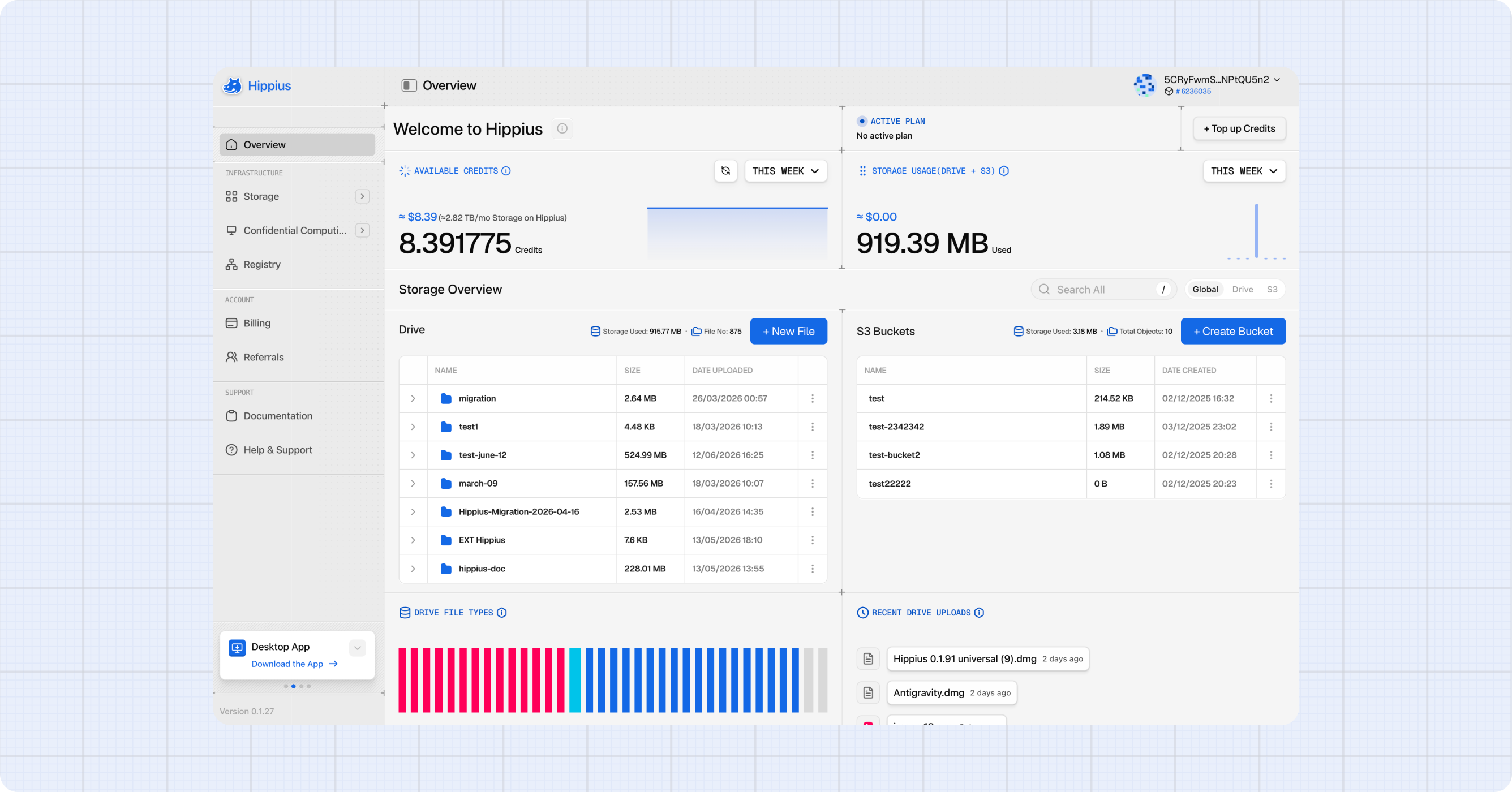
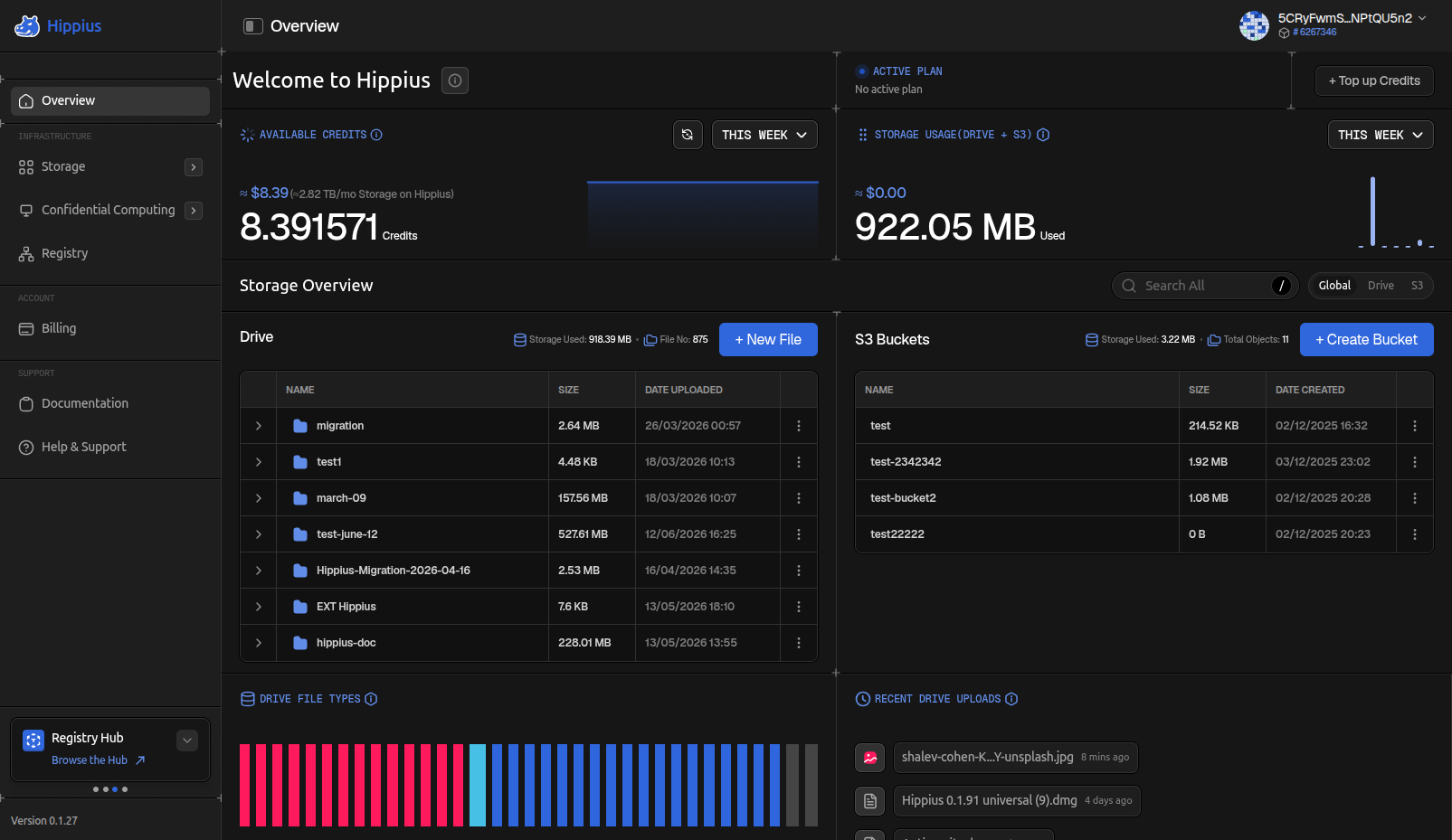
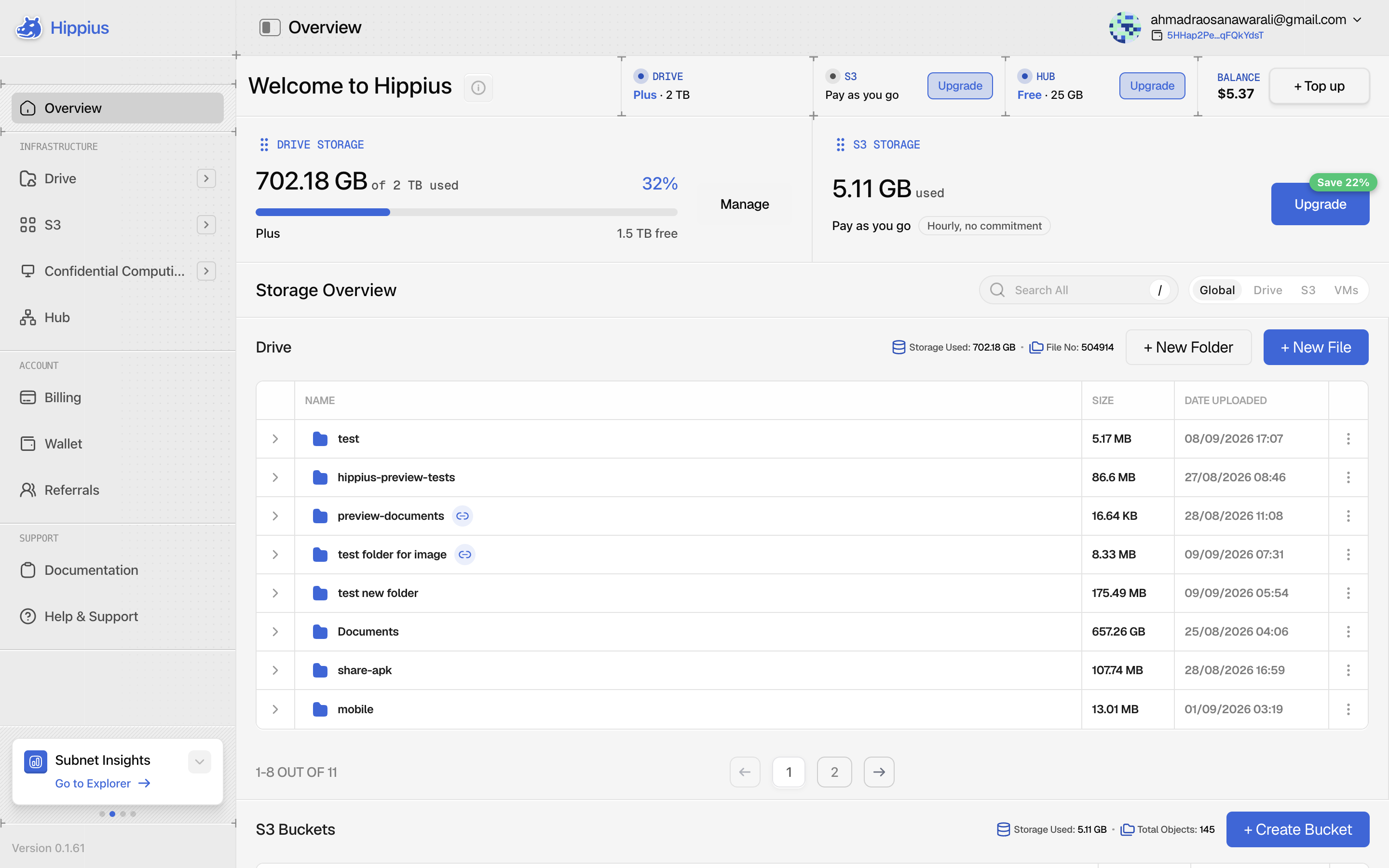
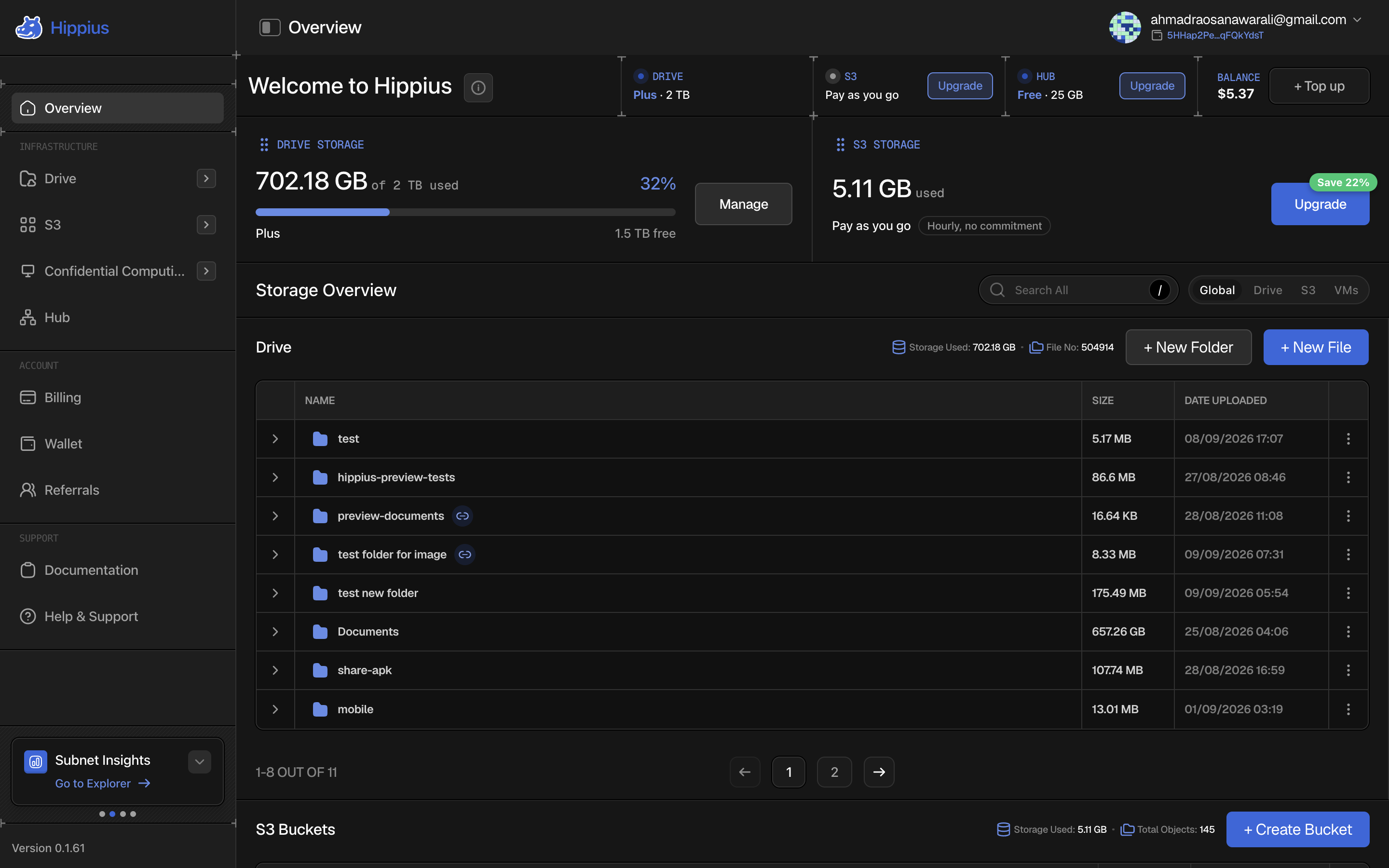
Pro view is for when you use more than one product. It puts everything on one page: what plan you're on for each product, how full your storage is, and what's in each one.
Your plans
The top row shows your plan for Drive, S3 and Hub, plus your balance. When there's a better plan for you, for example because you're on a free plan or paying for S3 by the hour, you'll see an Upgrade button next to it. Click any product to open its plans, or + Top up to add to your balance. Billing explains how plans and your balance fit together.
How full your storage is
Drive and S3 each get a storage card showing how much you've stored against the size of your plan. The bar turns amber when you pass 80% and red at 95%, which is a good time to upgrade or tidy up. S3 on pay as you go has no limit, so its card just shows what you've used.
When moving to an S3 plan would save you money, the card tells you how much, for example Save 22%. See S3 plans.
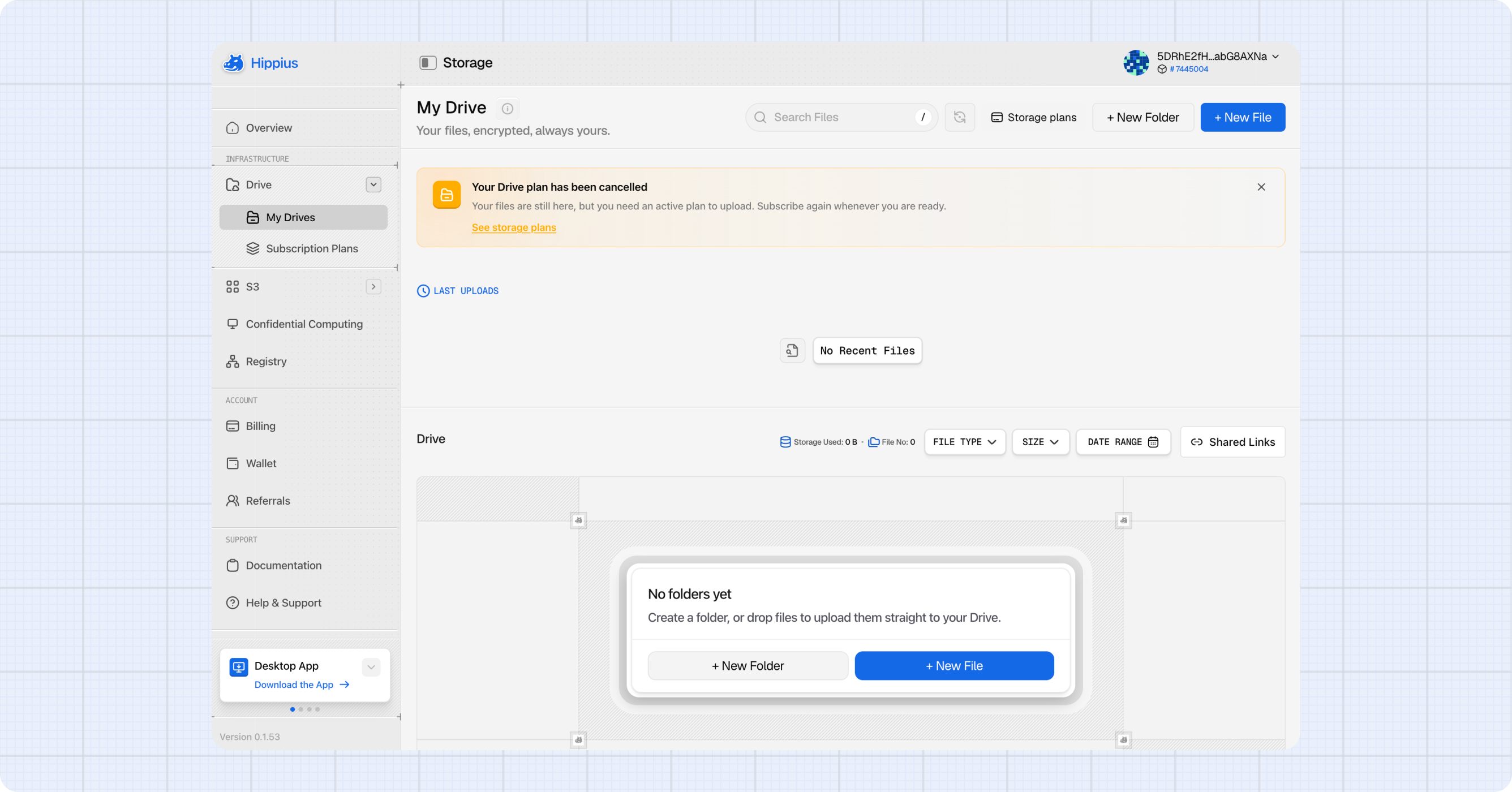
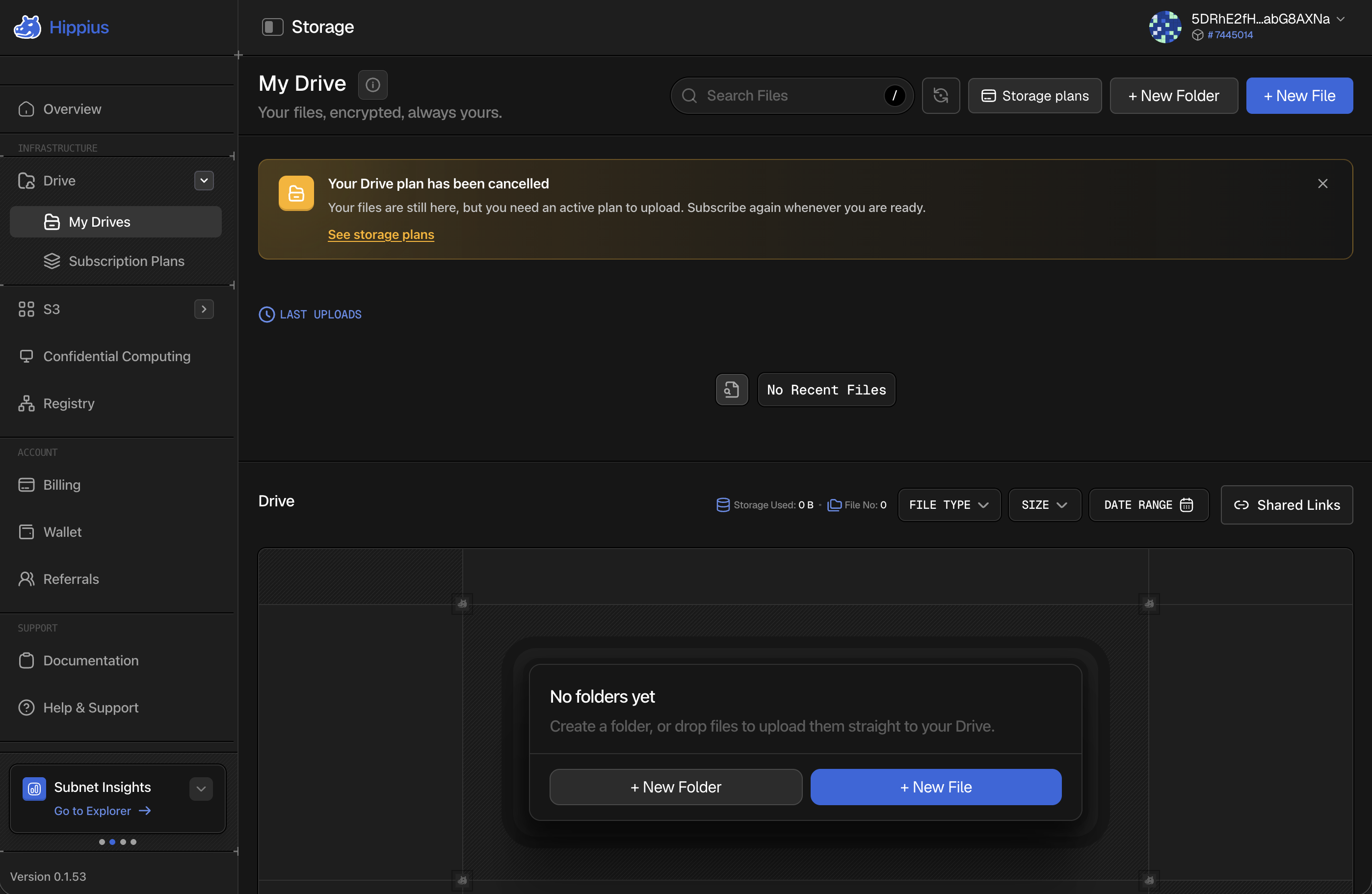
Without a Drive plan you can't upload anything new. Your files stay readable. The Drive card says so and offers a plan. See Drive plans.
Shared drives that someone else owns don't count towards your Drive storage. Their owner pays for them.
What's in each product
Below the storage cards, your Drive folders and S3 buckets sit side by side, so you can jump into either or start an upload. The search bar above them searches everything at once, or just one product.
Hub and Virtual Machines get the last row: how much you've stored in Hub and how many repositories you have, and how many virtual machines you're running. Virtual machines aren't generally available yet, so for most accounts that card says they're coming soon.
Service Status Banners
When one of our products is degraded or undergoing maintenance, a banner appears at the top of that product's own page rather than across the whole console. Drive problems show on Drive, S3 problems on S3, and so on, and the banner follows into that product's sub-pages.
This means the absence of a banner on a page is itself information: that product is fine, even if another one is not.
A banner can be dismissed once you have read it. It comes back if the situation changes.
Where to next
- Drive: upload and manage your personal encrypted files.
- S3 Buckets: manage your S3 compatible buckets and access tokens.
- Hub: your container images and AI models.
- Wallet: check your hAlpha balance, send and receive tokens.
- Staking: stake hAlpha to earn rewards.
- Billing: your plans, your balance, and how to top it up.
- Referrals: invite people to Hippius and earn commission on what they spend.
- Settings: switch between Normal and Pro view.