Shared Drives
Introduction
A Hippius shared drive lets a group of people work in the same encrypted files, each signed in to their own Hippius account. Your team can keep a project in one place, a family can keep its photos together, and nobody has to email files back and forth.
Every drive belongs to one person, its owner. The owner pays for its storage and decides who gets in and what each person can do. You can let someone into a whole drive, or into just one folder of it.
Each top level folder under Drive → My Drives is a drive you can share. Everything stays end-to-end encrypted: the people you invite get the key to the drive, and we never see it.
Who Can Do What
When you let someone into a whole drive, you give them one of three roles:
| Role | What they can do |
|---|---|
| Viewer | Open and download files. |
| Editor | Open, download, upload and delete files. |
| Manager | Everything an Editor can do, plus invite people, change other people's roles, remove people, revoke links and approve email invites. |
A Manager helps you run the drive, but it stays yours. A Manager can't change their own role (they can leave instead), and nobody can change or remove the owner.
A single folder can be shared as Viewer or Editor. Nobody manages a folder on its own: the drive's owner and its Managers look after who has it.
Sharing a Drive
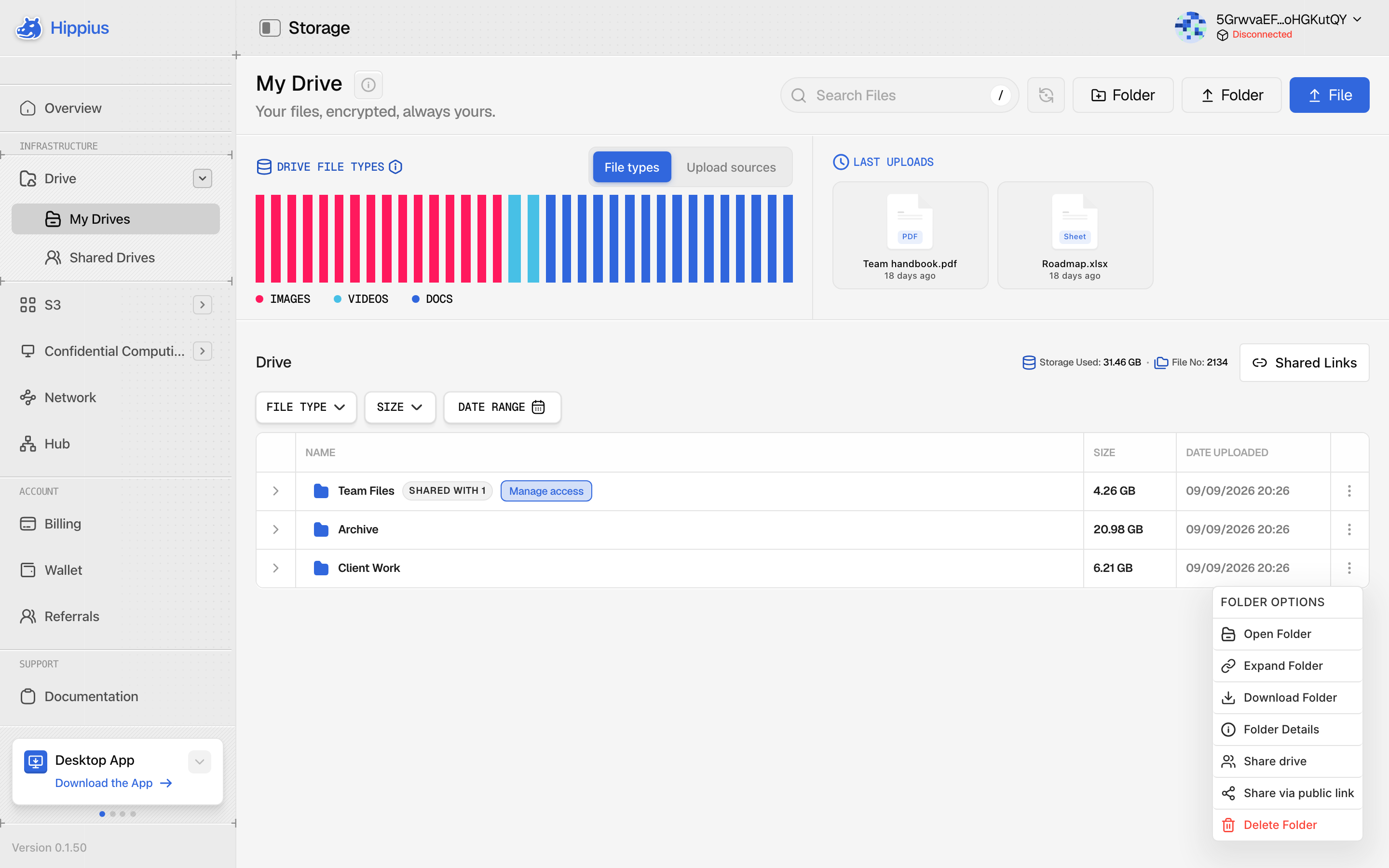
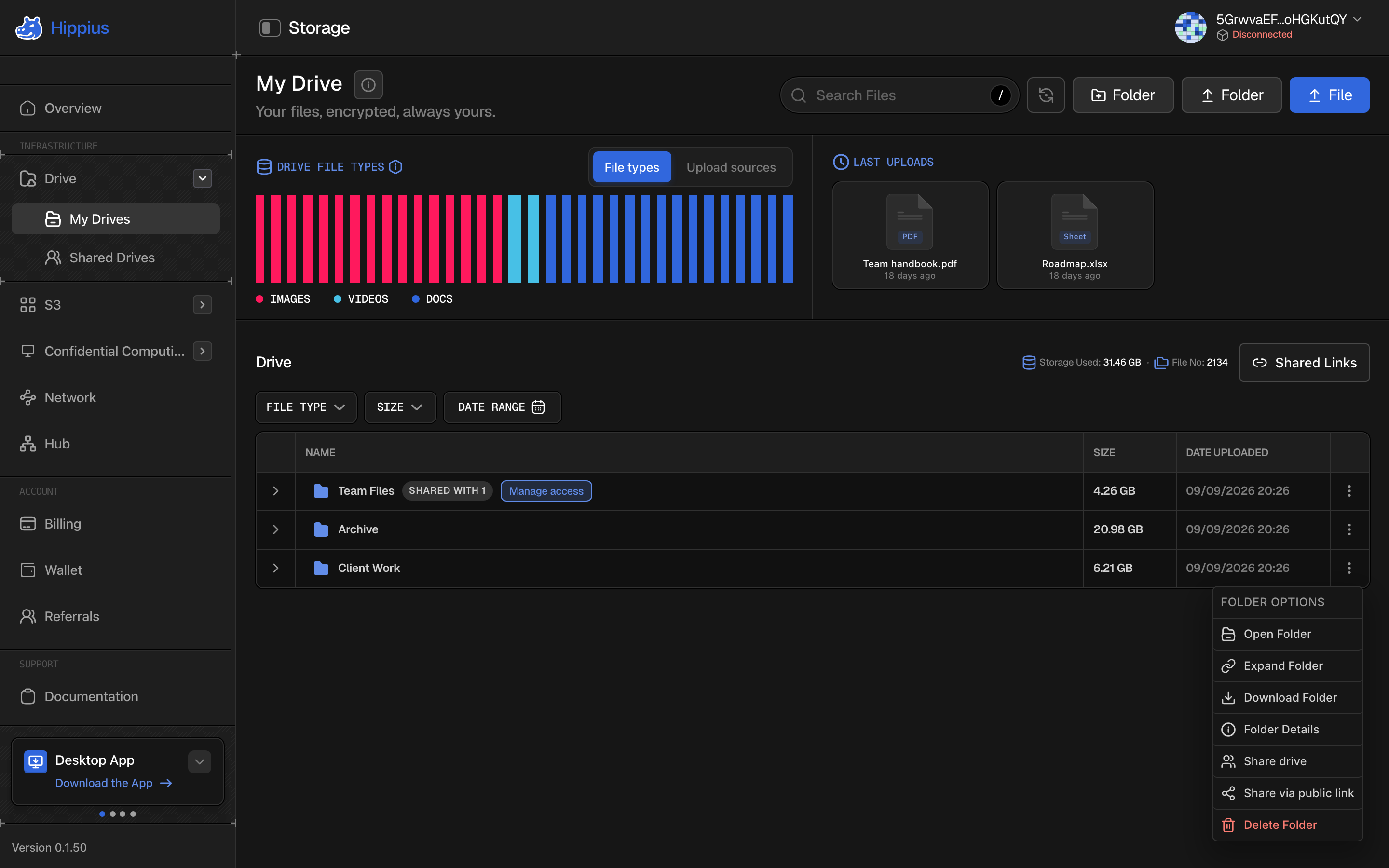
- Go to Drive → My Drives.
- Open the menu (three dots) on the drive's row and choose Share drive.
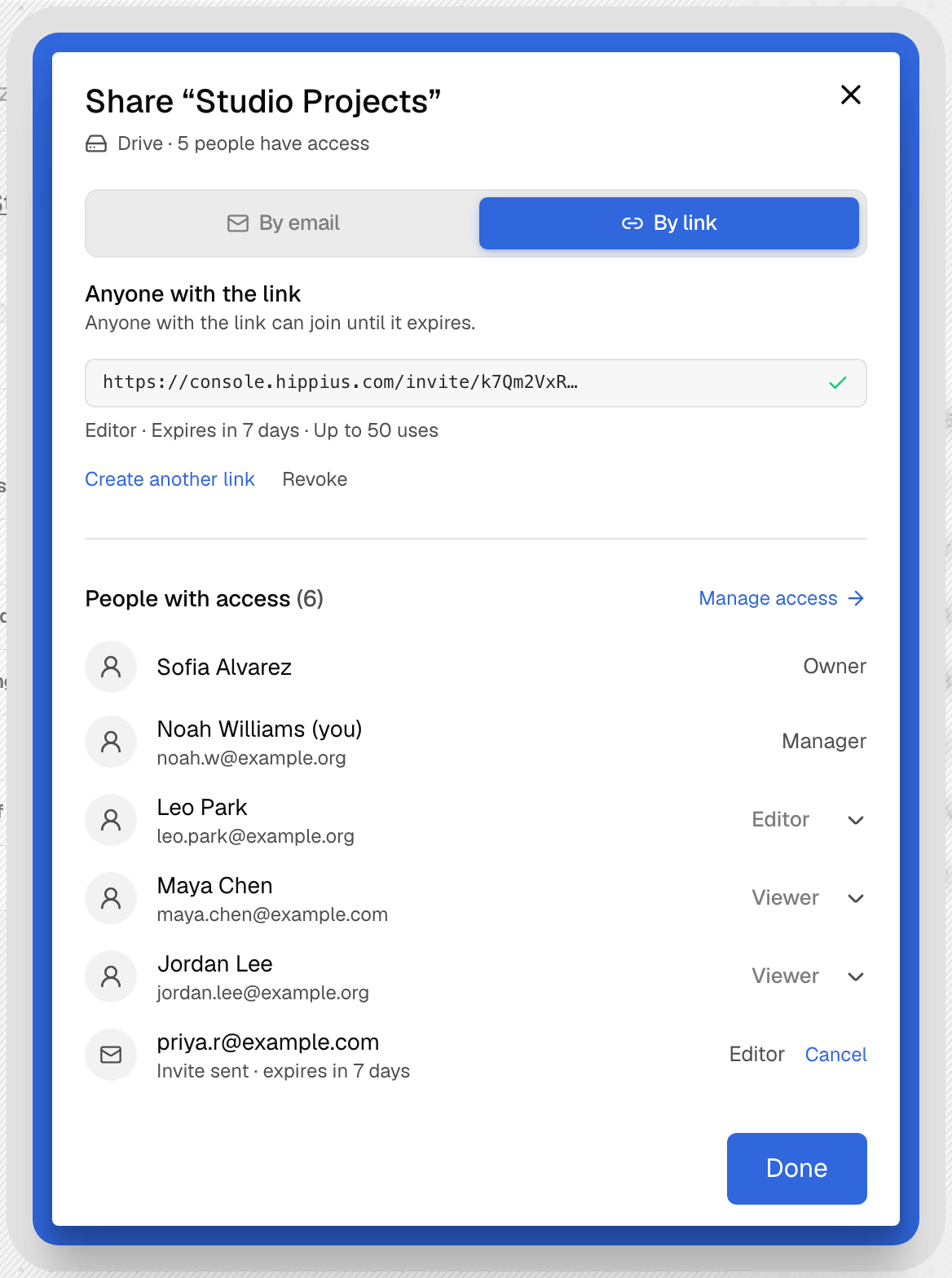
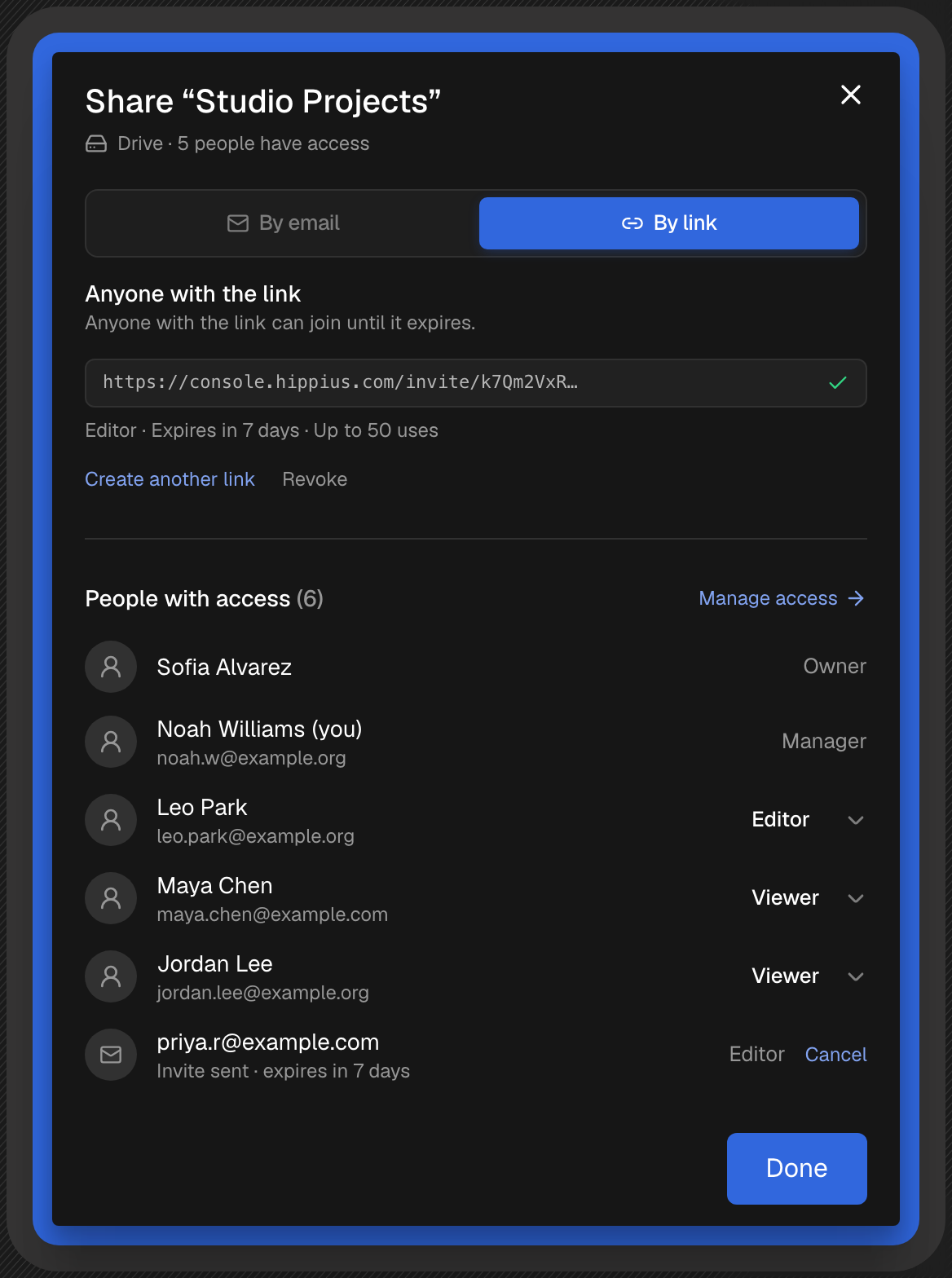
- In the Share dialog, pick By email to invite someone by their address, or By link to create an invite link and send it yourself. You can use both, as often as you like.
- Press Done when you're finished. Everything you did has already taken effect.
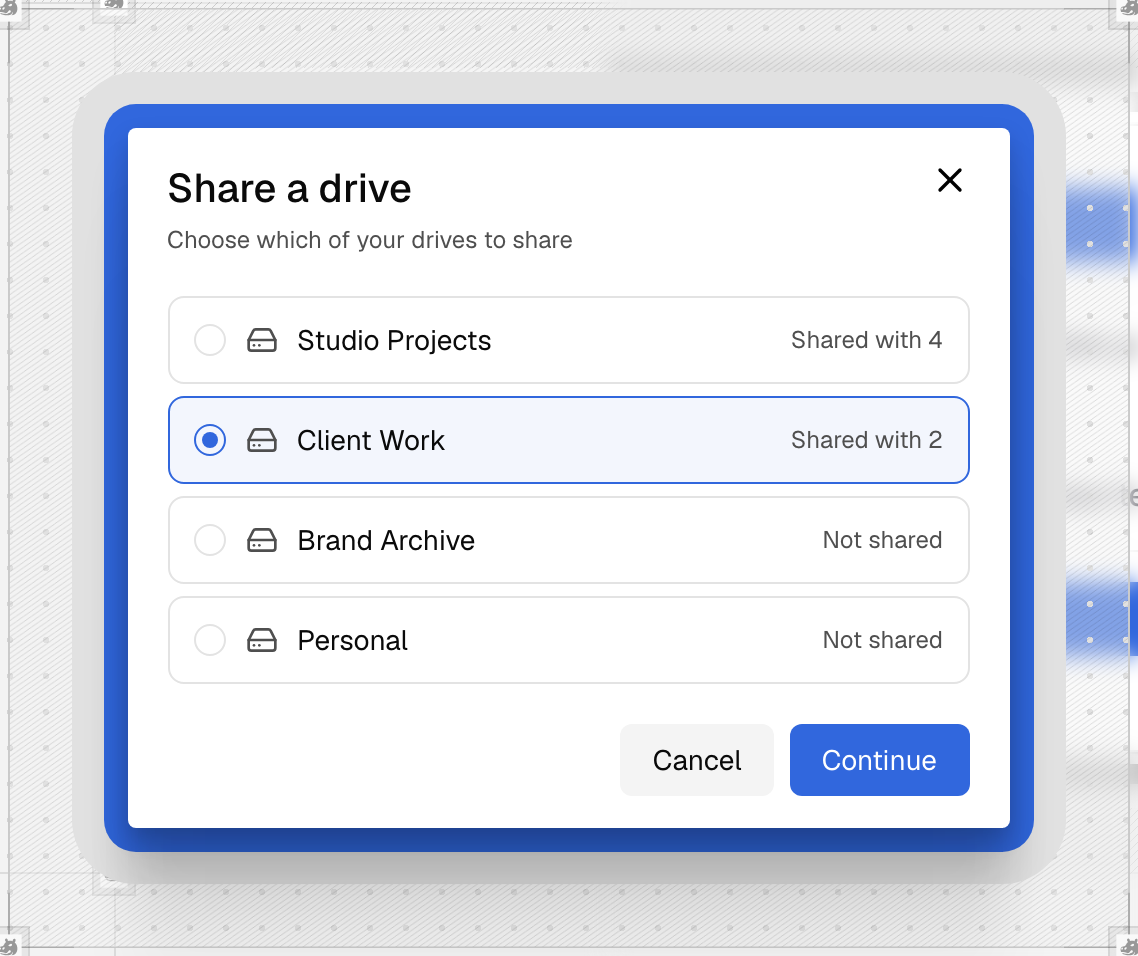
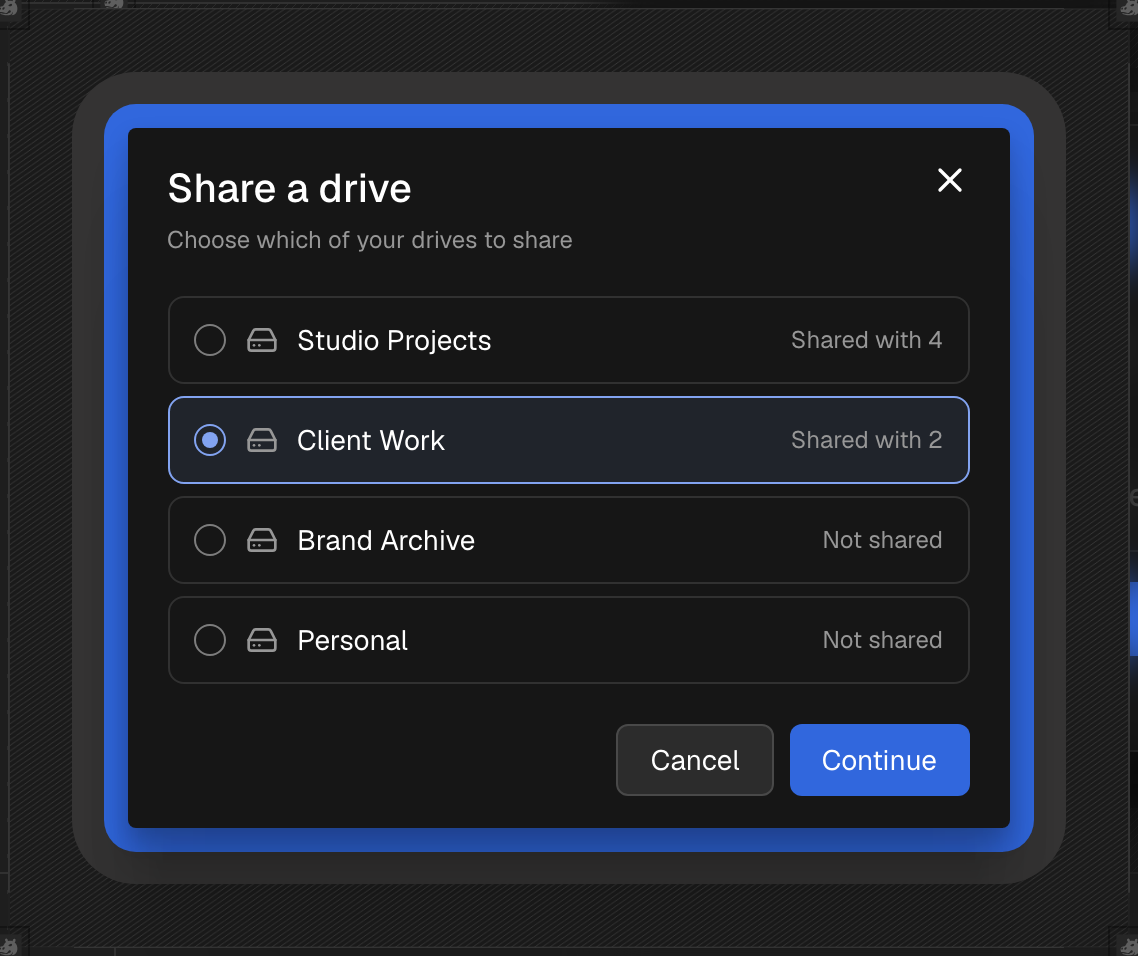
You can also start from Drive → Shared Drives: press Share a drive, pick one of your drives, and press Continue. The list tells you which of your drives are already shared, and with how many people. It opens the same Share dialog.
The Share dialog works the way you might know from other drive apps. At the top are two tabs. By email sends someone their own invite. By link creates an invite link you can send however you like. The console remembers which tab you used last. Below them, People with access lists everyone who can get in, and is where you change a role or remove someone.
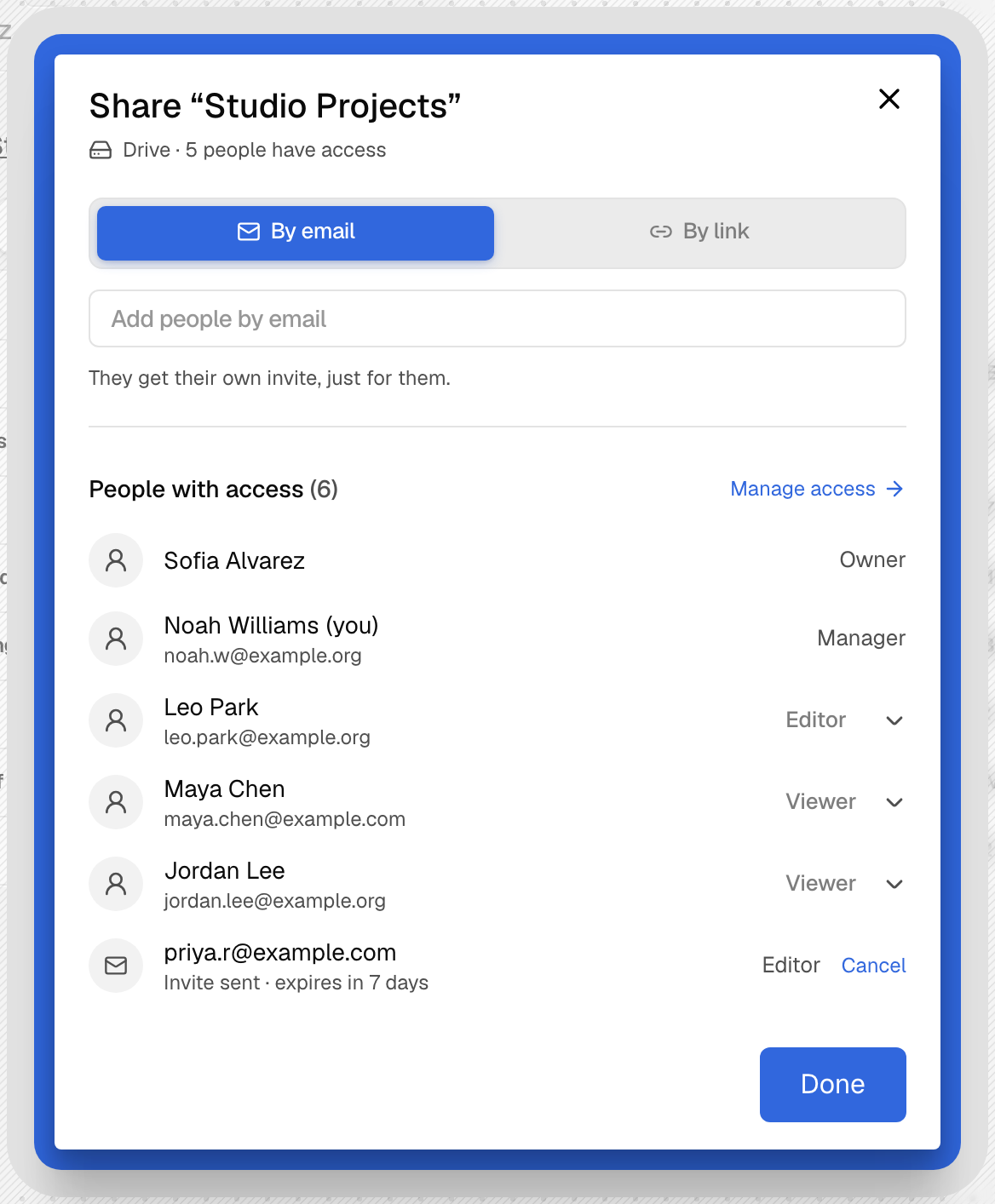
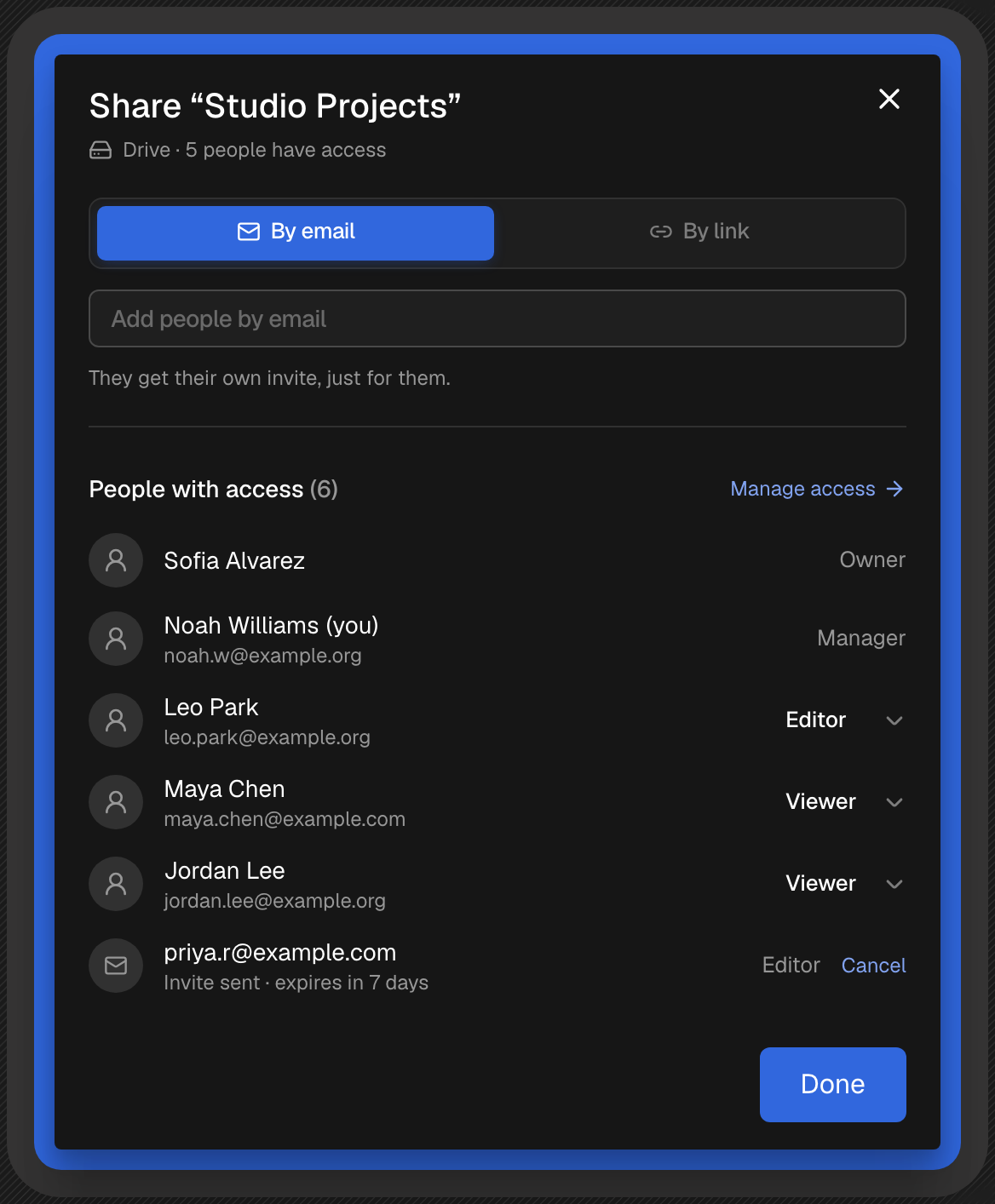
"Share drive" is different from Share via public link in the same menu. A public link hands out a read only copy to anyone, with no account needed. See Shared Links for that.
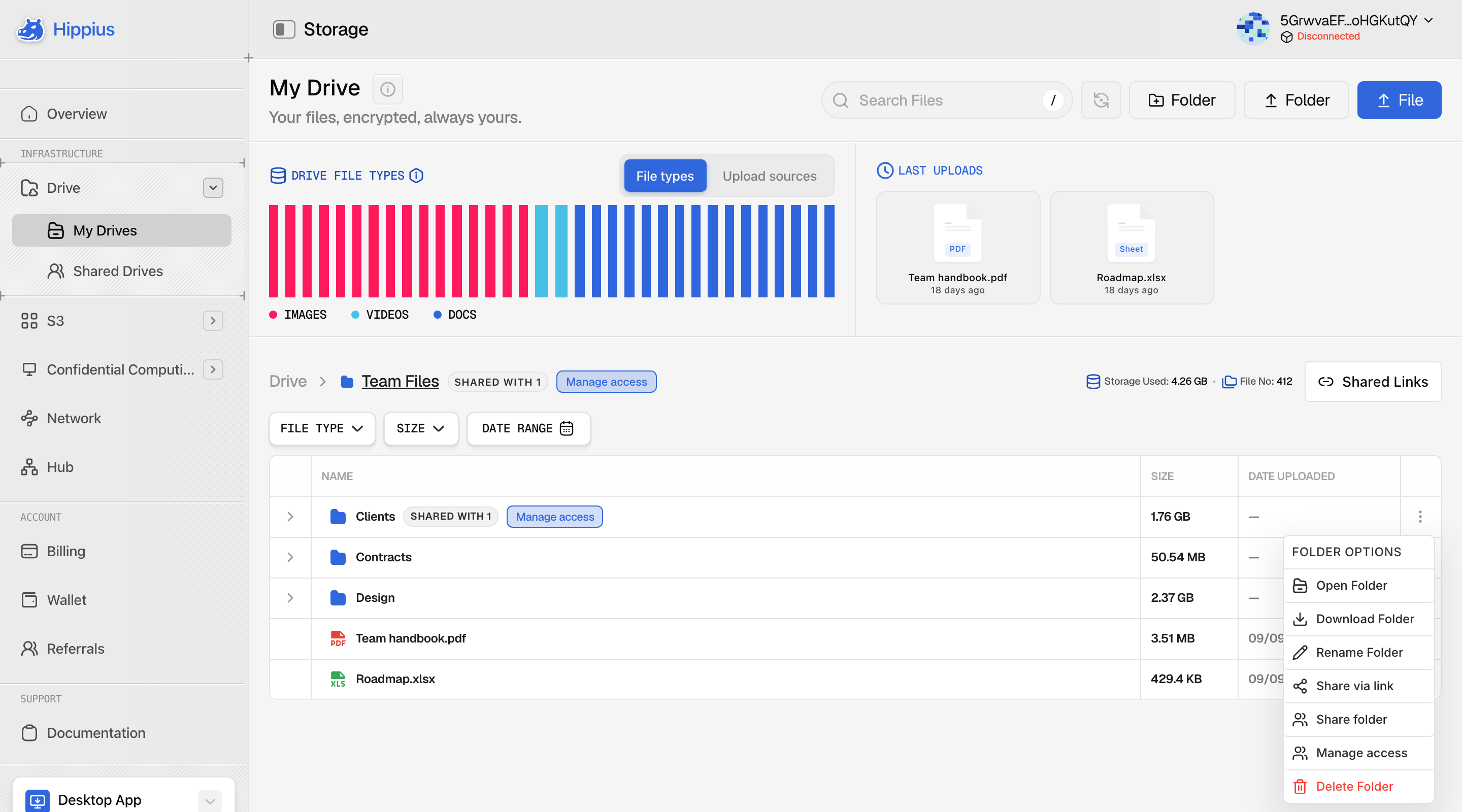
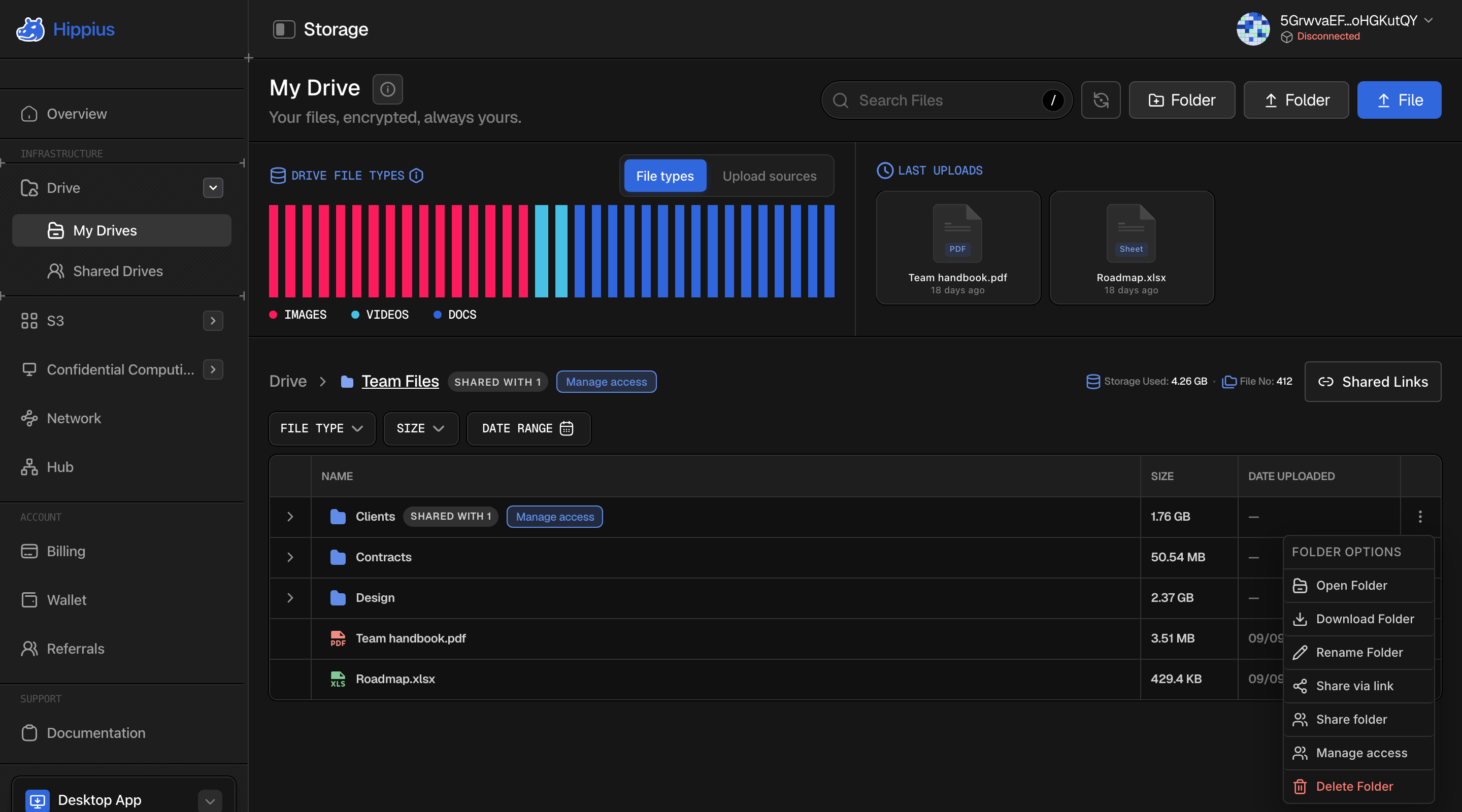
Once someone has joined, the drive shows a Shared mark in My Drives (for example "Shared with 3"), and a Manage access button beside it.
Sharing a Single Folder
Sometimes you only want someone to see one folder, like the files for one client. You can share any folder inside a drive on its own.
- Open the drive and find the folder.
- Open the folder's menu and choose Share folder.
- On By email, type their address, pick Viewer or Editor and press Send invite. Or on By link, pick the role and how long the link lasts, press Create link, and send the link to the one person it is for.
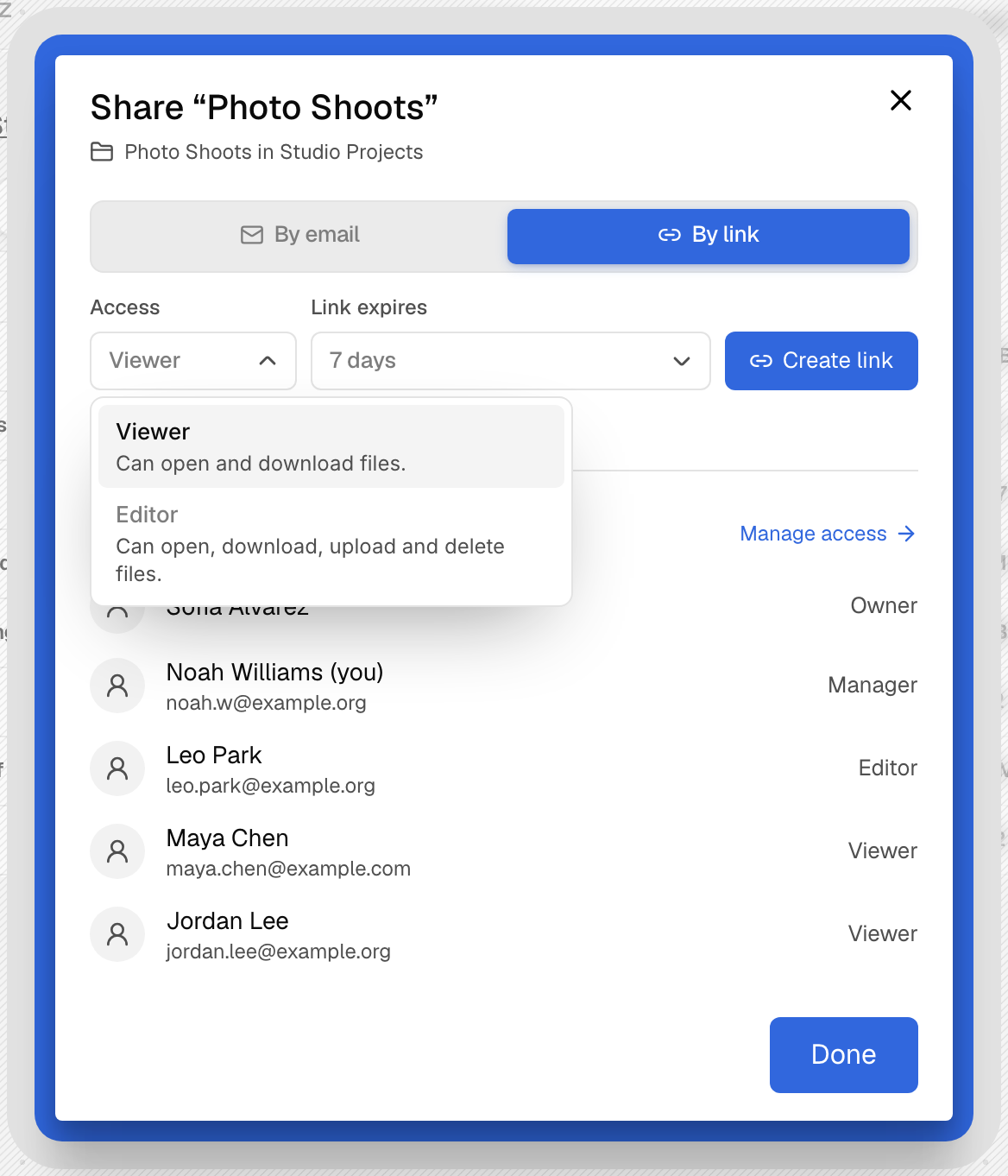
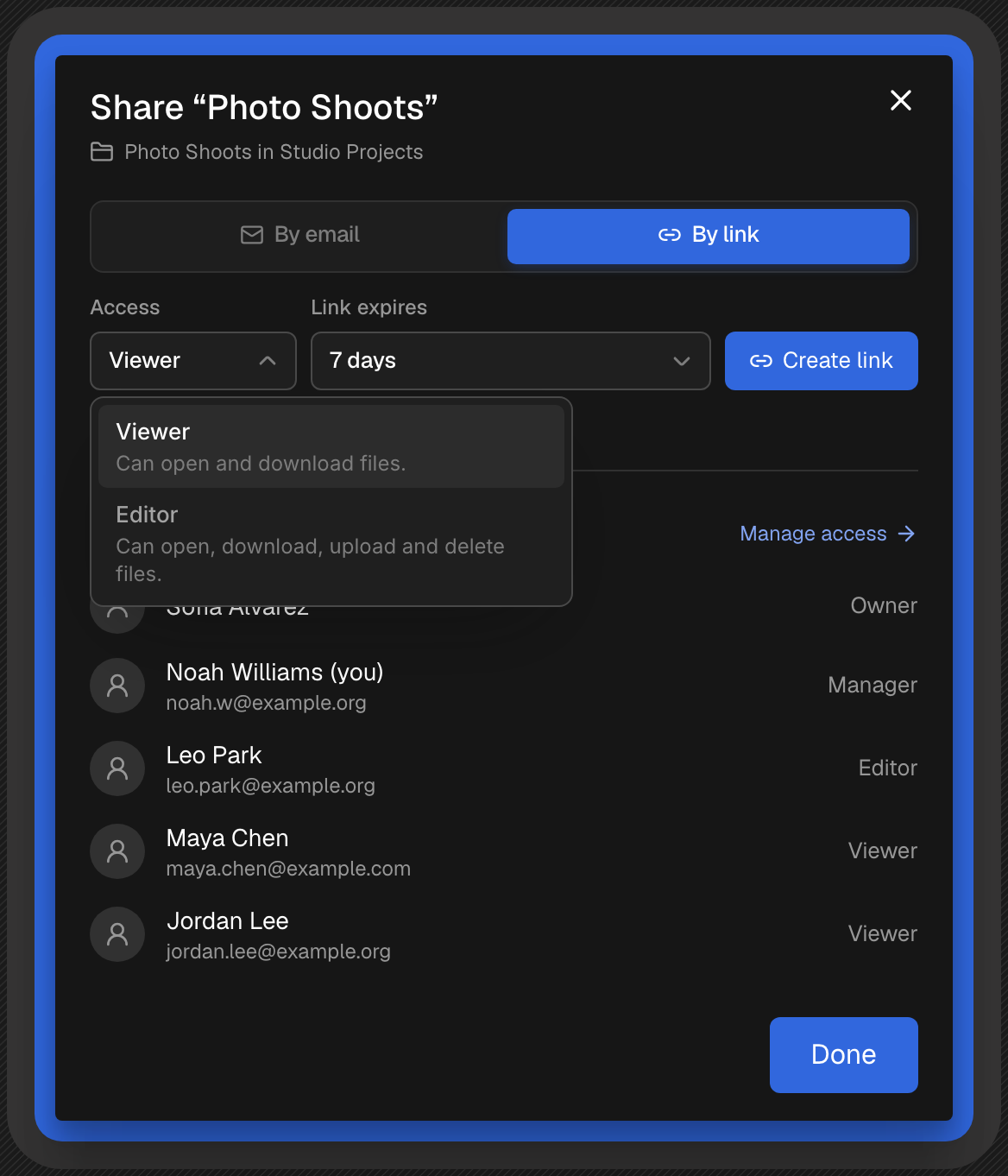
The person you invite sees that folder and everything inside it, and nothing else. They don't see the rest of the drive, or even its name. An Editor can upload, rename and delete files inside the folder, but can't touch anything outside it.
A few things work differently for a folder:
- Each folder invite is for one person. An email invite goes to one address, and a folder link works once, for the first person who opens it, and lasts up to 30 days. Make one link per person.
- People who have the whole drive can open the folder too. They appear in the folder's list, but you manage their access on the drive.
A folder shared on its own gets its own Shared mark and its own Manage access, which lists only the people who have that folder. The drive itself only shows as shared once you share the whole drive.
There is no way to change someone's role on a single folder in place. To give them different access, remove them and invite them again.
Inviting People by Email
An email invite is for one person and works once. It lasts 7 days when you send it from the console. In the Share dialog, stay on By email, type an address, pick Viewer or Editor, and press Send invite. You can invite to a whole drive or to a single folder this way.
If your files are locked, the console asks for your unlock password first, then sends the invite. That's because the drive's key is packed into the invite for the person you're inviting, and only you can open that key. Cancel, and nothing is sent: the address stays in the box.
The email itself carries no key, so a forwarded invite is useless to anyone else. What happens next depends on whether the person already uses Hippius:
- They already have a Hippius account. They open the link in the email, sign in with the same address the invite was sent to, and join straight away. Nobody on your side needs to be online.
- They're new to Hippius. They create an account with that address, then wait a moment on the invite page. The drive key is delivered the next time your console is open and unlocked, or the Hippius desktop app is signed in. A Manager's console or app can deliver it too.
Once they have opened the invite, their row in your Share dialog says Opened. If it's waiting and you want to let them in right now, open it in the Share dialog or in Manage access and press Approve.
To add a Manager, invite them as an Editor, then change their role once they have joined. Email invites can't make someone a Manager.
To keep invites from being used for spam, there's a limit on how many you can send in an hour and in a day, and on how often you can invite the same address in one day. If you reach it, the console tells you how long to wait.
Sharing With an Invite Link
An invite link lets in whoever opens it, until it expires or is used up. On the By link tab, pick the role and how long the link lasts, then press Create link. The console copies the link for you. You can copy it again from the dialog, or from Manage access later on, and Create another link makes a fresh one.
| Link | Who it lets in | How long it lasts |
|---|---|---|
| Viewer or Editor link to a drive | Up to 50 people | 24 hours, 7 days, 30 days, or never expires (it works until you revoke it) |
| Manager link to a drive | One person | 24 hours |
| Link to a single folder | One person | 24 hours, 7 days or 30 days |
Manager and folder links are single use on purpose: they give a lot away, so each one is meant for one named person. If you want several Managers, invite them as Editors and change their role afterwards.
Anyone holding the full link can join. The part after the # carries the drive's key. Your browser never sends that part to any server, and the console removes it from the address bar as soon as the page loads. Send the link only to the people it is meant for, and revoke it when you no longer need it.
You can revoke any link from Manage access, and it stops working at once. People who already joined through it keep their access until you remove them.
Joining a Shared Drive
Joining is free on every plan, including Free, because the owner pays for the storage. You need a Hippius account, and creating one is free too.
From an invite link
Open the link, sign in to Hippius (or create an account), and press Join drive (or Join folder). You land inside the drive straight away.
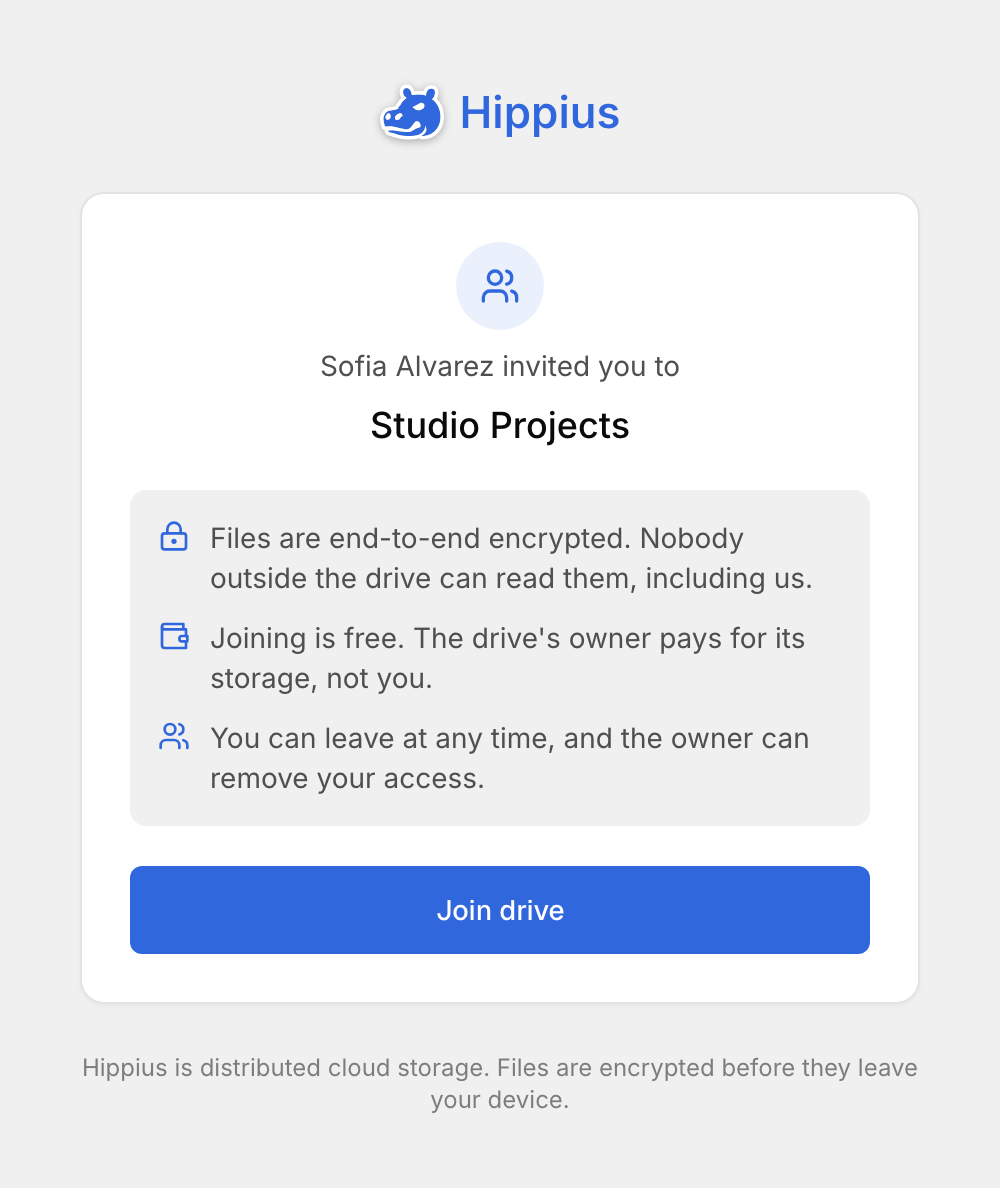
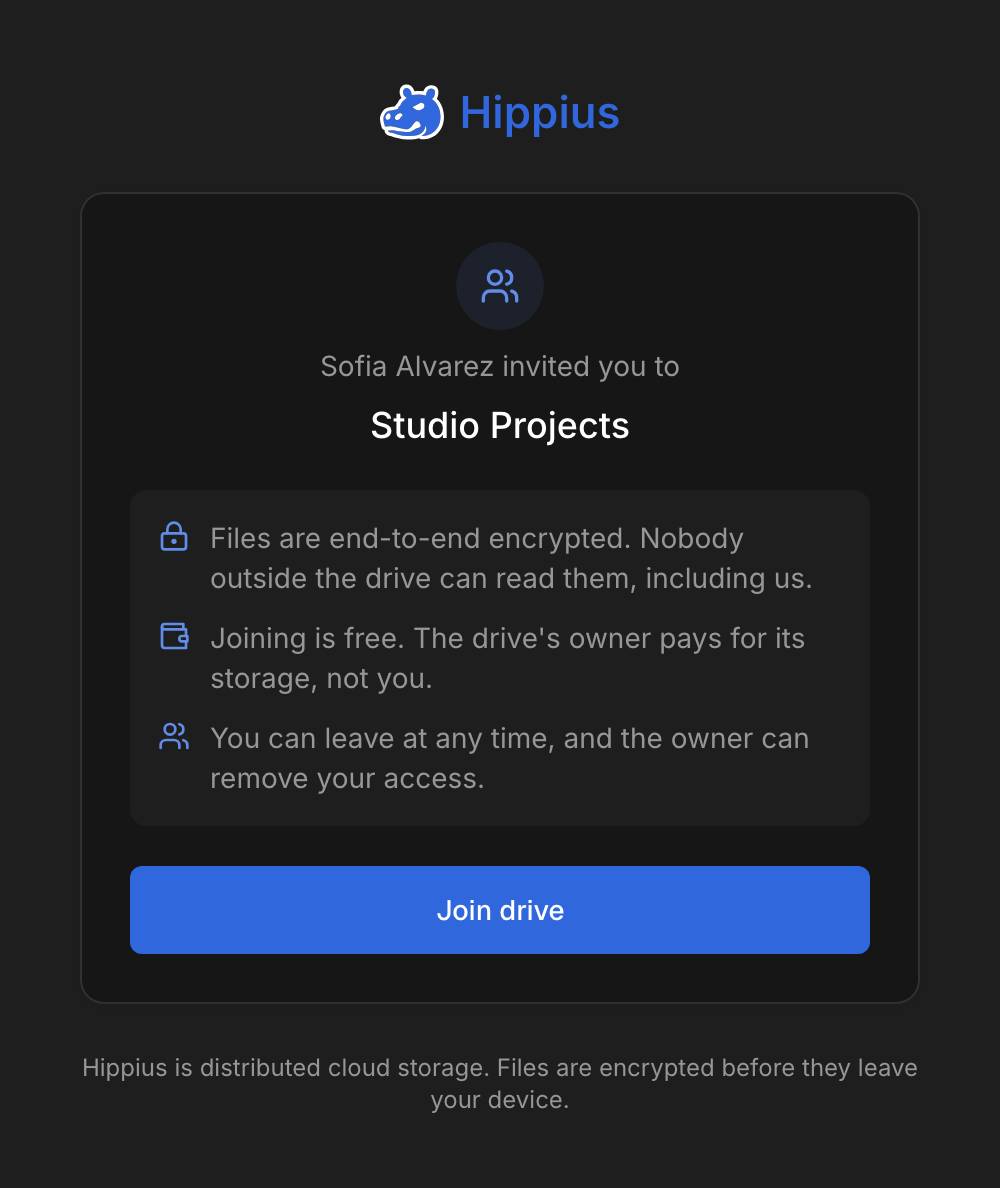
Your files in Hippius are protected by your unlock password, and joining keeps your access to the drive under it too. If your account doesn't have an unlock password yet, the console asks you to set one first. See Unlock Password.
From an email invite
Open the link in the email and sign in with the address it was sent to. If you sign in with a different one, the console tells you the invite was sent to a different address, and the invite stays waiting for the right account.
The console then asks for your unlock password, and in most cases you join straight away: the person who invited you already packed the drive key into the invite for you.
If you only just created your account, the page may say Waiting to join instead. Keep it open and you join as soon as the owner's (or a Manager's) console or desktop app delivers the drive key. You can also close it and come back to the same link later.
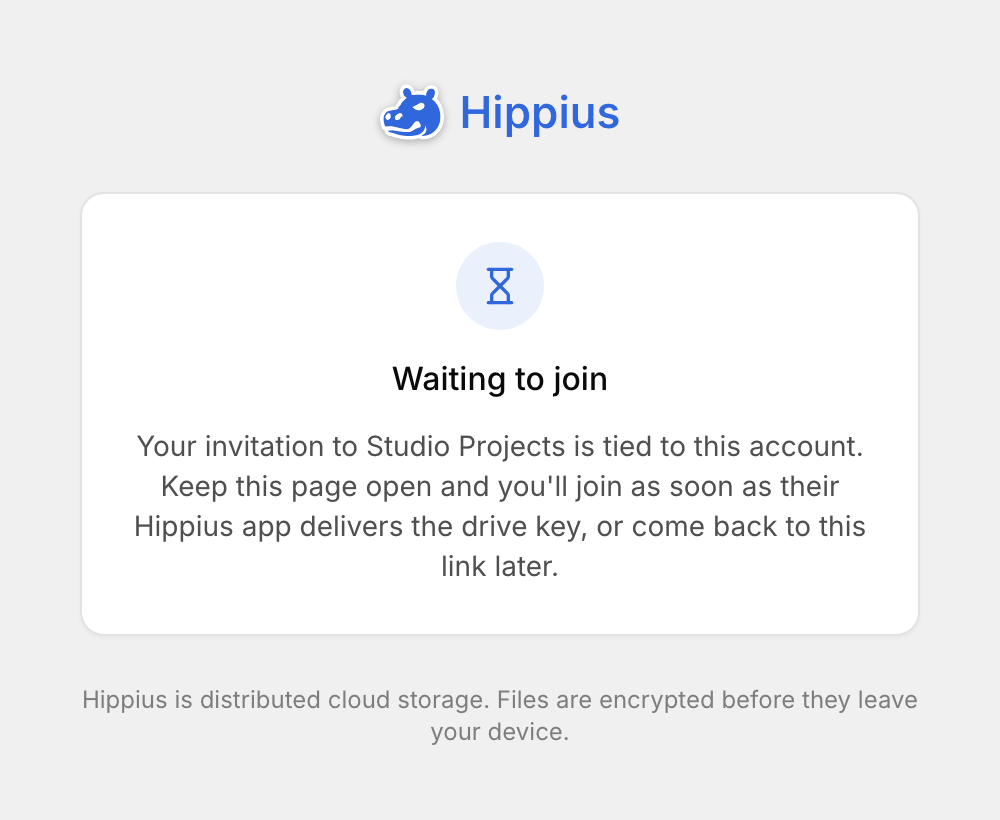
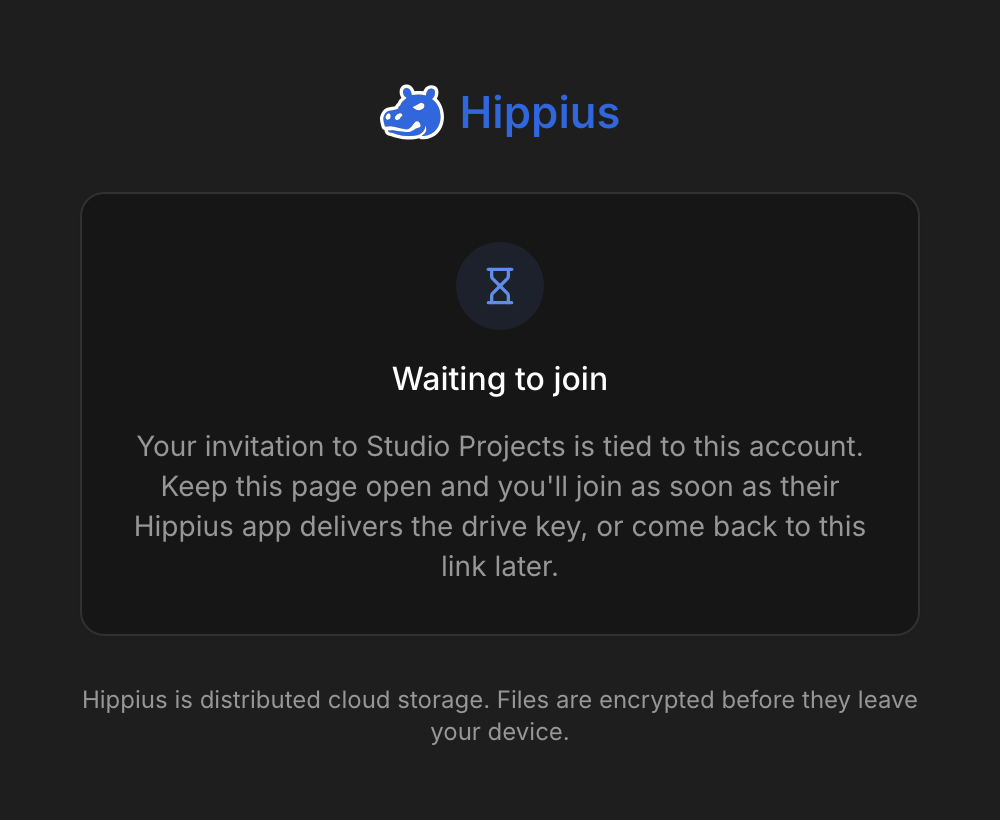
Accounts that sign in with an access key have no email address on file, so they can't accept an email invite. Ask the person who invited you for an invite link instead.
Working in a Shared Drive
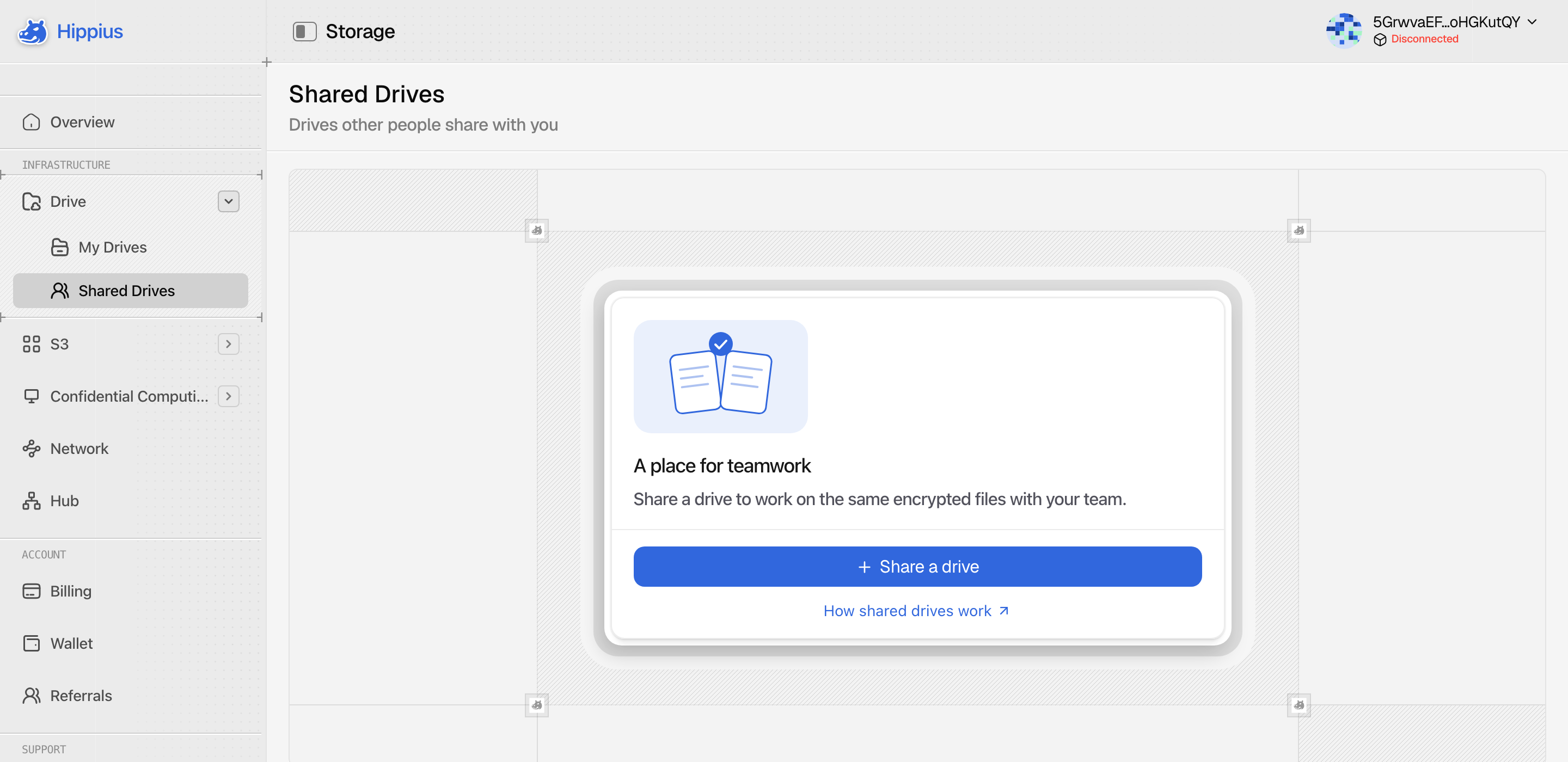
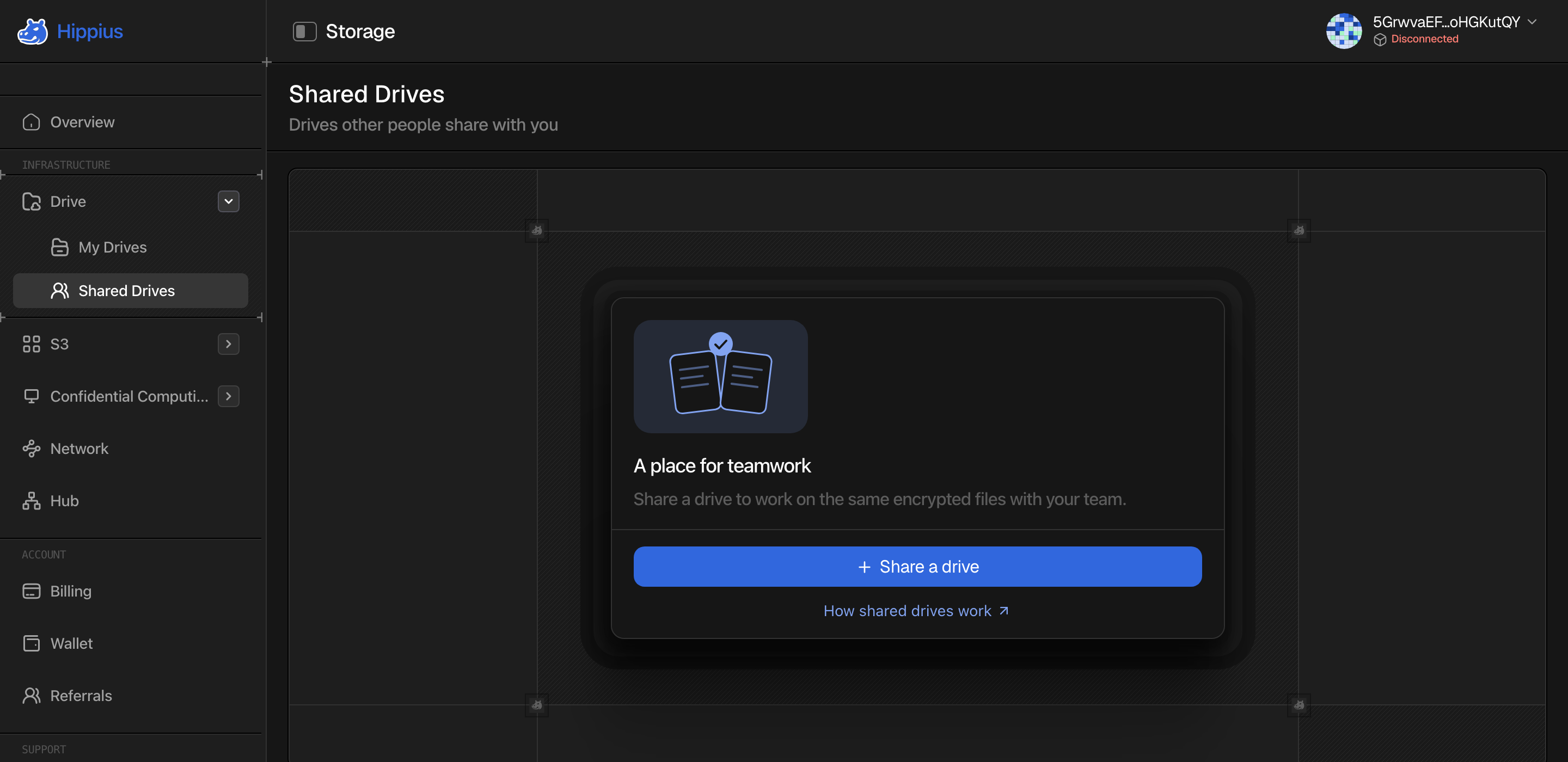
Drives and folders shared with you live under Drive → Shared Drives in the sidebar. The page is always there. Until someone shares with you, it explains what shared drives are and offers Share a drive so you can start one yourself.
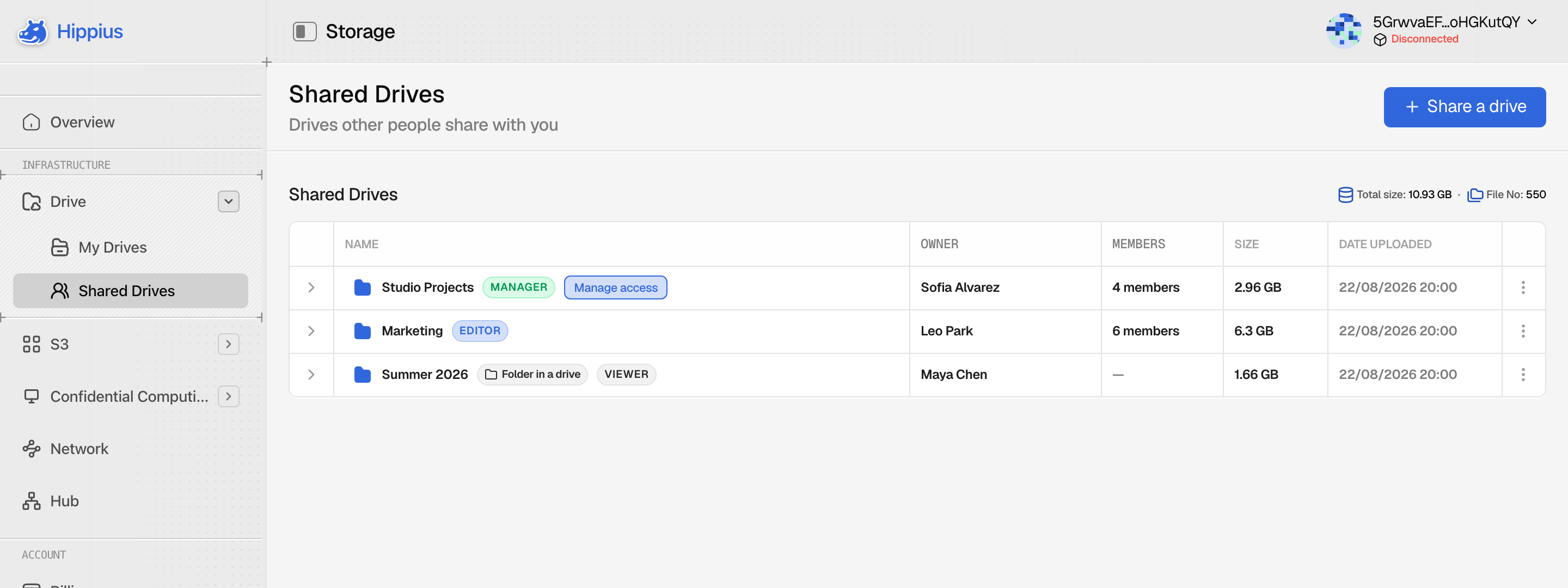
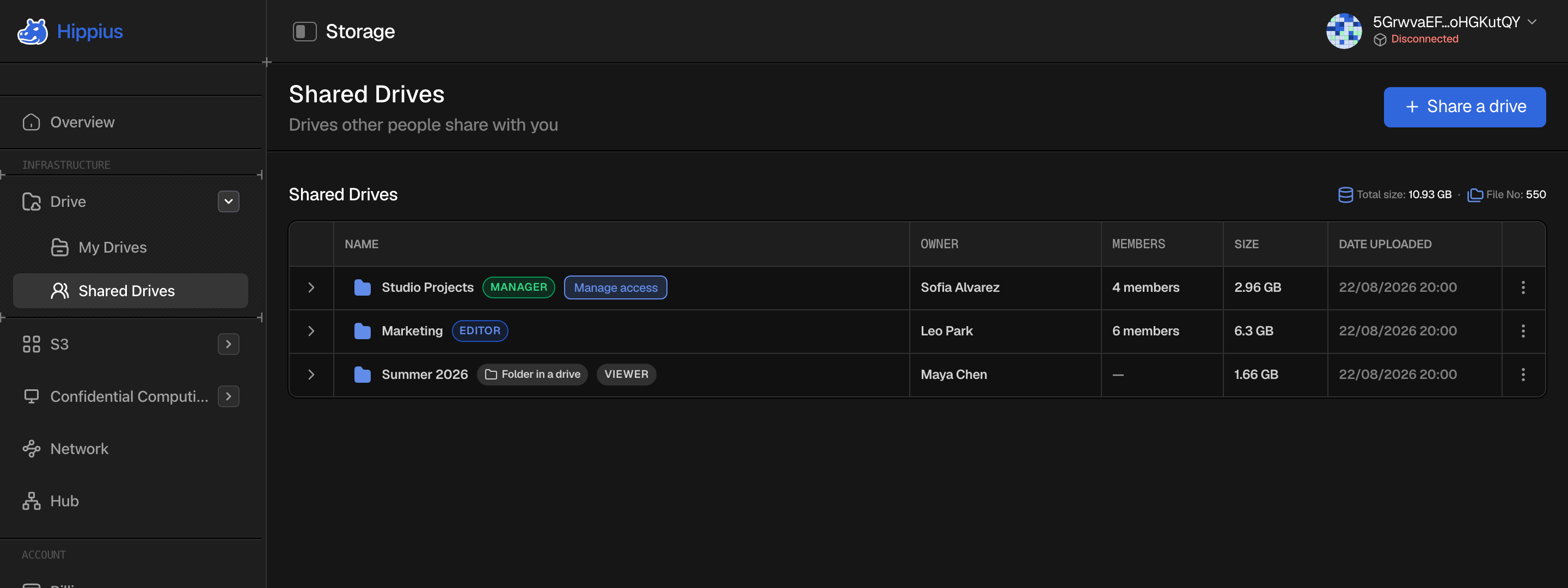
Each row shows who owns it, how many people are in it, its size and your role there. Two people can both have a drive called "Design", so the owner is part of how you tell them apart. Your role is shown on the drive, not on every folder inside it, because it covers the whole drive.
A folder shared with you on its own shows up in the same list, marked Folder in a drive. You see that folder and what's inside it, and nothing else. Its size is the size of that folder, and its Members column shows a dash.
Open a shared drive and you get the same file browser as your own Drive, with search, previews and downloads. Uploads, renames and deletes are there if your role allows them. The breadcrumb starts at Shared Drives, so going up takes you back to the list.
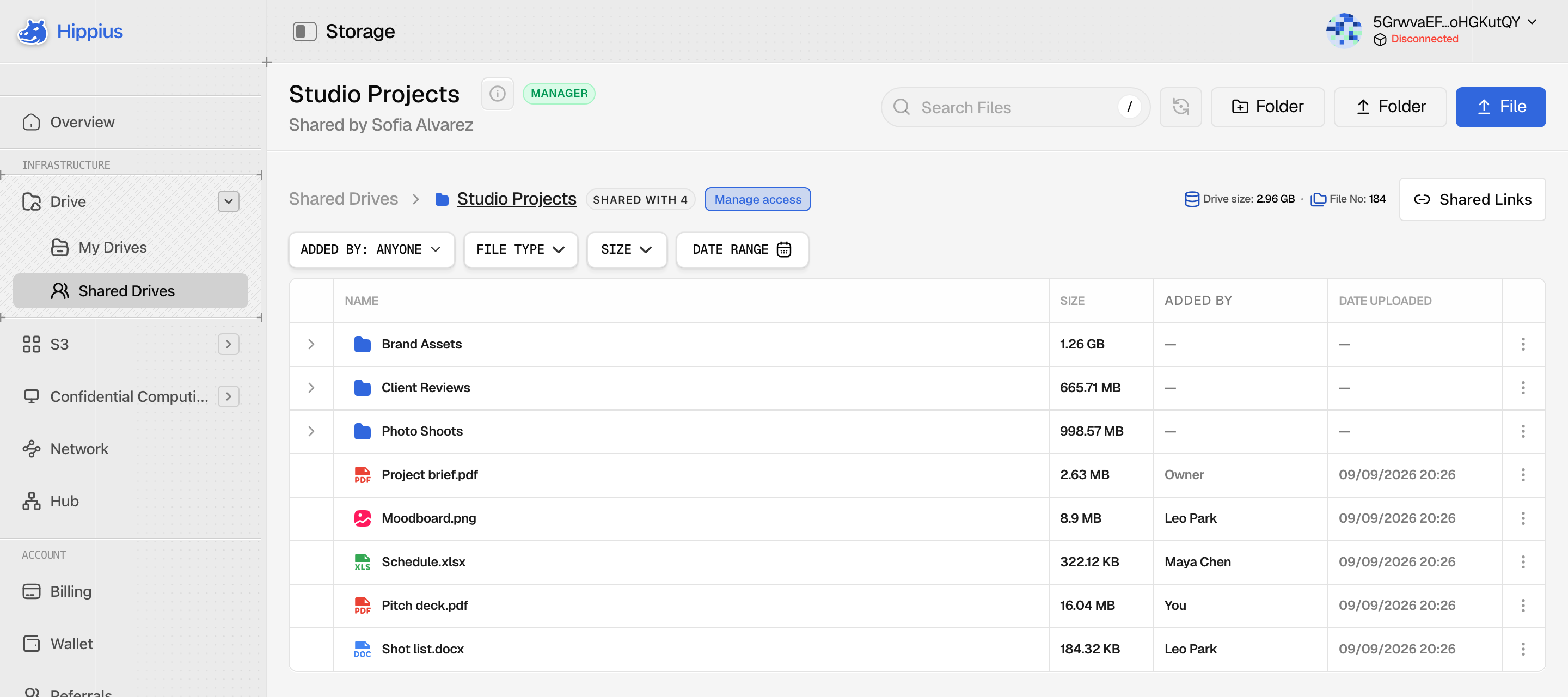
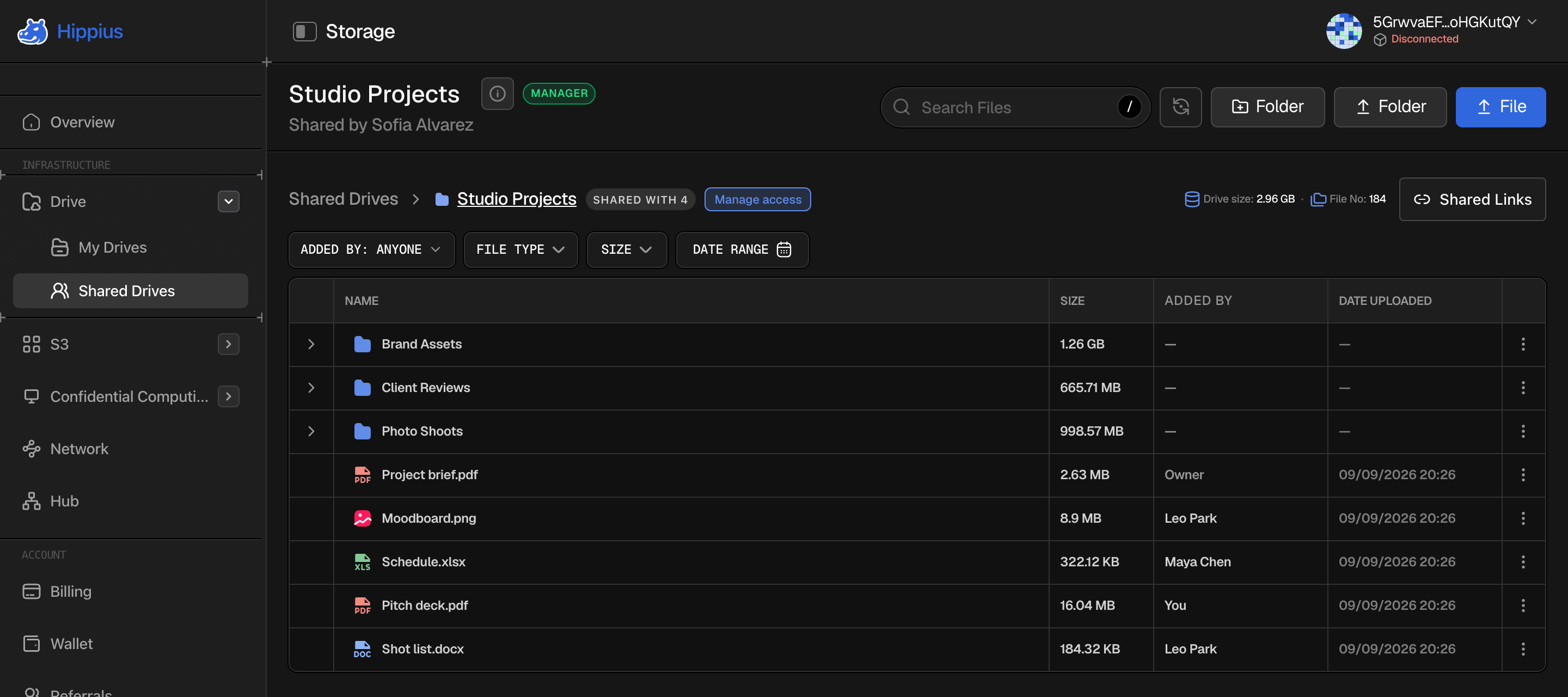
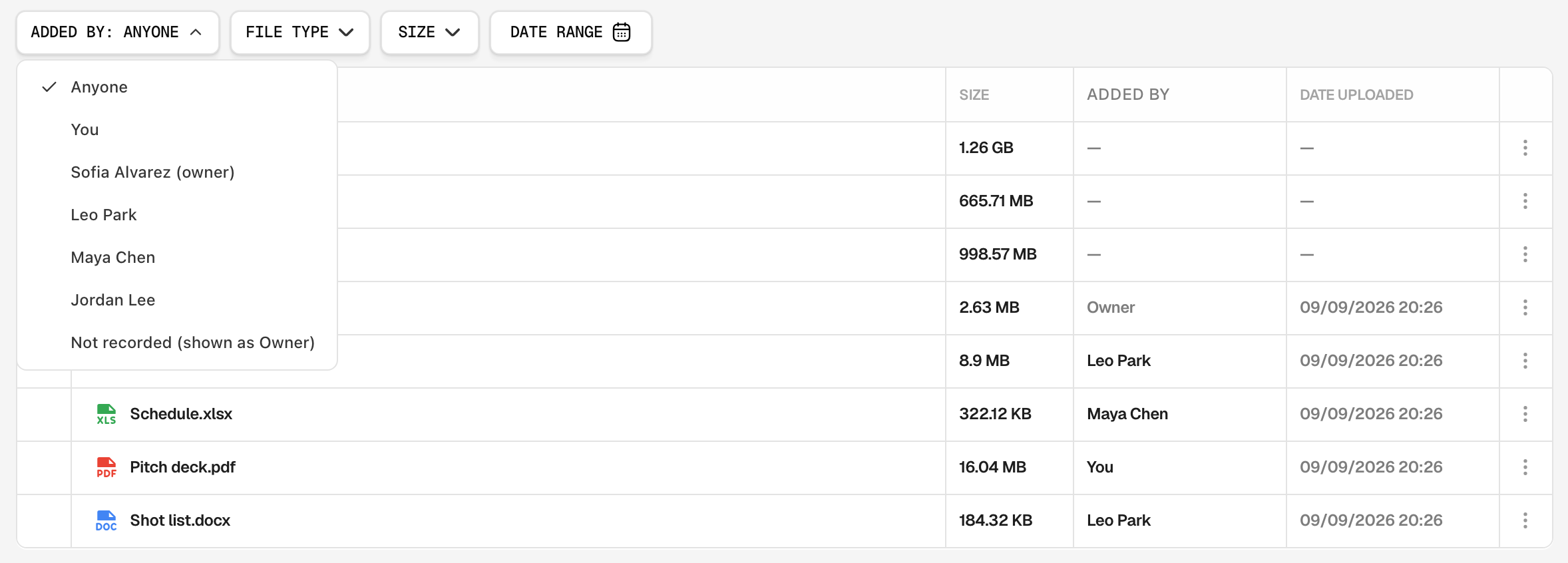
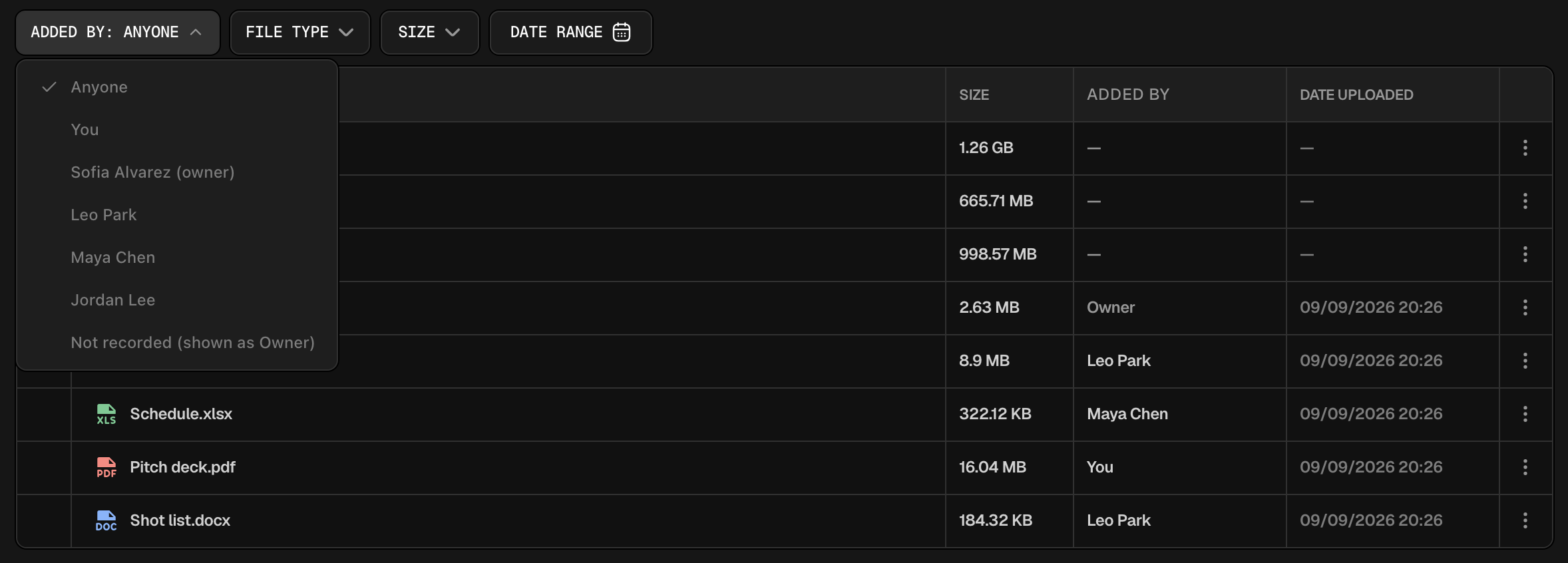
The Added by column tells you who put each file there, by name. Files added before we started recording this show as Owner. To see only one person's files, use the Added by filter above the list: it lists the owner, the members by name, and Not recorded (shown as Owner) for those older files.
Anything you upload to a shared drive is stored in the owner's drive and counts towards their storage, not yours.
If the owner's account runs into a billing limit, the drive becomes read only for everyone, the owner included. You can still open and download files, but nobody can upload until the owner sorts out their billing.
Managing Who Has Access
Open Manage access from the button beside a shared drive's name, from its row menu, or from the Share dialog. It lists everyone who can get in: the people in the drive, invites still waiting, and the links that are still active.
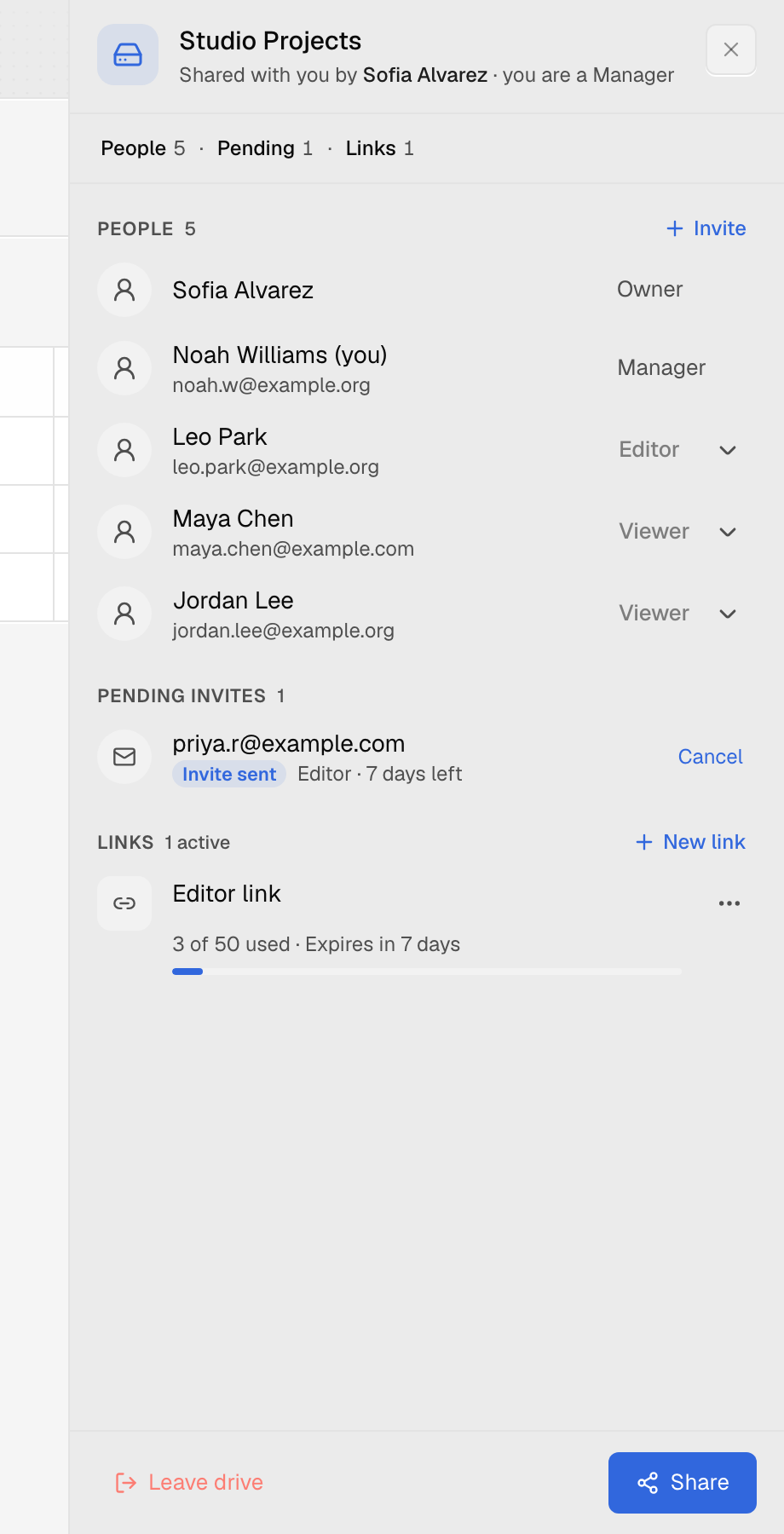
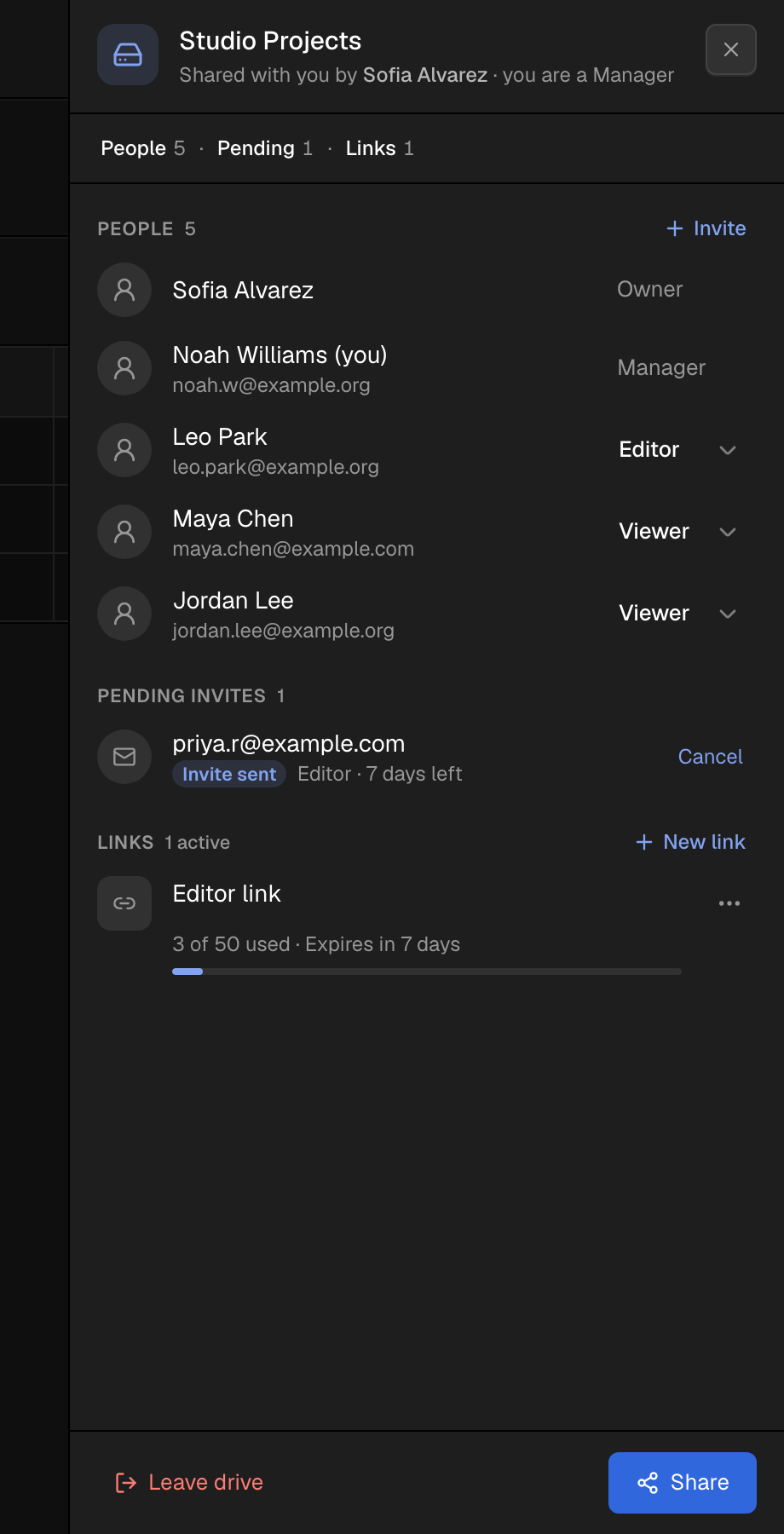
If you own the drive or are one of its Managers, you can:
- Change someone's role with the menu beside their name. A change applies right away.
- Remove someone. They lose access at once, and the drive disappears from their list.
- Cancel an invite that hasn't been accepted, or approve one that is waiting for its key.
- Revoke a link so nobody new can join with it.
- Invite more people with Invite, or make a new link with New link. Each opens the Share dialog on the matching tab.
Removing someone, cancelling an invite and revoking a link each ask you to confirm right there in the row, so you never lose your place.
When you lower someone's role, any invite link that let them in with more access than their new role is revoked too. If you move a Manager to another role, the invite links they created stop working as well, so a spare link can't give them their old access back.
Viewers and Editors can open the same panel to see who else is in the drive, but can't change anything.
Leaving a Drive or Folder
You can leave whenever you like. On the Shared Drives page, open the row's menu and choose Leave drive (or Leave folder), then confirm.
You lose access to everything in it, including anything added later. Files you already downloaded stay on your device. The owner can invite you again if you change your mind.
If the owner or a Manager removes you, the drive disappears from your Shared Drives list, just as if you had left.
Sharing and Your Plan
Sharing a drive or a folder, sending email invites, creating invite links and approving email invites are included with the Plus, Max and Scale Drive plans. See Drive plans.
On Free and Starter, the Share dialog shows an upgrade prompt in place of the tabs that add people, and so does Share a drive on the Shared Drives page. Anyone who already has access keeps it, and you can still see and remove them, so moving to a smaller plan never locks you out of your own drive.
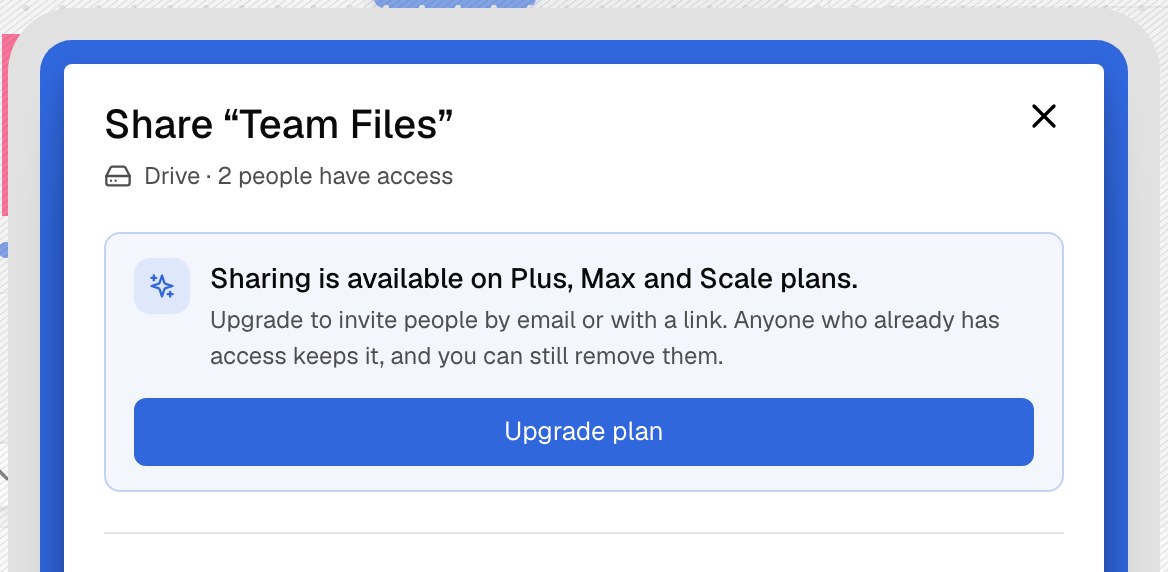
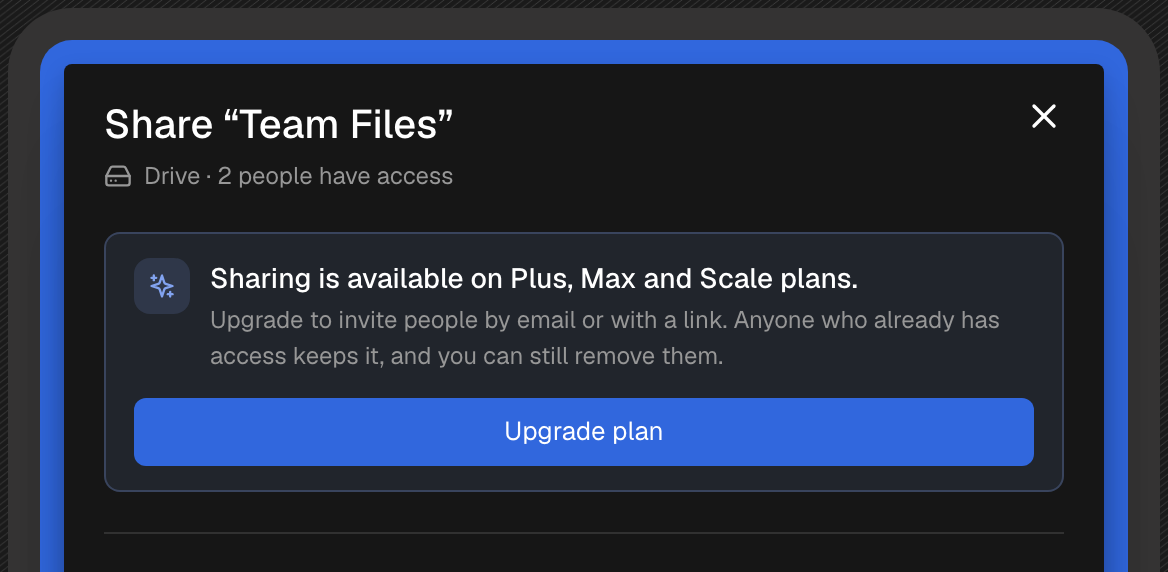
On a drive you manage for someone else, the owner's plan is the one that counts, not yours. If theirs doesn't include sharing, the console tells you no new invites can be made for now, and it's up to the owner to upgrade.
Where to next
- Drive: your own encrypted files.
- Shared Drives in the desktop app: share drives and deliver keys from your computer, and sync drives shared with you.
- Shared Links: share a single file or folder with someone who has no Hippius account.
- Unlock Password: the password that protects your files and your access to shared drives.
- Drive plans: which plans include sharing.